
Real-Time Form Validation with Regex Patterns
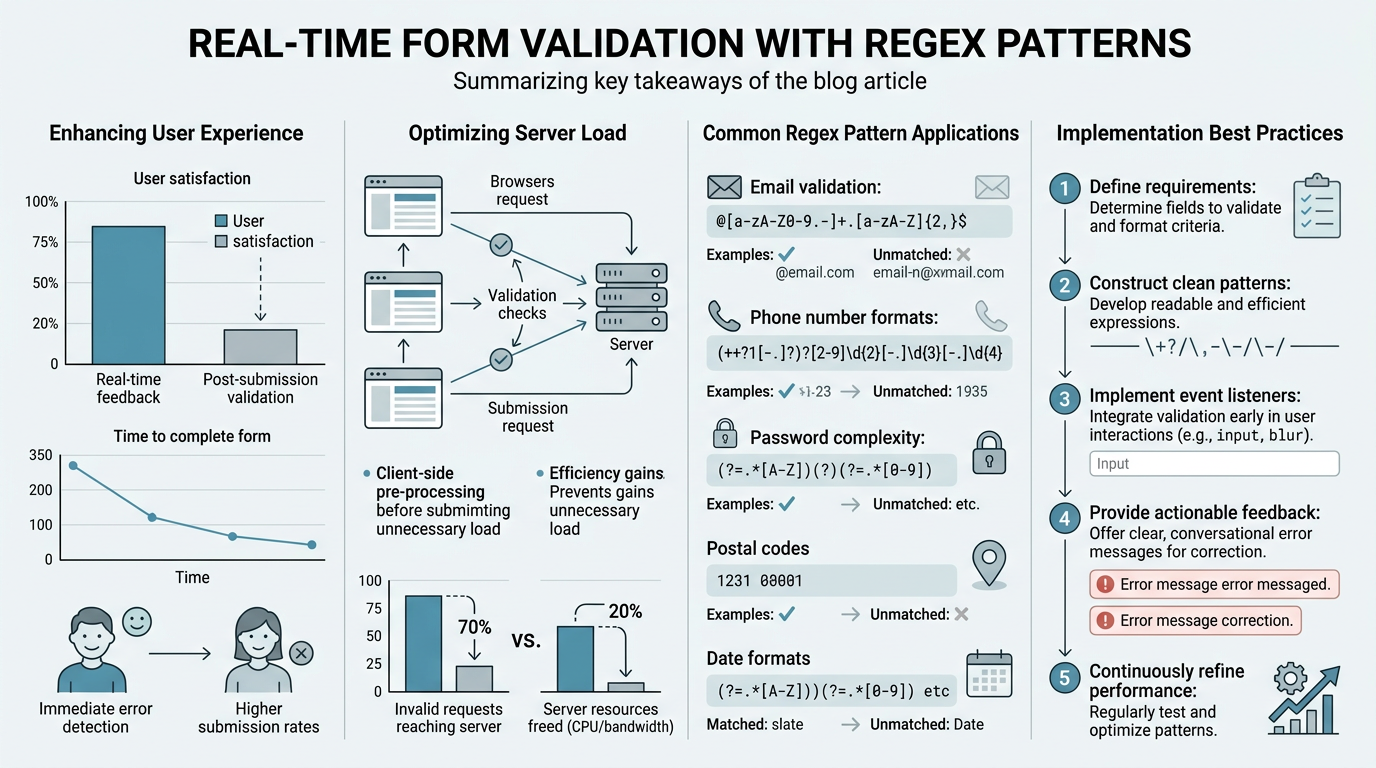
Real-time form validation catches errors as users type, not after submission. Forms with inline validation show 42% fewer errors and 22% lower abandonment rates (Userpeek, 2026). Yet most developers either skip validation entirely or implement it poorly, leaving users confused and frustrated. Regular expressions (regex) offer a lightweight, pattern-based approach to validate formats instantly—email addresses, phone numbers, passwords, and custom fields—without waiting for a server response. The key is knowing which patterns to use, when to apply them, and how to combine client-side validation with server-side checks for security.
Key Takeaways
- Inline validation reduces errors by 42% and abandonment by 22% vs. post-submission checks (Userpeek, 2026)
- Regex patterns validate format only; server-side validation remains essential for security
- Use on-blur validation for most fields to balance user feedback without interrupting typing
- Understanding Regex Basics: Regular expressions are pattern-matching rules that test input strings against expected formats in milliseconds.
- Common Regex Patterns: Email, phone, password, and name patterns with real examples developers can copy and adapt.
- Real-Time Validation Timing: Blur-based validation provides feedback without disrupting the typing experience.
- Client vs. Server Validation: Client-side regex is fast; server-side validation is non-negotiable for security.
- Building a Complete Validation Workflow: Combine HTML5 input types, regex patterns, and backend checks into a cohesive system.
Understanding Regex Basics for Form Validation
A regular expression is a pattern that defines a set of valid string values. Instead of checking for exact matches, regex allows you to describe rules: "letters only," "numbers with hyphens," "email format with @ symbol." The expression is processed by the JavaScript engine in real time, matching input against the pattern and returning true or false instantly.
Regex patterns consist of character classes, quantifiers, and anchors. A pipe character | means "or," brackets [] define character sets, and curly braces {} set repetition counts. For example, /^[a-zA-Z]{3,16}$/ means: start (^) with 3 to 16 letters (a-zA-Z) and end ($). The pattern is wrapped in forward slashes and can include flags like i for case-insensitive matching.
Why Regex Over Other Methods
You could validate email by checking for the @ symbol, but regex allows you to enforce more nuanced rules: required characters before and after @, valid domain extensions, and forbidden special characters. Regex is lightweight—no external libraries required—and executes in the browser instantly, giving users immediate feedback. Compared to HTML5 input types like email and tel, regex offers fine-grained control when browser validation isn't strict enough.
"Regex validation catches typos early and reduces form abandonment, but only when paired with server-side checks. Client-side validation is the user experience layer; server-side validation is the security layer."
When NOT to Rely on Regex Alone
Regex validates format, not deliverability or security. A regex can confirm an email looks like user@example.com, but it cannot verify that the address actually exists or isn't a throwaway account. Similarly, regex cannot prevent SQL injection or cross-site scripting if used on the client side only. Server-side validation is mandatory according to Formflow's form validation best practices guide. Treat all user input as untrusted, even if client-side regex passed it.
Essential Regex Patterns for Common Form Fields

Most forms need the same handful of fields: name, email, phone, password. Below are production-ready regex patterns that work in JavaScript with inline real-time validation. Each pattern has been tested against common valid and invalid inputs.
Email Address Validation
Email format validation is tricky because the RFC 5322 specification allows nearly anything before the @ symbol. A pragmatic approach is a simple pattern that accepts most real-world addresses without breaking on edge cases. Use /^[^\s@]+@[^\s@]+\.[^\s@]+$/ for basic format checks. This confirms: text before @, text after @, and at least one dot in the domain.
A more permissive version is /^[a-zA-Z0-9._%+-]+@[a-zA-Z0-9.-]+\.[a-zA-Z]{2,}$/, which allows common email characters and requires a two-letter top-level domain. Both patterns catch typos and obvious mistakes in real time. However, neither pattern validates that the email is actually deliverable—that requires a backend check (DNS lookup or verification email) or a third-party service. Formspree's email validation guide covers both regex and alternative approaches for more complex workflows.
- Basic pattern: /^[^\s@]+@[^\s@]+\.[^\s@]+$/ — catches missing @ or domain
- Stricter pattern: /^[a-zA-Z0-9._%+-]+@[a-zA-Z0-9.-]+\.[a-zA-Z]{2,}$/ — enforces minimum domain length
- Security note: If you restrict email characters, document why (e.g., to prevent injection payloads)
Phone Number Validation
Phone numbers have no universal format. The United States uses 10-digit numbers with optional formatting (555-123-4567), other countries use different lengths and punctuation. A safe approach is a permissive pattern that accepts digits and common separators. /^[\d\s\-\+\(\)]{10,}$/ allows digits, spaces, hyphens, plus signs, and parentheses with a minimum 10 characters. This pattern is flexible enough for international numbers without rejecting valid formats.
For U.S.-only forms, a stricter pattern like /^\d{10}$/ enforces exactly 10 digits. Avoid over-engineering phone validation—users will provide the format they're accustomed to, and normalization (removing hyphens, spaces) is better done on the backend after validation passes.
- Flexible international: /^[\d\s\-\+\(\)]{10,}$/ — accepts most formats
- U.S. 10-digit: /^\d{10}$/ — strict but simple
- Best practice: Validate format on client; normalize and verify on server
Password Strength Validation
A strong password must have length, uppercase, lowercase, and at least one number. The pattern /^(?=.*[A-Za-z])(?=.*\d)(?=.*[@$!%*#?&])[A-Za-z\d@$!%*#?&]{8,}$/ requires 8+ characters, at least one letter, one digit, and one special character. This pattern uses lookaheads (?=...) to enforce each rule without consuming characters.
A simpler version, /^(?=.*[a-zA-Z])(?=.*\d)[A-Za-z\d]{8,}$/, requires letters and digits but no special characters. Choose based on your security posture. Display password strength feedback in real time to guide users toward compliant passwords without frustration.
- Strict (8+ chars, letter, digit, special): /^(?=.*[A-Za-z])(?=.*\d)(?=.*[@$!%*#?&])[A-Za-z\d@$!%*#?&]{8,}$/
- Standard (8+ chars, letter, digit): /^(?=.*[a-zA-Z])(?=.*\d)[A-Za-z\d]{8,}$/
- Feedback tip: Show a strength meter and explain each requirement as users type
Name Field Validation
Names should contain letters and allow hyphens, apostrophes, and spaces for international characters. /^[a-zA-Z\s\-']{2,50}$/ permits 2–50 characters including letters, spaces, hyphens, and apostrophes. This is strict enough to prevent numbers and symbols but flexible for names like Mary-Jane or O'Connor.
For a more permissive approach, consider adding support for accented characters: /^[\p{L}\s\-']{2,50}$/u (with the Unicode flag). This works for names in Spanish, French, German, and other Latin-script languages.
- ASCII-only: /^[a-zA-Z\s\-']{2,50}$/ — simple, works for English
- International: /^[\p{L}\s\-']{2,50}$/u — supports accented letters
- Minimum length: 2 characters catches obviously fake entries
How Real-Time Validation Works in JavaScript
Real-time validation executes regex patterns as the user types or moves focus away from a field. The timing of validation affects UX significantly. On-blur validation (firing when focus leaves the field) reduces interruption while still providing timely feedback. On-keystroke validation can work for critical fields like password strength indicators, but risks annoying users with premature error messages.
Blur-Based Validation: The UX Gold Standard
When a user leaves a field (blur event), your code runs the regex, displays an error or success message, and lets them move on. This timing avoids interrupting typing and matches user expectations. Here's the pattern:
Attach an event listener to each form field. When the blur event fires, test the value against the regex. If it passes, clear any error message and move on. If it fails, display an inline error message near the field explaining what went wrong. Keep the message plain-language: "Enter a valid email address" beats "Invalid input."
"The best validation timing is when users expect feedback—after they've finished typing a field, not character-by-character. This respects their workflow while catching errors early."
- Blur validation: Non-intrusive; feedback comes after the user finishes input
- On-keystroke validation: Useful only for password strength; avoid for most fields
- On-submit validation: Final backstop; catches anything missed on the client
Combining HTML5 Attributes with Regex
Modern HTML5 form elements have built-in validation. Using type="email", type="tel", required, minlength, and pattern attributes reduces custom JavaScript. A pattern attribute lets you add a regex constraint to any input:
<input type="email" name="email" pattern="^[a-zA-Z0-9._%+-]+@[a-zA-Z0-9.-]+\.[a-zA-Z]{2,}$" required />
The browser enforces the pattern on submit, and your JavaScript can respond to validation state via the checkValidity() method or the invalid event. This layered approach—HTML5 constraints plus JavaScript real-time feedback—gives users instant guidance while maintaining fallback behavior if JavaScript fails.
Building a Reusable Validation Function
Avoid repeating regex checks across multiple fields. Encapsulate patterns in an object and write a single validation function:
Create a patterns object mapping field names to regex rules. Write a validate(fieldName, value) function that retrieves the pattern, tests the value, and returns true or false. Attach blur listeners to each field that call this function and update the DOM. This approach keeps your code DRY and makes adding new fields trivial.
Client-Side vs. Server-Side Validation: The Complete Picture

Client-side regex validation is fast and improves UX, but it is not a security control. Users can disable JavaScript, bypass the browser, or use developer tools to submit invalid data directly. Server-side validation is non-negotiable for any form that stores data or takes action. The two must work together in a hybrid validation model: client-side for speed and UX, server-side for security and authority.
Client-Side: Speed and User Experience
JavaScript regex validation executes in milliseconds, giving users instant feedback. Email, phone, password strength—all validated in real time as the user types or moves between fields. This catches typos early and reduces form abandonment. However, client-side validation cannot verify that an email actually exists, that a phone number is active, or that a username isn't already taken. It also cannot prevent attacks unless paired with server-side enforcement.
- Fast: Regex runs in the browser instantly
- Lightweight: No external libraries needed
- Interactive: Real-time feedback improves UX
- Limited: Cannot verify deliverability, existence, or business rules
- Bypassable: JavaScript can be disabled or manipulated
Server-Side: Security and Authority
Your backend receives the form submission and re-validates every field. Even if client-side regex passed, the server treats the input as untrusted. Validate format again, check business rules (Is this email already registered? Is the username available?), sanitize the data, and store it safely. If validation fails on the server, return a clear error message and ask the user to correct the data. This flow ensures data integrity and prevents malicious submissions.
- Authoritative: Server-side checks cannot be bypassed
- Contextual: Can verify uniqueness, business rules, and external lookups
- Secure: Sanitized data is stored; injection attacks prevented
- Slower: Requires a network round trip
- Necessary: Essential for any form that stores or acts on data
The Hybrid Workflow
A production form implements both layers. User fills out the form. JavaScript listens for blur events and validates each field with regex, showing inline errors if needed. When the user submits, the browser also checks HTML5 validation rules (required, pattern, etc.). If client-side checks pass, the form sends the data to the server. The backend re-validates every field, applies business logic, and either confirms the submission or returns detailed errors for the user to fix. This approach balances UX (real-time feedback) with security (server-side enforcement).
For developers building static sites without backend infrastructure, FormBeam handles submission backend logic automatically, letting you focus on client-side UX while the platform ensures secure storage and email notifications. This eliminates the need to build and maintain your own backend validation and storage.
Error Messages That Actually Help Users
The difference between a good form and a frustrating one often comes down to error messaging. Generic errors like "Invalid input" leave users confused. Specific, plain-language messages tell them exactly what went wrong and how to fix it.
Writing Clear, Actionable Error Text
Instead of: "Email validation failed."
Write: "Enter an email address like user@example.com."
Instead of: "Password requirements not met."
Write: "Password must contain at least 8 characters, one letter, and one number."
Place the error message directly below or beside the field that failed. Use a distinct color (red is standard) paired with an icon—never color alone, because color-blind users won't see the difference. Keep the message visible until the field is corrected. Avoid jargon: users don't care about regex; they care about what they need to do.
- Specific: Name what's wrong, not just that something is wrong
- Prescriptive: Tell the user how to fix it
- Visible: Place near the field; use color + icon
- Plain language: No technical jargon
- Encouraging: Tone matters—help, don't scold
Success States and Feedback
Don't just show errors. When a field passes validation, show a subtle success indicator—a checkmark or green border. This positive feedback reinforces progress and builds user confidence. Forms with positive feedback show 31% higher satisfaction rates. For password fields, display a strength meter that updates in real time, showing how many requirements the user has met. This transforms validation from a gate-keeping exercise into a collaborative process.
Building a Complete Real-Time Validation System

Putting it all together: HTML structure, regex patterns, event listeners, error display, and server-side follow-up. Here's how a production form validation system works from start to finish.
| Validation Layer | Purpose | Speed | Security | Best For |
|---|---|---|---|---|
| Client-side Regex | Real-time format feedback | Instant (milliseconds) | No—bypassable | User experience, typo detection |
| HTML5 Validation | Browser-native constraint enforcement | Instant | No—bypassable | Fallback when JavaScript disabled |
| Server-side Regex & Logic | Authoritative validation and business rules | Network latency | Yes—cannot be bypassed | Data integrity, uniqueness checks, security |
| Sanitization & Storage | Injection prevention and safe persistence | Network latency | Yes—prevents attacks | Database safety, compliance |
Step 1: Structure Your HTML
Use semantic HTML5 input types and add a pattern attribute for each field that needs regex validation. Wrap error messages in dedicated containers styled to be hidden by default.
Each field gets a data attribute or class marking its type (email, phone, password). This lets your JavaScript automatically apply the right pattern without hard-coding rules per field. Include a required attribute for mandatory fields, which works across static sites and backend forms alike.
Step 2: Define Regex Patterns and Validation Rules
Create a JavaScript object mapping field names to their validation rules. Include the regex pattern, an error message, and any HTML5 attributes (minlength, maxlength). This centralized approach makes maintenance easy and prevents copy-paste errors.
Step 3: Attach Event Listeners
Loop through all form fields and attach a blur event listener to each. When the user leaves a field, call your validation function. If the field fails, display the error message and add an error class to the field (e.g., aria-invalid="true") for styling. If it passes, clear the error and add a success class.
Step 4: Handle Form Submission
When the user clicks submit, run the browser's built-in checkValidity() method. If any field fails, prevent submission and focus the first invalid field. If all fields pass client-side checks, send the data to your backend.
Step 5: Server-Side Validation and Response
The backend re-validates every field using the same rules (ideally). If validation passes, process the submission. If it fails, return a JSON response listing which fields are invalid and why. Your JavaScript receives this response and displays the field-level errors to the user, who can correct and resubmit.
For indie developers and small teams building static sites without backend infrastructure, FormBeam handles the entire backend submission workflow automatically, eliminating the need to write server-side validation code.
Security Considerations for Regex-Based Validation
While regex itself isn't a security tool, how you use it can improve or harm security. A few key principles prevent common mistakes.
Regex Is Not an Authorization Control
Regex validates format, not authority. Just because an email address matches the expected pattern doesn't mean the user is authorized to use it. A user could submit another person's valid email address. Your backend must verify ownership, typically by sending a confirmation email. For sensitive actions (changing a password, updating billing), re-authenticate the user regardless of client-side validation.
Avoid Overly Permissive Patterns
A regex that accepts too many characters or formats can inadvertently allow payloads that bypass other security checks. If you restrict input to specific characters (e.g., alphanumeric plus hyphen), document why. For email, avoid custom character sets that might exclude valid international addresses. Stick to the RFC standard or use a well-tested library like Geeksforgeeks validation patterns.
"Server-side sanitization is not optional. Even if a field passes your regex on the client, treat it as untrusted input. Use parameterized queries, escape special characters, and never trust client-side validation for security."
Server-Side Sanitization Is Mandatory
Even if a field passes your regex, treat it as untrusted. Sanitize special characters, escape quotes, and use parameterized queries (prepared statements) if interacting with a database. This prevents injection attacks even if a malicious user somehow bypasses client-side validation. Most form backends handle sanitization automatically; FormBeam, for instance, sanitizes and securely stores all submissions, removing this burden from your code.
Conclusion
Real-time form validation with regex patterns significantly improves user experience and data quality. By combining lightweight client-side regex checks with server-side validation, you catch errors early while maintaining security. Forms with inline validation show 42% fewer errors and 22% lower abandonment (Userpeek, 2026)—a measurable outcome that justifies the implementation effort.
Start with simple, production-ready patterns: basic email format, flexible phone numbers, strong password constraints, and name validation. Use on-blur timing to avoid interrupting users. Pair every client-side check with a server-side re-validation. Write error messages that guide, not scold. And remember: regex validates format only. Deliverability, security, and business logic enforcement belong on the backend. If you're building forms on static sites, skip the backend infrastructure entirely. Try FormBeam to handle submission storage, validation, spam filtering, and email notifications with one line of embedded code. Focus on frontend UX; the backend is handled.
FAQs
What regex pattern should I use to validate email addresses?
Use /^[^\s@]+@[^\s@]+\.[^\s@]+$/ for a simple format check that requires an @ symbol, text before and after it, and at least one dot in the domain. A more detailed pattern, /^[a-zA-Z0-9._%+-]+@[a-zA-Z0-9.-]+\.[a-zA-Z]{2,}$/, enforces a minimum two-letter top-level domain and restricts characters to common email characters. Both patterns catch obvious typos in real time, but neither verifies that the email is actually deliverable—backend verification or a third-party service is needed for that. For most web forms, the simpler pattern is sufficient and less likely to reject valid addresses.
Can regex validation replace server-side validation?
No. Regex validates format only and executes in the browser, where users can disable JavaScript or manually bypass it. Server-side validation is essential for security and data integrity. Always re-validate every field on the backend, even if client-side regex passed. Server-side checks also enforce business logic (Is this email already registered? Is the username available?) and prevent injection attacks. Use client-side regex for speed and UX; use server-side validation for authority and security. Treat all user input as untrusted, regardless of where it came from.
When should I use on-blur validation versus on-keystroke validation?
Use on-blur validation for most fields. It provides timely feedback without interrupting typing, which improves user experience and reduces frustration. On-keystroke validation can work for specific cases like password strength meters, where real-time feedback is expected and helpful. Avoid keystroke-by-keystroke error messages for fields like email or phone—users find it annoying to see an error message appear while they're still typing. Always include a final validation check on form submission to catch any fields that weren't validated via blur.