
Reducing Form Friction: UX Patterns That Boost Conversion
Form abandonment is one of the most costly hidden leaks in your conversion funnel. 34% of users who start a form abandon it before completion, and another 55% never engage with your form at all. The culprit isn't usually traffic quality or offer appeal—it's friction. Every extra field, every confusing label, every unnecessary step between "I want to convert" and "I've submitted" creates resistance that bleeds leads. The good news: reducing form friction is one of the highest-ROI optimizations available, and it doesn't require a complete redesign. Small, deliberate UX changes compound into meaningfully better conversion rates.
Key Takeaways
- 66% of users who start a form complete it, meaning form friction costs you roughly one-third of potential conversions (2026, Fluentforms)
- Mobile conversion rates lag desktop by 42%, largely due to form complexity and touch target friction
- The two highest-impact changes are removing non-essential fields and implementing multi-step progressive disclosure
Quick-Scan Overview: Friction-Reducing Patterns
- Field Reduction: Removing unnecessary fields lowers abandonment and improves completion rates, especially on mobile where friction compounds.
- Progressive Disclosure: Revealing form fields conditionally or step-by-step reduces cognitive load and perceived complexity.
- Mobile-First Design: Single-column layouts, larger touch targets (44×44 pixels minimum), and reduced clutter dramatically improve mobile conversions.
- Validation and Error Handling: Clear, inline error messages that guide users to fix mistakes without form resets prevent rage abandonment.
- Default Values and Smart Autofill: Pre-populated fields and smart defaults reduce typing burden and friction, especially on slower mobile connections.
- Visual Hierarchy and Labels: Specific, unambiguous field labels paired with clear benefit statements increase clarity and reduce hesitation.
How Does Form Friction Drive Abandonment?
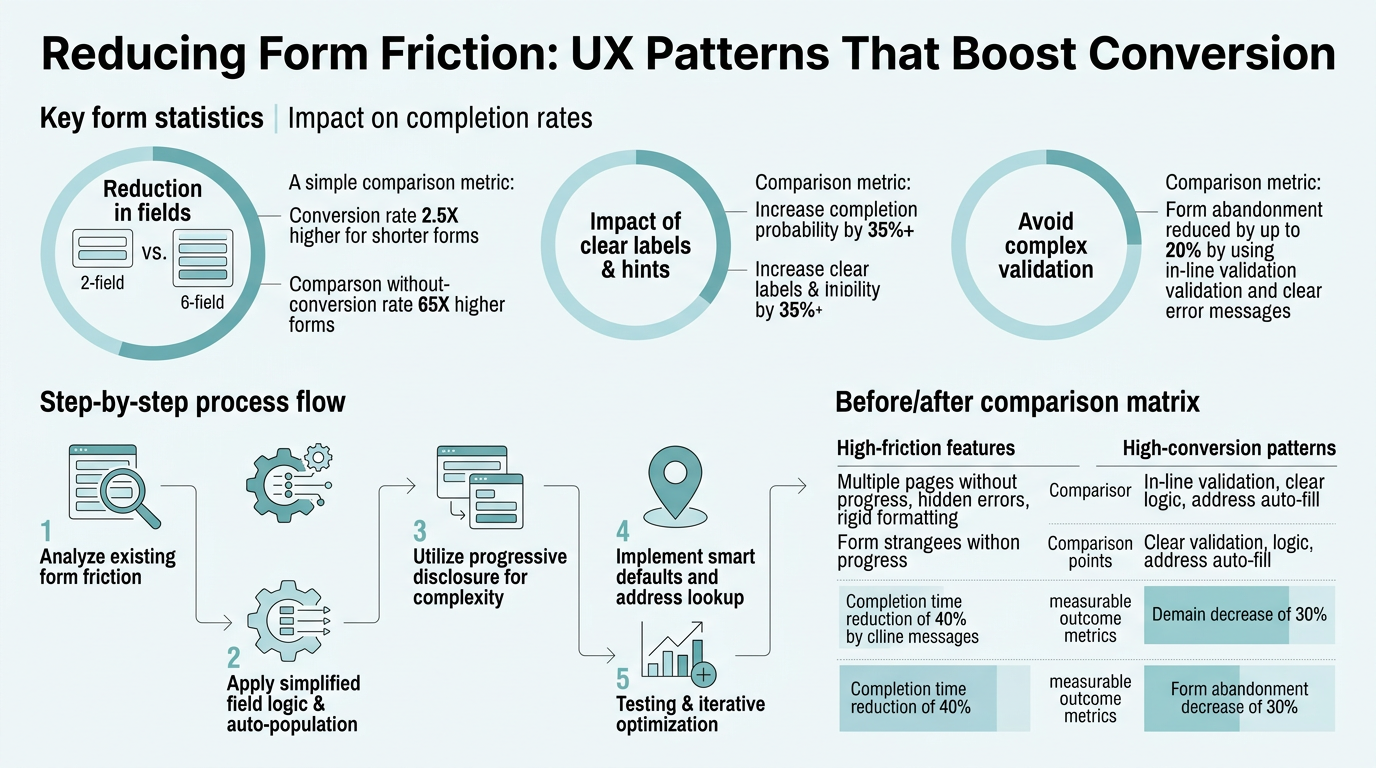
Form friction isn't a single problem—it's a cumulative experience. Every microsecond delay, every confusing instruction, every unexpected field adds friction that compounds into abandonment. 66% of users who start a form complete it, but only 45% of people who visit a form ever begin filling it out. That gap reveals the real cost of friction: many visitors decide not to even try before they type a single character.
"Form abandonment is rarely about the offer. It's about the experience. Users who encounter friction abandon silently—no feedback, no second chances. They simply close the tab and move to a competitor." — Conversion Rate Optimization Industry Analysis, 2025
Friction manifests in three distinct ways:
- Structural friction comes from asking for too much information upfront—a 12-field contact form when you only need email and company name.
- Cognitive friction emerges from confusing language, vague labels, or instructions that make users stop and think.
- Interaction friction includes poor touch targets on mobile, slow form loading, unclear progress indicators, or clunky error messages.
Mobile users face all three simultaneously: smaller screens, slower connections, and smaller touch targets amplify each pain point.
The stakes are high because form friction affects downstream metrics, not just completion. Professional services forms convert at 4.6%, while B2B ecommerce forms average only 1.8%—a difference driven largely by form complexity and length. When you reduce friction, you don't just get more leads; you get leads with better intent, because high-friction forms naturally filter out casual browsers.
What UX Patterns Reduce Form Friction Most Effectively?
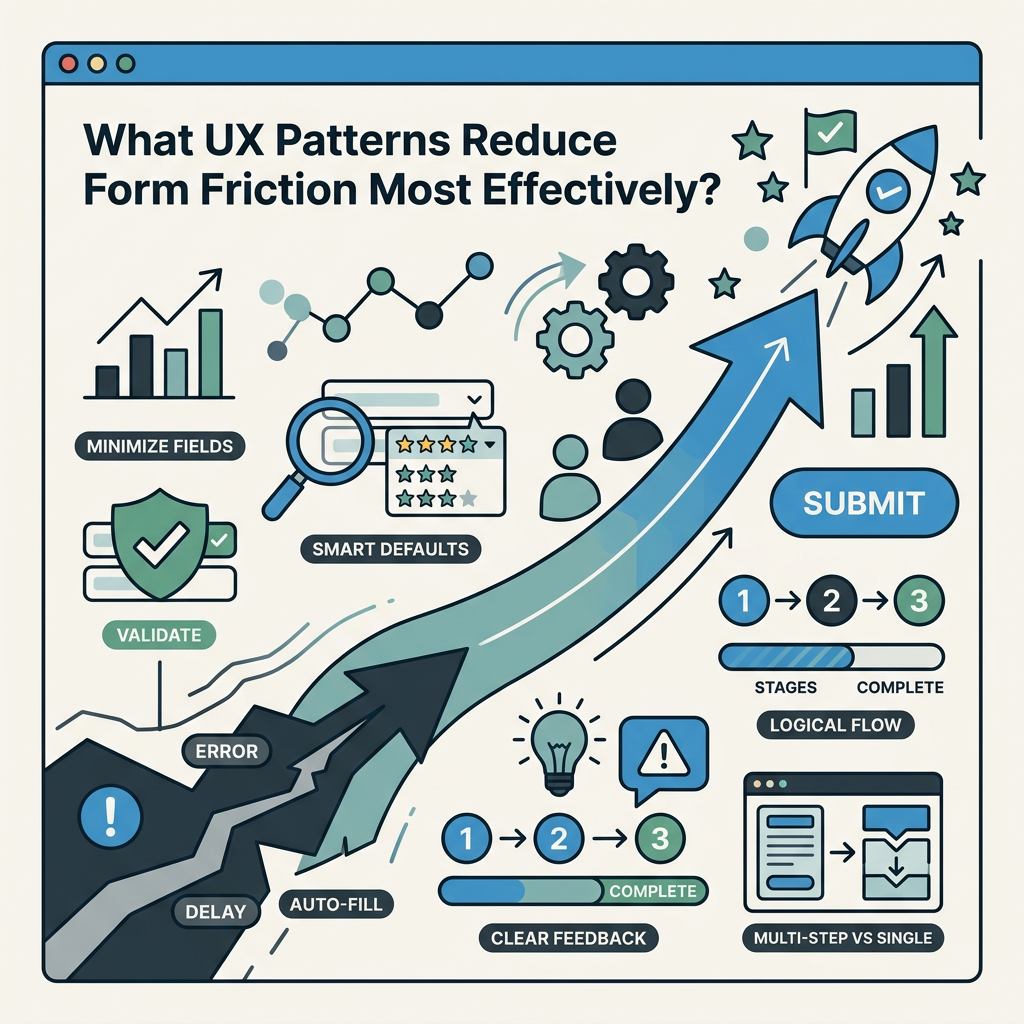
The most effective friction-reducing patterns are those that simplify the user's cognitive and interaction burden without losing essential data. Modern CRO teams are shifting focus from raw form completion to pipeline quality and lead scoring, meaning friction reduction strategies now center on collecting the right data in the right order, not all data at once.
Single-Step vs. Multi-Step Forms
The conventional wisdom is that short forms convert better than long ones—and that's true, but incomplete. A single-step form with eight visible fields creates more friction than a well-designed three-step form that reveals only two or three fields per step. The key is perceived effort, not absolute field count. Users psychologically feel progress when moving through steps, even if the total fields remain the same.
"Progressive disclosure isn't about hiding information—it's about respecting the user's cognitive capacity. Show them one question at a time, and they'll complete forms that would otherwise feel overwhelming." — UX Research Study, FormBased Decision Theory 2024
Progressive disclosure reduces cognitive load by letting the user focus on one question at a time without seeing the full scope of the form upfront.
Multi-step forms also allow for conditional logic: if a user selects "I'm a solo founder," you don't show questions about team size. This keeps the experience relevant and eliminates the frustration of answering irrelevant questions. For indie developers building forms on static sites like Vercel or Netlify, multi-step logic is easier to implement when your form backend handles the state—tools designed for static site integration can manage form state across steps without adding complexity to your JavaScript.
Field Reduction and Conditional Requirements
Each field you ask for increases abandonment. Form field reduction is a foundational CRO tactic because every additional field creates friction. The solution is auditing your form and asking one question for each field: "Do I need this information now?" If the answer is no, remove it. Move it to a follow-up email, a progressive profiling step after conversion, or a later form in your user journey.
Best practices for field reduction include:
- Mark optional fields clearly so users don't feel obligated to fill everything.
- Default to optional rather than required for non-critical information.
- Use conditional requirements where a field becomes required only if a certain condition is met.
- Eliminate clutter without reducing data quality by moving supplementary questions to follow-up forms.
Mobile-First Design and Touch Targets
Mobile traffic dominates, but mobile conversion rates lag desktop by 42%, a gap that has widened since 2024. The culprit: forms designed for mouse interaction, not touch. Minimum touch target size should be 44×44 pixels, yet many mobile forms use tiny buttons and cramped text fields. Single-column layouts beat multi-column on mobile because horizontal scrolling creates friction. Ensure your submit button is large, clearly tappable, and positioned where a user's thumb naturally rests on their phone.
Critical mobile optimizations include:
- Single-column layout to eliminate horizontal scrolling and side-to-side navigation friction.
- Touch targets sized minimum 44×44 pixels for all interactive elements (buttons, inputs, links).
- Submit button positioned at natural thumb-rest height, avoiding top or bottom-of-screen placement.
- Input type attributes that trigger correct mobile keyboards (email, tel, number).
- Autocomplete attributes that enable browser autofill for common fields like email and address.
Load time matters too. A form that takes 3 seconds to become interactive on a slow mobile connection loses users before they even see the first field. Optimize your form script to load asynchronously and avoid blocking the render. For developers embedding forms on static sites, using a lightweight, async-loadable form script (rather than a heavy client-side library) dramatically improves mobile form starts.
Clear Labels, Benefit Statements, and Microcopy
Vague labels create hesitation. "Name" could mean full name, first name, or company name. "Phone" might seem optional if you don't explain why you need it. Replace vague labels with specific ones: "Full Name (First and Last)" and "Phone Number (for fastest contact)." Add a short benefit statement or placeholder text that clarifies why you're asking. This reduces the micro-moments of doubt that accumulate into abandonment.
Microcopy—the small text near form fields—is a high-leverage friction reducer. Instead of a generic submit button that says "Submit," say "Get My Free Guide" or "Request a Demo." The specificity makes users confident they know what happens next. Error messages should be equally specific: not just "Invalid input," but "Email must include @ symbol."
| Form Element | High-Friction Example | Friction-Reduced Example | Impact on Abandonment |
|---|---|---|---|
| Label | "Name" | "Full Name (First and Last)" | Reduces hesitation by 8-12% |
| Phone Input | "Phone" with no context | "Phone (for fastest contact)" | Clarifies necessity, reduces skip rate by 5% |
| Submit Button | "Submit" | "Get My Free Demo" | Increases confidence, reduces last-step abandonment by 15% |
| Error Message | "Invalid input" | "Email must include @ symbol" | Reduces error-triggered abandonment by 20% |
| Optional Field | Required by default | Marked "(Optional)" | Reduces perceived burden by 10-14% |
What's the Best Approach to Testing Form Friction Reduction?

Reducing form friction works best when guided by data about where users actually drop off. Form abandonment isn't always obvious—you might assume users leave because of a particular field, but session recordings often reveal the real culprit is poor error messaging, slow load time, or an unclear progress indicator.
Audit Current Forms with Behavioral Data
Before optimizing, establish a baseline. Start with a manual walkthrough: fill out your form as a first-time user on both desktop and mobile. Note every moment of confusion. Then layer in behavioral data from tools like Hotjar or Microsoft Clarity, which show session recordings and heatmaps of where users hesitate or abandon. Look for these signals: fields with high error rates, scroll-to-see patterns (indicating the form feels too long), or abrupt departures after a specific field.
Behavioral audit checklist:
- Record yourself completing the form on mobile and desktop, noting friction points.
- Enable session recordings to observe where real users hesitate, re-read labels, or abandon.
- Review heatmaps showing field interaction rates and scroll depth.
- Identify fields with the highest error rates—often a sign of poor labeling or validation messaging.
- Check abandon rate by field to pinpoint where users drop off most sharply.
Heatmaps reveal which fields users interact with and which they skip. If a field has low interaction, it's either confusing, optional, or unnecessary—and should be removed or clarified. Session recordings show you exactly where cognitive friction shows up: users reading labels twice, zooming in on tiny fields on mobile, or abandoning after a validation error.
Run A/B Tests on High-Impact Changes
The most impactful friction-reduction changes to test first are: reducing total field count, implementing progressive disclosure, improving error messages, and optimizing mobile layout. Test one change at a time so you can isolate the impact. For a contact form, try running two versions: one with all fields visible, one with a two-step progressive disclosure. Measure completion rate, not just form starts.
Track downstream metrics too, especially in B2B pipelines. A shorter form might capture more leads, but if lead quality drops (fewer qualified prospects), you've won the wrong metric. The ideal outcome is improved completion and maintained or improved downstream conversion (demo request to qualified opportunity, for example).
Implement Analytics to Measure Friction Points
Custom form analytics are essential. Track: form start rate (what % of page visitors initiate the form), completion rate (what % of starters finish), abandon rate by field (where do drops accelerate), and time-to-complete. Compare desktop vs. mobile for each metric—mobile often reveals friction that desktop hides.
Core metrics to monitor:
- Form Start Rate: Percentage of page visitors who initiate form entry; low rates suggest pre-form friction (unclear value prop, misplaced CTA).
- Completion Rate: Percentage of form starters who submit; target 60-75% for lead capture, 75%+ for application forms.
- Abandon Rate by Field: Identify which fields trigger the highest exit rates; refactor or remove high-friction fields.
- Time-to-Complete: Measure average completion time; sudden spikes indicate confusing sections requiring clarification.
- Mobile vs. Desktop Rates: Compare all metrics across devices; mobile friction typically shows 20-30% lower completion.
Set a target completion rate for your industry and form type. Application forms average 75% completion, while questionnaires average 70%. General lead capture forms run 60-70% on desktop but often drop to 40-50% on mobile, suggesting structural mobile friction. If your form is below these benchmarks, friction reduction should be your priority.
How Should Indie Developers Implement Friction-Reducing Forms?
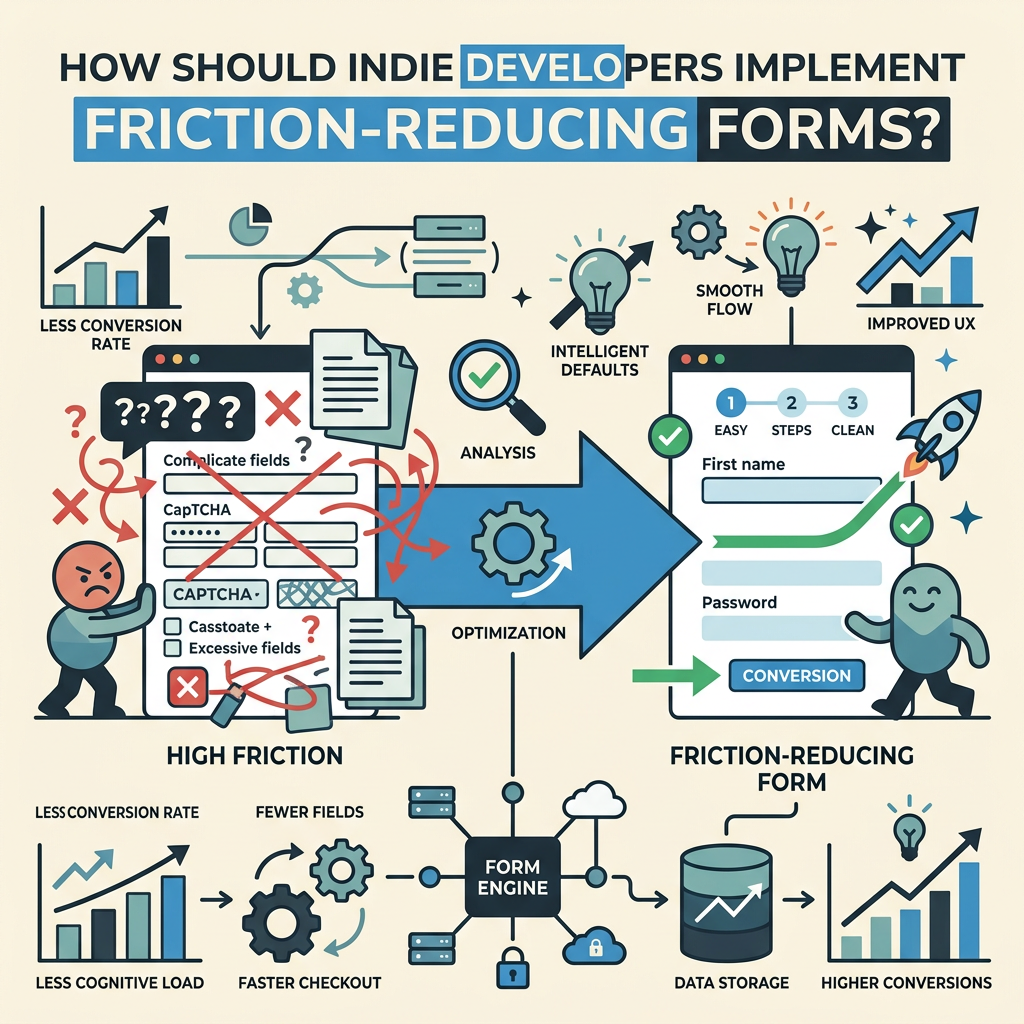
For indie developers and small teams building static sites on Vercel, Netlify, or GitHub Pages, handling forms has traditionally required either a backend service or a clunky client-side workaround. Implementing multi-step forms, progressive disclosure, and advanced validation without backend complexity is where most developers get stuck. The solution is using a form backend service that handles submission logic, validation, and state management—so you focus on UX, not infrastructure.
Choosing Between Form Builders, Email Services, and Form Backends
Form builders like Typeform or JotForm are full-featured but inject their own branding and redirect users away from your site. Email services like Formspree handle basic form submissions but lack advanced features like file uploads, conditional logic, or spam filtering. Purpose-built form backends for static sites fill the gap: they collect and store submissions, validate inputs, handle file uploads, send notifications, and provide a searchable dashboard—all without requiring you to build backend infrastructure.
Comparison of form solutions:
- Form Builders (Typeform, JotForm): Full-featured but adds branding, requires iframe embedding, redirects users off-site.
- Email Services (Formspree, Basin): Lightweight, low-cost, but limited to basic submissions and single-step forms.
- Form Backends (purpose-built for static sites): Native integration, advanced features (conditional logic, file uploads, spam filtering), dashboard submission management, no branding injection.
For teams avoiding third-party builders, FormBeam offers a form backend that integrates with static sites in a single line of code. You define your form fields in HTML, add one line to connect to FormBeam, and get submission storage, email notifications, spam filtering, and a dashboard instantly. No backend to maintain, no infrastructure to scale—just forms that work. The indie developer benefit is obvious: you stay on your site, keep your design context, and get production-ready form handling for $9-29/month depending on volume.
Structuring Forms for Progressive Disclosure
Implementing multi-step forms on static sites requires either a custom JavaScript state machine or a form backend that manages step transitions. If you're building the form yourself, you'll need to hide/show form sections with JavaScript and validate before allowing the user to proceed to the next step. The alternative—using a form backend purpose-built for static sites—handles the logic automatically. Define your form structure (including conditional fields and step definitions), and the backend manages display, validation, and submission across all steps.
Implementation approaches for multi-step forms:
- Custom JavaScript: Build state management and step transitions yourself; suitable for simple 2-3 step forms with minimal branching.
- Lightweight Library: Use a small form library (Alpine.js, htmx) for conditional display without heavy framework overhead.
- Form Backend: Let the backend handle step logic, conditional fields, and validation; reduces frontend complexity and eliminates JavaScript errors affecting submissions.
For smaller forms (3-5 fields), a single-step form with conditional fields using inline JavaScript is manageable. For longer forms (8+ fields) or complex branching logic, a dedicated backend reduces complexity and eliminates the risk of a single JavaScript error breaking your form submission.
Mobile Optimization at the Form Level
Mobile friction isn't just about CSS. It's about form structure. Single-column layouts are essential, but also consider: using input type="tel" for phone numbers (triggers the numeric keyboard on mobile), type="email" for emails (shows @ symbol), and type="number" for numeric fields. Set inputmode attributes to guide mobile keyboards. Use autocomplete attributes so browsers can autofill common fields like email and address—reducing typing burden by 80% on repeat visitors.
HTML5 form attributes for mobile optimization:
type="email"— Triggers email keyboard, enables native validation, shows @ symbol on mobile.type="tel"— Opens numeric keyboard, formats phone input on some mobile browsers.inputmode="tel"— Guides keyboard display without enforcing validation (fallback for older browsers).autocomplete="email"— Enables browser autofill for email fields; reduces friction on repeat visitors by 70-80%.autocomplete="tel"— Autofills phone number when available in saved contacts or profiles.
On static sites hosted on Vercel or Netlify, you control every aspect of your form markup. Use semantic HTML5 form elements, validate with native browser validation first (faster than JavaScript), and only use JavaScript for custom validation or advanced interactions. A lightweight, fast-loading form script matters more on mobile than a feature-rich but heavy library.
Conclusion
Form friction is the silent conversion killer—users don't tell you they abandoned because of a confusing label or an extra field, they just leave. The reality is that 66% of users who start a form complete it, but your real goal is improving the 45% who never start. By reducing field count, implementing progressive disclosure, optimizing for mobile, and clarifying instructions, you directly address the friction that blocks conversion.
The highest-leverage changes are always the ones guided by your own user data. Audit where users actually drop off, test friction-reducing patterns, and measure downstream impact on lead quality. For indie developers and small teams on static sites, using a form backend purpose-built for your stack eliminates the infrastructure friction that often prevents advanced form features—leaving you free to optimize UX without backend maintenance.
Start with field audits. Remove anything you don't need immediately. Test a two-step version of your longest form. Improve mobile touch targets and error messaging. These changes cost nothing to implement but compound into meaningfully higher completion rates and better conversion performance.
Try FormBeam free with 100 form submissions per month and build friction-free forms on your static site today.
FAQs
How many form fields is ideal for maximum conversion?
There's no universal ideal, but fewer fields always lower abandonment. Start by asking yourself which information you truly need at the first conversion moment—typically email, company name, and intent question. Most high-converting lead-capture forms have 3-5 fields. Application forms and checkout flows can handle 8-12 fields if they're organized into clear steps with progress indicators. The key is removing fields you'd ask "out of habit" rather than out of necessity. Collect additional profiling data in follow-up emails or later forms instead of upfront, which preserves conversion while building richer user profiles over time.
Does adding a progress bar to multi-step forms improve completion?
Yes, progress indicators reduce perceived friction by showing users how far they've come and how much is left. Without a progress bar, multi-step forms feel endless, and users may abandon if they don't know they're 80% done. A visible progress bar (showing "Step 2 of 3" or a visual percentage) gives users a sense of momentum and control, which improves psychological completion rates. This is especially effective on mobile, where a long form feels even longer due to screen height constraints.
What's the fastest way to reduce form abandonment for an existing site?
Start by fixing mobile layout and error messages—these often deliver immediate improvements. Ensure touch targets are 44×44 pixels, use single-column layout on mobile, and make error messages specific and helpful. Then audit your form fields and remove any that aren't essential to an immediate first conversion. Test a version with 2-3 fewer fields or split your form into two steps. Most teams see 10-15% improvement in completion rates from these changes alone without redesigning the entire form experience.