Syncing Form Data to Google Sheets Automatically
Form data scattered across inboxes and spreadsheets doesn't scale. 79% of marketers automate their customer journey, and for indie developers and small teams, the bottleneck isn't whether to automate—it's how. Sales reps spend only 28% of their time actually selling, with the rest consumed by manual data entry and context switching. When you're building static sites or lightweight applications, you need form submissions routed into structured storage instantly, with zero backend maintenance. Google Sheets is the natural destination—it's free, collaborative, and instantly queryable. Here's how to sync form data into Google Sheets automatically, whether you're using native Google Forms, custom HTML forms, or a headless form backend.
Key Takeaways
- 79% of marketers automate customer workflows (2026), making form automation standard practice rather than experimental (Emailvendorselection, 2026)
- Syncing forms to Google Sheets eliminates manual data entry, reclaiming hours per week for small teams building static sites
- Three proven approaches exist: native Google Forms integrations, Zapier/Make automation layers, and dedicated form backends—each suited to different scale and complexity needs
- Native Google Forms Integration: Built-in response collection that auto-populates a linked Sheet with zero configuration.
- Zapier Automation Workflow: Connects any form provider to Google Sheets through no-code automation, supporting 5,000+ apps.
- Custom API Integration: Uses Google Apps Script or webhooks to send form data directly to Sheets with fine-grained control.
- Dedicated Form Backend: A production-grade form service handles submission collection, validation, and routing to Sheets automatically.
- Google Sheets Limits and Scaling: Understanding practical thresholds helps you choose the right tool before hitting performance or cost limits.
- Data Privacy and Security: Ensuring form submissions comply with GDPR, encryption requirements, and access controls.
- Debugging and Maintenance: Monitoring sync performance and recovering from integration breaks.
Understanding Form-to-Sheets Workflows and Why They Matter
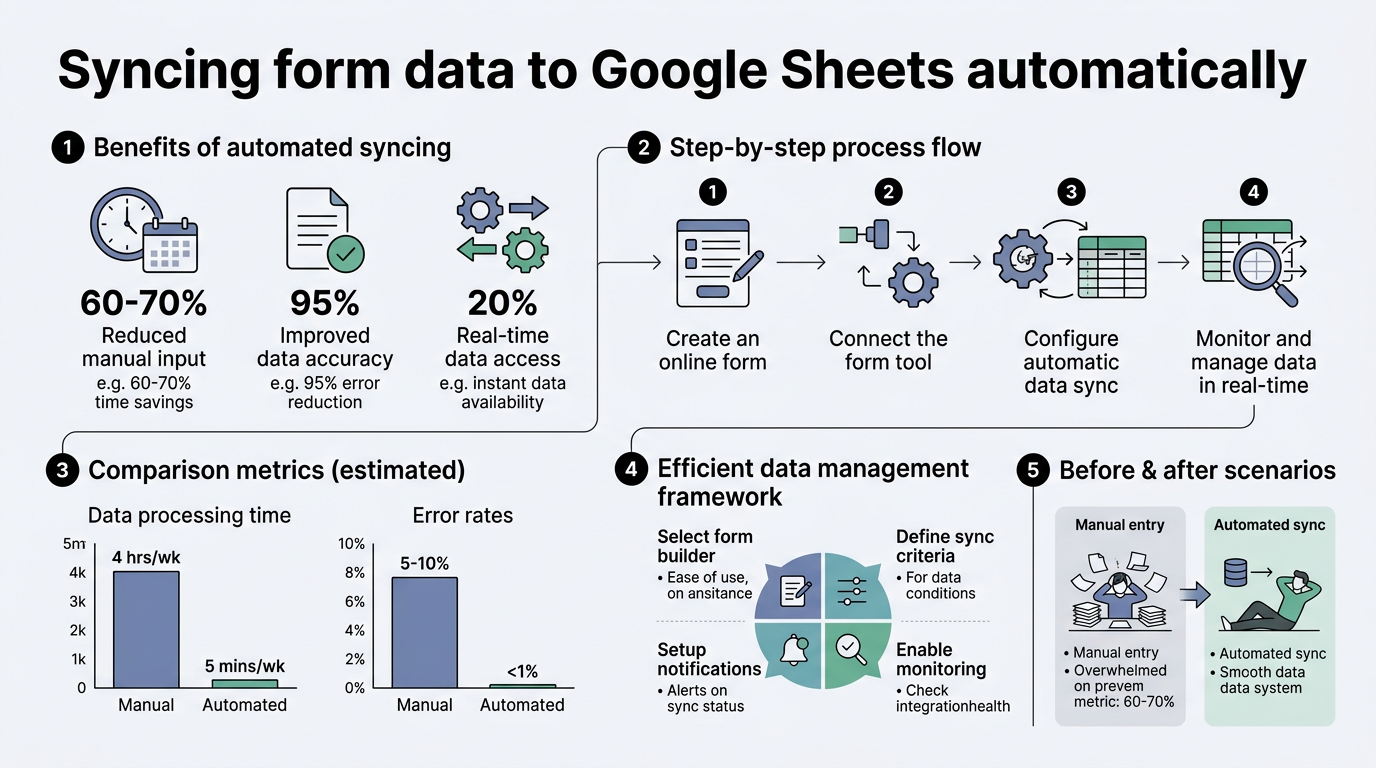
Form data landing in Google Sheets automatically solves a specific problem: small teams and indie developers building HTML, React, Vue, or Next.js sites need to collect submissions without building backend infrastructure. Teams using automation frameworks report 25–50% productivity increases according to recent automation research. When every form submission triggers a manual copy-paste, that overhead scales linearly with volume. Sheets-based workflows eliminate that friction by treating Google Sheets as a live database and triggering synchronization on submission.
"Form data landing in Google Sheets automatically solves the core problem: indie developers can collect submissions without building backend infrastructure, reclaiming engineering time for product work."
The workflow pattern is straightforward: a user submits a form → the form service or integration captures the data → the data appears as a new row in your Google Sheet → downstream workflows (email alerts, webhooks, analysis) trigger from the Sheet update. The appeal lies in simplicity—no database to manage, no API to build, no authentication layers to maintain.
When Sheets-Based Form Sync Makes Sense
Google Sheets integrations are ideal for low-to-medium volume form collection. Under 5,000 tasks per month and fewer than 10 workflow steps, Sheets + a simple integration layer is typically the fastest path to production. You get instant visibility into form data, collaborative spreadsheet features (conditional formatting, pivot tables, notes), and free storage up to Google's limits. Non-technical founders can set up dashboards and reporting on top of the data without waiting for engineering.
Sheets becomes less suitable when your form volume climbs past 10,000 submissions per month, when you need relational queries across multiple data sources, or when compliance requires encrypted storage and audit trails. At that scale, the spreadsheet interface becomes a reporting layer rather than a primary database, and a proper backend makes sense.
Key Integration Components and Terminology
Understanding the architecture helps you pick the right tool. Form submissions pass through three stages:
- Form Capture: The HTML form or form service collects user input and validates it before transmission.
- Delivery Mechanism: Either direct API calls (if you own the backend), a middleware automation tool like Zapier, or a dedicated form service with built-in Sheets integration.
- Sheet Synchronization: Data lands in your Google Sheet as a structured row, triggering any downstream automations you've configured.
The delivery mechanism is the critical decision point. Direct API integrations are fastest but require engineering. Automation tools like Zapier are slower but require no coding. Dedicated form backends balance both—they handle the engineering so you don't have to, but they're a third-party dependency.
How Native Google Forms Integration Works
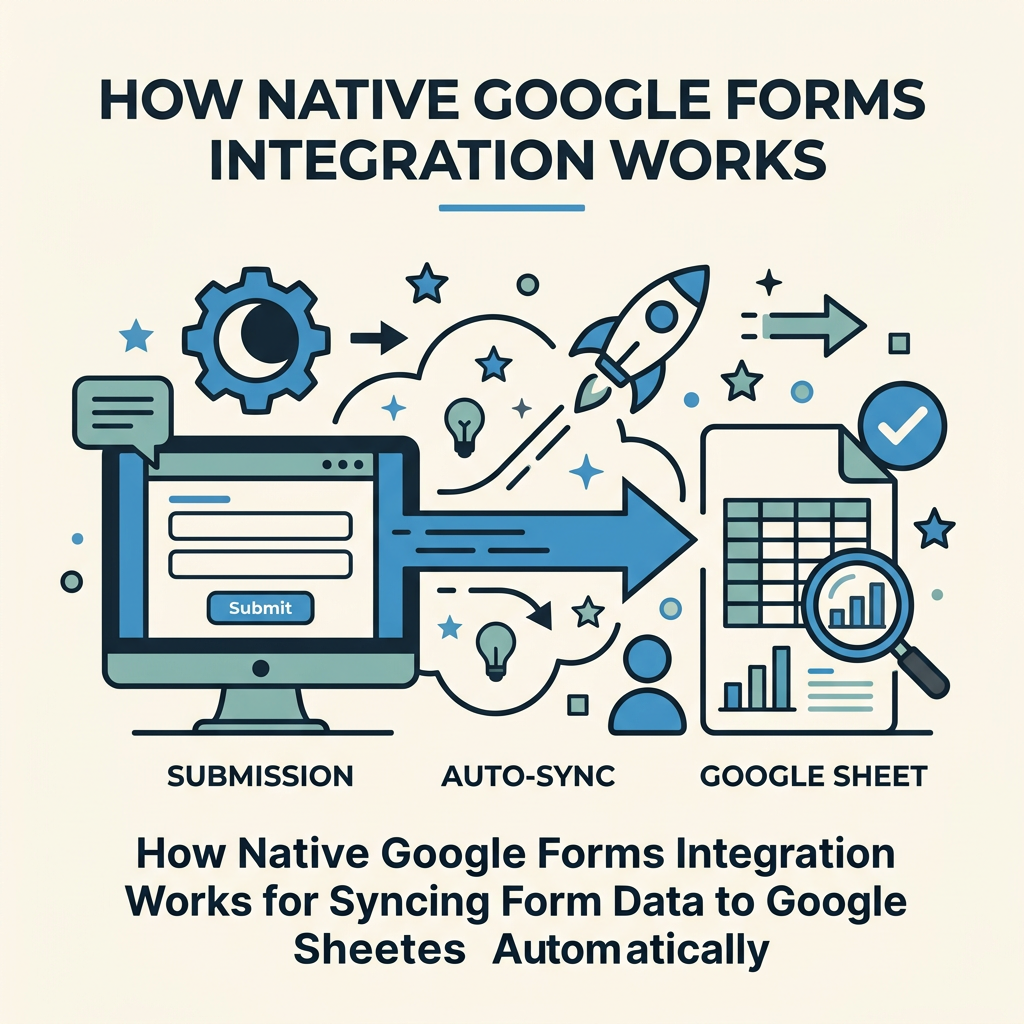
Google Forms offers the simplest form-to-Sheets path. When you create a Google Form and configure response storage to a linked spreadsheet, every submission automatically creates a new row with timestamps and all field data. This is the zero-friction option for teams already inside Google Workspace.
Setting Up Google Forms with Google Sheets
Create a new Google Form via Google Forms. Build your form fields using the form editor. Click the "Responses" tab at the top, then click the green Sheets icon to create a new response spreadsheet or link to an existing one. Google automatically creates a new sheet within your workbook and populates it with form responses in real time. Each submission becomes a timestamped row with one column per form field.
"Native Google Forms integration is the zero-latency option—data appears in Sheets within seconds of submission, and your entire team can sort, filter, and annotate responses together in real time."
This native integration has zero latency—data appears in Sheets within seconds of submission. The Sheet is fully collaborative, meaning your entire team can sort, filter, and annotate responses together. You can add helper columns with formulas, conditional formatting to flag high-priority submissions, or pivot tables to summarize responses by category.
Limitations of Google Forms as a Form Builder
Google Forms is intentionally simple, and that simplicity has trade-offs. You cannot customize the form's styling beyond basic color schemes without embedding custom CSS. Conditional logic is available but limited to showing/hiding questions based on answers, not complex branching. There's no built-in spam protection beyond Google's basic filtering. File uploads are supported, but there's no virus scanning or size optimization. Most critically, if you're building a custom static site (React, Vue, Svelte), you cannot easily embed Google Forms without a full iframe—it doesn't natively fit into a modern JavaScript component architecture.
For indie developers building static sites, the constraint is usually design and UX. Google Forms looks like a survey tool, not a branded contact form or signup flow. If your brand requires custom styling and embedded form fields, you'll need a different approach.
Using Zapier and Make to Sync Custom Forms to Google Sheets
If you're using a custom HTML form, a form builder like Typeform or Wufoo, or a headless form service, Zapier connects 5,000+ apps and explicitly supports form-to-Sheets workflows. The pattern is: a form submission triggers a Zapier automation (called a "Zap") that captures the data and writes it to a Google Sheet. Zapier's platform meets industry standards for encryption when connecting apps, making it suitable for moderate-sensitivity data.
Building a Zapier Zap for Form-to-Sheets Sync
Create a Zapier account and click "Create a Zap." Select your form source (Google Forms, Typeform, Wufoo, JotForm, or any form tool with Zapier support). Select "New Form Response" as the trigger. Authorize Zapier to access your form, then test the connection by submitting a test response. In the action step, choose Google Sheets and select "Create Spreadsheet Row." Select the Google account that owns your target spreadsheet, choose the spreadsheet and sheet, then map each form field to a column in the sheet. For example, map the "Email" form field to the "Email" column in Sheets. Finish and turn the Zap on. Every future form submission will create a new row in your Sheet.
Zapier typically syncs data within 15–30 seconds of form submission. For most small-team workflows, this latency is invisible. The real win is that you avoid manual copy-paste entirely—form data lands in Sheets automatically, your team sees it instantly, and downstream actions (email alerts, webhooks to other tools) can trigger from the Sheet update itself.
Cost and Volume Considerations for Automation Tools
Zapier's free tier allows up to 100 tasks per month. Most small indie developers and freelancers stay within that limit with 1–2 active forms. If you have multiple forms, higher submission volume, or need faster sync times, paid tiers start at $19–$50 per month. At volumes under 100 tasks per month, Zapier's free plan makes this a zero-cost integration. At higher volumes, you're paying per task, which compounds quickly if you have 10,000+ monthly submissions. At that point, a dedicated form backend that charges per submission (like FormBeam's $9/month Starter tier for 1,000 submissions) often becomes more cost-effective.
"Zapier's free tier covers most indie developers with 1–2 forms, but at higher volumes, dedicated form backends become more cost-effective than per-task automation pricing."
Make (formerly Integromat) offers a similar pattern but with different pricing—typically $9–$19 per month for moderate volumes. The core trade-off: Zapier is more widely integrated and documented, while Make often has lower per-task costs at higher volumes.
Syncing From a Custom Form Backend to Google Sheets
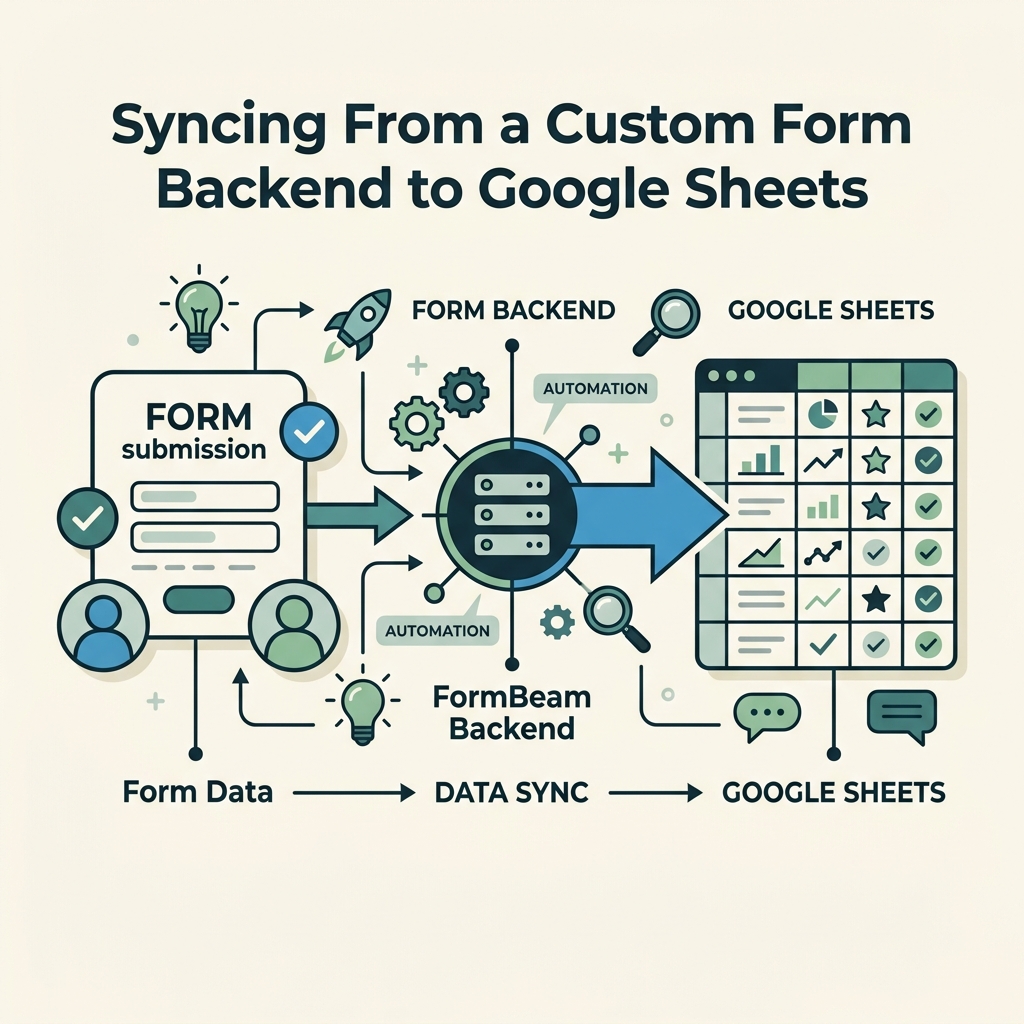
If you're building your own static site with custom HTML forms or using a dedicated form backend service, you can route submissions directly to Google Sheets using Google Apps Script or webhooks. This approach gives you the most control and often the lowest operational cost at scale.
Using Google Apps Script to Capture Form Data
Google Apps Script is a JavaScript runtime hosted inside Google Workspace. You can create a simple HTTP endpoint that accepts POST requests containing form data, validates it, and writes directly to a Google Sheet. The pattern: your form submits via JavaScript to a Google Apps Script deployment URL → the script writes the data to a spreadsheet → Google automatically logs it.
This approach is free (up to Google's Apps Script quotas) and has zero per-submission cost. It requires basic JavaScript knowledge but no backend infrastructure. The downside is that debugging is slower—Google Apps Script logs are less transparent than a proper application monitoring tool. For indie developers comfortable with JavaScript, this is often the sweet spot: full control, no third-party fees, and tight integration with your Sheets workflow.
TinyCommand's form automation guidance recommends setting KPIs around throughput and completion rates when you automate form workflows, which applies whether you're using Sheets as your primary storage or as a reporting layer on top of a backend.
Webhook-Based Submission Routing
Webhooks are real-time HTTP callbacks that fire when an event occurs. If your form service or custom backend supports webhooks, you can configure a webhook to send form data to a Google Sheets integration service, Zapier, or your Apps Script endpoint the moment a submission arrives. This is the most flexible approach: your form backend stays agnostic to your data destination, and you can route the same submission to multiple services (Sheets for visibility, a database for persistence, an email service for notifications) in parallel.
The challenge with webhooks is that you need a stable endpoint to receive them. If you're using Zapier as your destination, Zapier provides that endpoint. If you're building your own, you need a service (even a lightweight one) listening for POST requests. For production form collection where reliability matters, a dedicated form backend like FormBeam handles webhook delivery and retry logic automatically, ensuring no submissions are lost due to temporary network issues.
Choosing Between Sheets Integrations: A Practical Comparison
The right integration depends on your form source, volume, and team technical depth. Here's how the leading patterns compare:
| Integration Method | Setup Time | Cost at 500 Submissions/Month | Best For | Limitations |
|---|---|---|---|---|
| Native Google Forms | 5 minutes | Free | Simple surveys, quick feedback collection, non-technical teams | Limited styling, no conditional logic, iframe-only embedding, poor UX for custom designs |
| Zapier (free tier) | 15 minutes | Free (under 100 tasks/month) | Forms from any Zapier-integrated tool, non-technical setup, quick testing | Task limits on free tier, slower sync (15–30 sec), per-task pricing at scale |
| Google Apps Script | 30 minutes (requires JS) | Free | Custom HTML forms, developers who want full control, zero per-submission cost | Requires JavaScript knowledge, slower debugging, quota limits, no built-in spam protection |
| Dedicated Form Backend (FormBeam) | 10 minutes | $9/month (1,000 submissions included) | Production forms, custom HTML/React/Vue/Next.js, teams needing spam protection and reliability | Small monthly cost, third-party dependency, but handles storage, validation, and Sheets sync for you |
The native Google Forms path is the fastest to launch, but it sacrifices design and embedding flexibility. Zapier is the middle ground—it works with almost any form builder but introduces a third-party dependency and per-task costs. Google Apps Script gives you maximum control but requires engineering time. A dedicated form backend like FormBeam is designed specifically for indie developers and small teams who want production-grade forms without building backend infrastructure—it handles Sheets sync, spam filtering, and email notifications automatically, leaving you to focus on your site.
Data Validation and Cleanup Before Sheets Storage
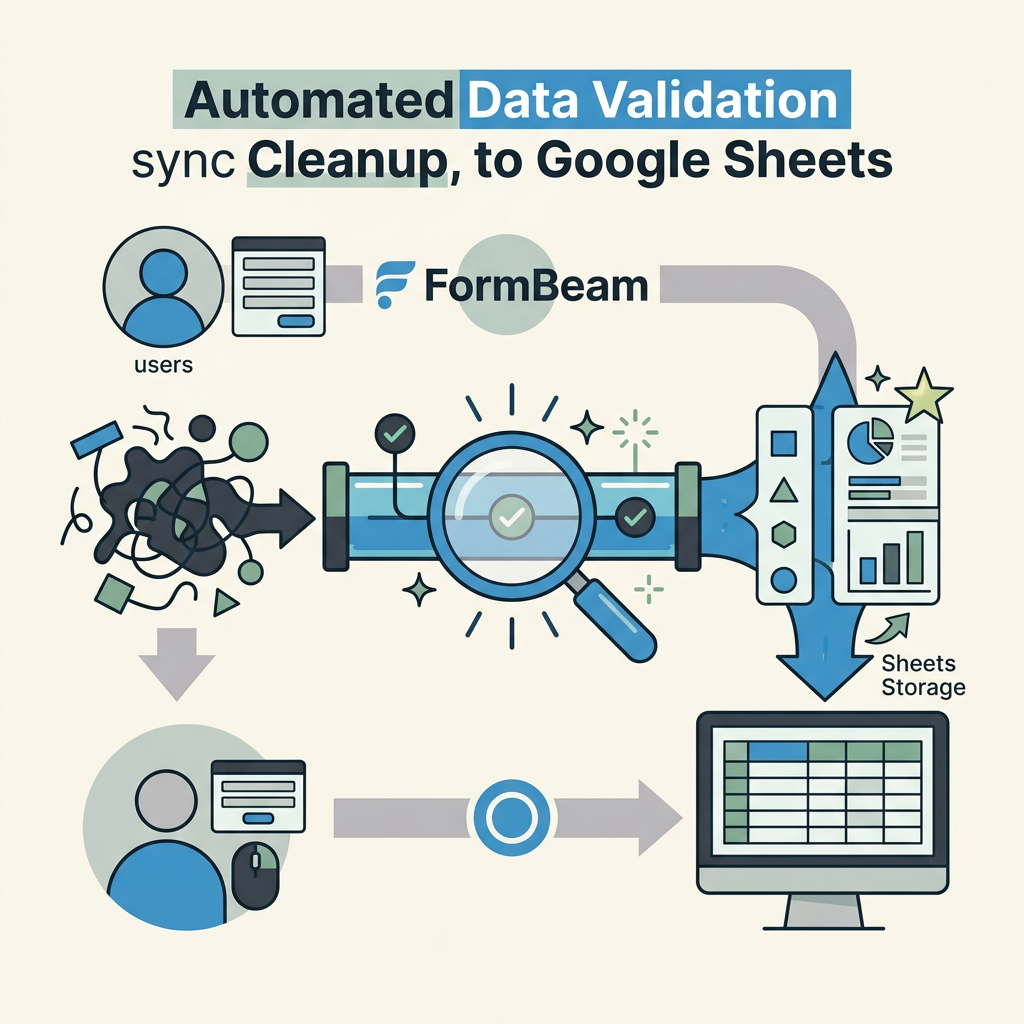
Raw form data can be messy. Phone numbers might include formatting variations, email addresses might have typos, and text fields might contain extra whitespace. Before writing data to Sheets, you should validate and normalize it.
Client-Side Validation
HTML5 form validation (email, tel, url, required attributes) catches basic errors before submission. JavaScript can apply custom rules: checking if a phone number has exactly 10 digits, ensuring a URL includes a protocol, validating ZIP codes against a known set. Client-side validation improves user experience by providing instant feedback, but it's not secure—users can bypass it via browser console.
Server-Side Validation and Normalization
Your form backend (whether Google Apps Script, a dedicated service, or custom code) must validate all incoming data regardless of client-side checks. Trim whitespace from text fields, standardize phone numbers to a consistent format, validate email addresses with a regex or a real-time email verification service, and reject submissions missing required fields. Only after validation passes should data be written to Sheets.
This cleanup layer prevents garbage data from polluting your spreadsheet and makes downstream analysis and reporting more reliable. Dedicated form backends handle validation and spam protection automatically, so you don't have to code it yourself.
Monitoring Sync Performance and Debugging Failures
Once your form-to-Sheets automation is live, you need visibility into what's working and what's broken. Submissions can fail for several reasons: network timeouts, Google Sheets API rate limits, incorrect field mapping, or authentication issues.
Tracking Sync Status and Latency
If you're using Zapier, enable detailed logging in the Zap editor so you can see every execution, whether it succeeded, and how long it took. Check the Zapier dashboard regularly to catch stuck Zaps before they cause data loss. For Google Apps Script, enable Apps Script execution logs (View > Executions) to see when runs succeed or fail and what errors occurred. For webhook-based integrations, log each incoming request and its outcome so you can trace failures back to the submission.
Handling Google Sheets API Limits
Google Sheets has rate limits: roughly 300 requests per minute for most accounts. At high form submission volumes (hundreds per minute), this can become a bottleneck. If your Zap or Apps Script is hitting rate limits, you'll see quota exceeded errors. The fix is to batch writes (write multiple rows in one API call instead of one row per call) or to queue submissions and process them in batches on a schedule rather than in real time.
When rate limits are a problem, it signals that your form volume has outgrown Sheets as a primary backend. At that point, you should route submissions to a database first, then replicate key fields to Sheets for visibility and reporting, rather than treating Sheets as the primary store.
Ensuring GDPR and Data Security Compliance
Form data often includes personally identifiable information (PII) like email addresses, names, or phone numbers. Storing this in Google Sheets requires compliance with data protection regulations, especially GDPR in the EU.
Encryption and Access Control
Google Sheets data is encrypted in transit (HTTPS) and at rest, but anyone with the link to your spreadsheet can view it. Restrict access by using Share settings: only add specific team members by email, disallow "anyone with the link" access, and audit who can view and edit the sheet monthly. If you're storing sensitive data (passwords, credit card numbers, health information), Google Sheets is not the right tool—use a proper database with column-level encryption and access controls.
Data Retention and Deletion
GDPR grants users the right to be forgotten. If a user requests deletion of their data, you must be able to remove their submission from Sheets. Document your retention policy: how long you keep form data, who can access it, and how users request deletion. For high-volume or sensitive workflows, log deletions so you can prove compliance during audits.
Conclusion
Syncing form data to Google Sheets automatically transforms form collection from a manual bottleneck into a scalable workflow. Indie developers building static sites can achieve efficiency gains by routing form submissions directly into a shared, queryable spreadsheet. The path you choose depends on your form source and team expertise: native Google Forms for simplicity, Zapier for flexibility across form builders, Google Apps Script for developer control, or a dedicated form backend for production reliability without the engineering overhead.
For teams building HTML, React, Vue, or Next.js sites, FormBeam automates the entire workflow—form capture, validation, spam filtering, and automatic Sheets sync—with a single line of embedded code. You get instant visibility into submissions through the FormBeam dashboard, automatic email notifications, and direct Sheets integration, all without managing backend infrastructure. Try FormBeam for free with your first 100 submissions per month, then scale to 1,000+ as your form volume grows.
FAQs
How long does it take for form submissions to appear in Google Sheets?
Native Google Forms integrations sync data within seconds—submissions appear in the linked Sheet almost immediately after the user clicks Submit. Zapier typically adds 15–30 seconds of latency due to its polling-based architecture. Google Apps Script or webhook-based integrations can achieve sub-second sync times if configured for real-time delivery. For most small-team workflows, even Zapier's 15–30 second delay is imperceptible because form submissions are asynchronous from the user experience. If you need guaranteed sub-second sync, a direct API integration or dedicated form backend is more reliable than third-party automation tools.
What's the easiest way to sync custom HTML forms to Google Sheets without coding?
Zapier is the no-code choice for syncing custom HTML forms to Google Sheets. If your form backend supports webhooks or if you use a form builder with Zapier integration (Typeform, JotForm, Wufoo), you can set up a Zap without writing code. Connect your form as the trigger, map fields to Sheet columns, and you're done. The free Zapier tier supports up to 100 tasks per month, which covers most indie developers. The trade-off is that Zapier adds 15–30 seconds of latency and per-task costs at higher volumes. For true no-code with faster sync, FormBeam offers automatic Sheets integration built in—you embed the form once and it syncs to Sheets automatically without setting up a separate automation layer.
Can I use Google Sheets as my primary database for form submissions?
Google Sheets works well as a primary database for form volumes under 5,000 submissions per month. It's free, collaborative, and gives your whole team instant visibility into submissions. However, Sheets has limitations: rate limits (~300 requests per minute), poor relational querying, no built-in encryption for sensitive fields, and scaling challenges when you need to join data across multiple sheets. Once you exceed 5,000 submissions per month or need complex queries, you should move to a proper backend database and use Sheets as a reporting layer. For production forms where reliability and compliance matter, a dedicated form backend like FormBeam handles the storage layer for you and can still sync key fields to Sheets for visibility, giving you the best of both worlds.