Auto-Reply Emails: A Complete Setup Guide
Auto-reply emails are one of the simplest yet most underutilized tools for improving customer experience and managing sender expectations. When someone sends you a message, you've already won the first battle: they've reached out. The question is whether your response builds trust or frustrates them. 73% of customers expect an immediate acknowledgment when they contact a business, yet many teams still rely on manual responses or miss messages entirely. Setting up intelligent auto-replies, whether for out-of-office situations, form submissions, or support inquiries, tells senders you've received their message and sets clear expectations about response time. Here's how to configure auto-reply emails effectively across platforms and use cases.
Key Takeaways
- Auto-replies set expectations and acknowledge receipt immediately; 73% of customers expect instant acknowledgment (2025 industry data)
- Form-based auto-replies with personalization drive 26% higher open rates than generic messages
- Multi-trigger workflows (form submit + follow-up) capture leads more effectively than single static replies
- Out-of-Office Auto-Replies: Configure time-based auto-replies in Gmail, Outlook, or Apple Mail with clear return dates and alternative contact info.
- Form Submission Confirmations: Instantly acknowledge form submissions with personalized confirmations that reference the user's submission details.
- Support Ticket Auto-Replies: Route support inquiries to the right team and confirm receipt with estimated response times to reduce support fatigue.
- Dynamic Personalization: Use template variables and form data to insert recipient names, submission details, or follow-up actions for higher engagement.
- Email Automation Workflows: Build multi-step sequences that acknowledge first, then follow up with value-add content based on user behavior or submission type.
- Tracking and Testing: Monitor auto-reply performance through open rates, click rates, and reply metrics to optimize message copy and timing.
What Is an Auto-Reply Email and Why It Matters?
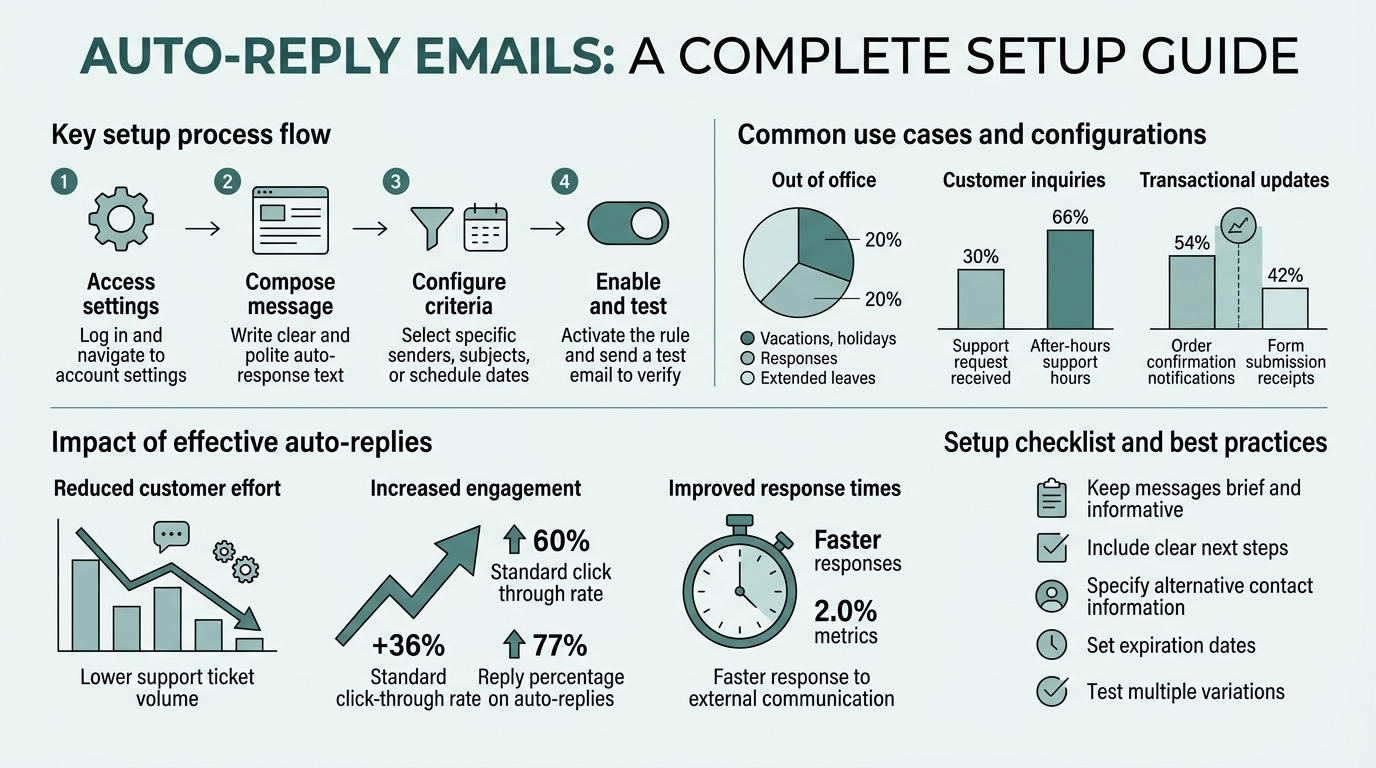
An auto-reply email is a pre-written message your email system sends automatically to incoming messages based on specific triggers, typically time-based (while you're out of office) or event-based (when a form is submitted or support ticket created). Businesses using automated responses see 27% higher customer satisfaction scores because they immediately acknowledge receipt without requiring manual effort.
The psychology behind auto-replies is straightforward: uncertainty breeds anxiety. When someone fills out a contact form or emails your support inbox, they're left wondering if the message arrived, if anyone will respond, and when. A timely auto-reply eliminates that uncertainty in seconds.
For indie developers and small teams building forms on static sites, auto-replies solve a specific friction point. You don't have backend infrastructure to log every submission or send confirmation emails natively. Using a form backend service like FormBeam's email configuration system, you can trigger confirmations automatically whenever a form is submitted, without touching a single line of code.
Auto-replies serve three distinct functions:
- Acknowledgment: "I got your message and haven't ignored it."
- Expectation-setting: "Here's when you'll hear back from me or my team."
- Alternative routing: "If this is urgent, contact X or visit this link for faster help."
Setting Up Auto-Replies in Gmail and Workspace
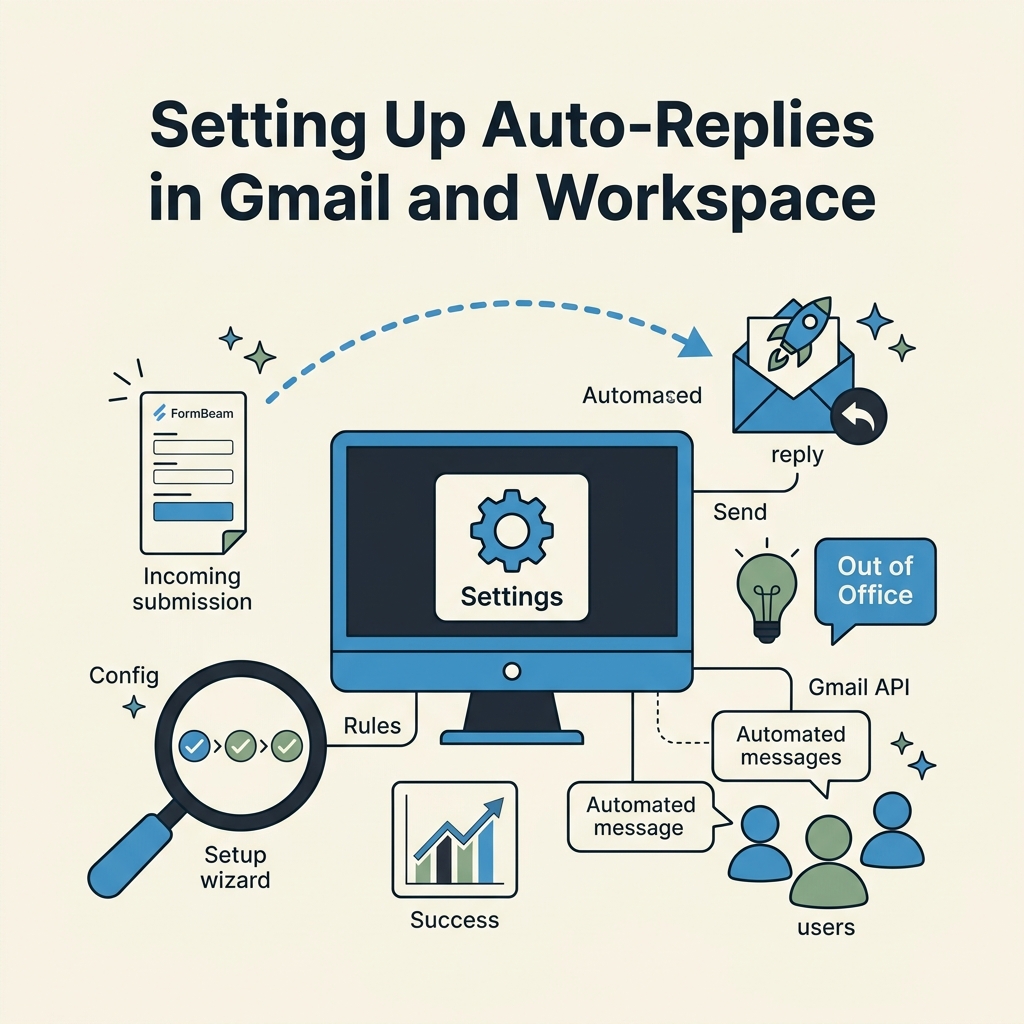
Gmail's native auto-reply tool is called the Vacation Responder. It works through the Settings menu and supports time-based triggers, making it ideal for out-of-office scenarios. Gmail's Vacation Responder setup is straightforward but limited to static messages without personalization or advanced triggers.
Enabling Vacation Responder in Gmail
Access Gmail Settings by clicking the gear icon in the top right, then select "See all settings." Navigate to the General tab and scroll to the Vacation Responder section. Toggle it on, set your start and end dates, and compose your message. You can limit replies to contacts in your address book to avoid sending auto-replies to spam or unverified senders. Gmail will send your message once per conversation, not to every email from the same sender, a helpful default that prevents message fatigue.
Using Filters and Templates for Advanced Automation
For more control, combine filters with Gmail's canned response templates. Create a filter that catches incoming emails with specific keywords or sender addresses, then have the system apply a label and auto-archive the message. Pair this with a manual or semi-automated canned response template by clicking the three dots in the compose box and selecting "Templates." This approach works for support inboxes or role-based email addresses like noreply@yoursite.com, where you want different auto-replies for different inquiry types.
Google Workspace Admin Controls
If you manage a team in Google Workspace, you can set organization-wide email forwarding and delegation rules through the Admin Console. Under Users > User Settings, admins can configure automatic replies for inactive accounts or set delegation rules that forward emails to a manager while auto-notifying the original sender. This is particularly useful for teams where people take turns on support duty.
How to Configure Auto-Replies in Outlook and Microsoft 365
Outlook's auto-reply feature is called "Automatic Replies" and resides in Settings > Automatic Replies. Unlike Gmail's time-based approach, Outlook allows both time-based (vacation dates) and rule-based (specific conditions like "if from external domain") auto-replies, making it more flexible for business scenarios.
Setting Time-Based Out-of-Office Replies
In Outlook (web or desktop), navigate to Settings and select Automatic Replies. Toggle "Send automatic replies" on, then choose either "Only send during this time range" to restrict replies to a specific vacation window, or leave it off to keep replies active indefinitely. Compose separate messages for internal (same organization) and external (outside domain) senders, this prevents flooding your colleagues while still confirming receipt to external contacts. Set a clear return date and provide an alternative contact for urgent matters.
Rule-Based Auto-Replies with Conditions
Outlook Automatic Replies also support conditions. You can configure the system to send different replies based on message properties like the sender's domain, subject line, or mailbox folder. For example, route all incoming support tickets to a "Support" folder and send a confirmation reply only to external senders, while internal team emails bypass the auto-reply entirely. This level of control is valuable for teams managing multiple email addresses or personas.
Integration with Exchange and Teams
In Microsoft 365, auto-replies sync across Outlook, Teams, and Outlook on the web. When you enable automatic replies in one location, they're active everywhere. You can also integrate this with Microsoft Teams status settings, set your Teams status to "Away" and Outlook will automatically enable auto-replies, giving your team one source of truth for your availability.
Auto-Replies for Form Submissions and Contact Requests
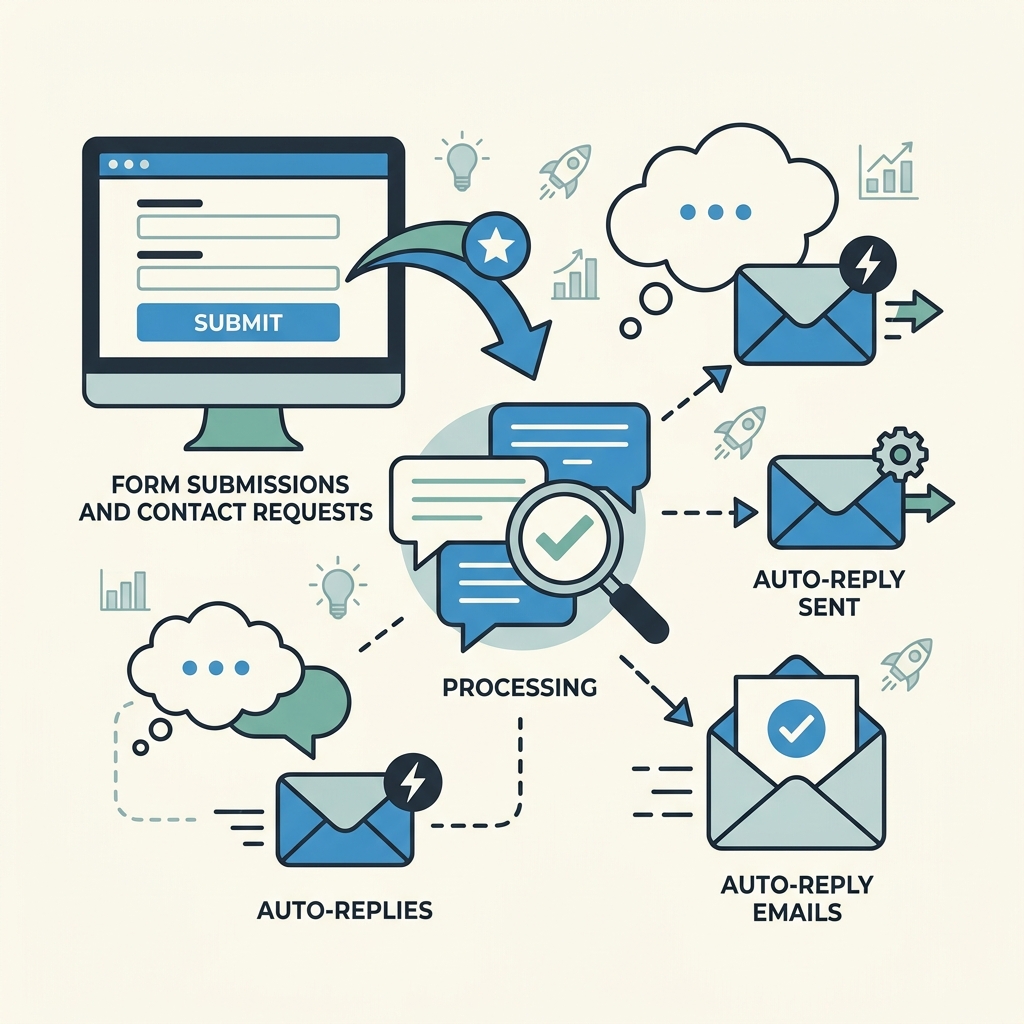
The highest-value auto-reply use case for indie developers is form submission confirmation. When someone fills out a contact form on your static website, they need immediate confirmation that the submission was received. Personalized form confirmations drive 26% higher open rates than generic acknowledgments because they reference specific details from the submission.
Setting Up Confirmation Emails with Template Variables
Modern form platforms allow you to insert template variables from form fields into auto-reply messages. For example, if a form asks for a name and inquiry type, your auto-reply can reference both: "Hi {{name}}, thanks for reaching out about {{inquiry_type}}. We'll get back to you within 24 hours." This level of personalization makes the message feel direct and thoughtful rather than robotic. FormBeam enables dynamic email templates that automatically pull submission data without requiring you to manually configure each field.
Segmenting Auto-Replies by Submission Type
If your form collects different types of inquiries, say, support requests versus sales questions, segment your auto-replies by submission category. A customer with a bug report needs a different response than someone requesting a demo. Use conditional logic: if the inquiry_type field equals "support," send one auto-reply; if it equals "sales," send another. This approach significantly improves perceived responsiveness because the message addresses the sender's actual need.
Including Next Steps and Resources
Your form submission auto-reply should not be purely confirmatory. Include actionable next steps: "Check out our FAQ at [link] for common answers" or "You'll receive a personal response from our team within 24 hours." Providing self-service resources reduces pressure on your support queue and improves customer satisfaction by giving people something to do while they wait for a personal response.
Building Multi-Step Auto-Reply Workflows
Single auto-replies work, but multi-step workflows convert better. A typical workflow sends an immediate confirmation, then a follow-up email 48 hours later with relevant resources or a status update. This approach keeps leads warm and reduces the perception of abandonment.
First Email: Immediate Acknowledgment
The first email arrives instantly and confirms receipt with a clear call-to-action. Keep it short: "Thanks for reaching out. We've received your submission and will respond within 24 hours." Include a ticket number or reference code so the sender can track their inquiry. This email is primarily psychological, it lets the sender know they weren't ignored.
Second Email: Value-Add Follow-Up
48 to 72 hours after the first email, send a follow-up that adds value. If this is a sales inquiry, share relevant case studies or product information. For support requests, link to relevant documentation or FAQs. The goal is to move the conversation forward without making the sender feel like they're being sold to. Automation platforms like Reform enable trigger-based follow-ups that intelligently reference form data, ensuring each follow-up feels contextual rather than generic.
Tracking Multi-Step Performance
Monitor open rates, click rates, and time-to-reply for each step in your workflow. If your first email has an 80% open rate but the second only 45%, your timing or content may need adjustment. If people are opening emails but not clicking links, your CTAs might be unclear. Use these insights to iterate on template copy and timing until you find a rhythm that works for your audience.
Best Practices for Writing Effective Auto-Replies

The tone, length, and content of your auto-reply can significantly impact how the sender perceives your business. Generic, cold auto-replies damage trust; personalized, warm ones strengthen it.
Tone and Professionalism
Your auto-reply is a reflection of your brand. Keep the tone consistent with the rest of your communication. A startup building developer tools might use a casual, friendly auto-reply ("Thanks for reaching out! You caught us in the middle of shipping a big feature..."), while a consultant managing client relationships needs a more formal approach ("Thank you for your inquiry. I'm currently out of the office and will respond upon return."). Avoid overly cute or joking auto-replies, they can undermine credibility, especially for serious inquiries like support requests.
Clarity on Response Time
Always state an expected response time, even if it's "within 24-48 business hours." Uncertainty about response time is worse than knowing it will be a few days. If you're truly unreachable, be explicit: "I'm completely offline until July 15. For urgent matters, contact [name] at [email]." Honesty builds trust; vague promises erode it.
Providing Alternative Contact Methods
Every auto-reply should include at least one alternative way to reach you or your team. This might be a phone number, alternative email address, support page, or chat widget. The goal is to prevent senders from feeling trapped if their issue is genuinely urgent. This safety valve paradoxically reduces the volume of urgent requests because people feel confident they have options.
Length and Scannability
Keep auto-replies under 100 words. Most people skim, especially in the moment of frustration. Use short paragraphs, bold the key information (like response time or contact person), and make it easy to scan in 10 seconds. If you need to include multiple resources or options, use a bulleted list.
Comparison of Auto-Reply Tools and Platforms
Different tools offer different capabilities depending on your needs. Here's how the main options compare for indie developers and small teams building static sites:
| Platform | Best For | Personalization | Multi-Step Workflows | Cost |
|---|---|---|---|---|
| Gmail Vacation Responder | Out-of-office replies | Static only | No | Free (included) |
| Outlook Automatic Replies | Time-based and rule-based replies | Limited (rule conditions) | No | Free (included) |
| FormBeam | Form submission confirmations | Yes (template variables) | Yes | Starts at $9/month (100 free submissions) |
| Reform | Advanced form automation | Yes (Liquid syntax) | Yes | Pricing varies |
| Hiver (Gmail add-on) | Shared inboxes with team auto-replies | Yes (canned responses) | Limited | $39+/month |
| Zapier + Email Service | Custom workflows across tools | Yes (conditional logic) | Yes | Varies ($20-100+/month) |
For indie developers managing forms on static sites, FormBeam stands out because it handles form submission auto-replies without requiring you to build backend infrastructure. You embed a single line of code in your HTML, FormBeam captures submissions and automatically sends personalized confirmations. No databases to manage, no email service to configure, no custom logic to maintain. The workflow is: form submission → automatic FormBeam confirmation → optional integration with Zapier for follow-ups. This eliminates the complexity that makes custom form solutions impractical for solo developers.
Common Auto-Reply Mistakes to Avoid
Even well-intentioned auto-replies can backfire if they're not configured correctly. Here are the biggest pitfalls:
Auto-Reply Loops (Auto to Auto)
The infamous scenario where two auto-replies keep responding to each other in an endless loop. This happens when you send an auto-reply to another person's auto-reply, which then triggers their auto-reply, and so on. Most modern email systems prevent this by detecting auto-reply headers and not responding to them. However, if you're using custom email automation, explicitly mark auto-reply emails with an X-Auto-Reply header to prevent loops.
Replying to Automated Messages
Configure your auto-reply filters to skip certain addresses entirely, particularly no-reply emails, system notifications, and known automation addresses. Your auto-reply should never respond to transactional emails like password resets or payment receipts. This wastes resources and clutters the sender's inbox.
Being Too Cute or Casual
Auto-replies like "I'm probably out making a pizza right now" might get a smile, but they hurt credibility. Stick to professional warmth. Your auto-reply isn't the place for comedy; it's the place for clarity and reassurance.
Forgetting to Disable Auto-Replies
People often forget to turn off out-of-office auto-replies when they return. Set a calendar reminder to disable your vacation responder on your first day back. Worse, some people leave auto-replies on indefinitely, signaling that they've abandoned their email, the opposite of the trust you're trying to build.
Advanced Auto-Reply Strategies for Growing Teams
As your team grows, auto-replies become more complex. You might need different replies for different team members, departments, or escalation paths.
Rotating On-Call Auto-Replies
Implement a system where one team member is on-call for urgent inquiries each week. Their auto-reply explicitly states they're the primary contact for urgent matters, while other team members' auto-replies direct urgent requests to that person. This ensures urgent issues are never orphaned while still respecting individual availability.
Escalation Paths in Auto-Replies
Structure your auto-reply with clear escalation: "Response within 24 hours for standard questions. For urgent support, contact [name]. For billing issues, email [billing@]." This guides senders to the right resource and prevents support fatigue from misrouted requests.
Integration with CRM and Ticketing Systems
Modern support platforms like FormBeam's submission dashboard and third-party tools like Zapier can automatically log form submissions and trigger multi-step workflows without manual intervention. You can configure the system to send an auto-reply, log the submission with full context, and assign it to the right team member, all instantly and without any human input required.
Conclusion
Auto-reply emails are a small but powerful tool for improving customer experience and managing communication expectations. Whether you're setting up an out-of-office message for a week away or configuring personalized confirmations for form submissions, the core principle is the same: acknowledge quickly, set clear expectations, and provide a path forward. Teams that implement thoughtful auto-replies see higher customer satisfaction scores and fewer follow-up requests because people feel heard rather than ignored. For indie developers and small teams building static sites, platforms like FormBeam eliminate the infrastructure barrier and let you send intelligent, personalized auto-replies with a single line of embedded code. Start with a simple out-of-office reply, then layer in form submission confirmations and multi-step workflows as your needs grow.
Ready to simplify your form submission workflow? Try FormBeam free, no credit card required. Send your first 100 form submissions with automatic confirmations at no cost.
FAQs
How do I set up an auto-reply in Gmail while I'm on vacation?
Click the settings gear in the top right of Gmail, select "See all settings," go to the General tab, and find the Vacation Responder section. Toggle it on, set your away dates, and write a brief message. You can limit replies to only your contacts to avoid sending messages to spam addresses. Gmail will send one reply per conversation thread, not to every email from the same person. Remember to turn it off when you return, or set a calendar reminder to ensure you don't miss important messages.
What should I include in a form submission auto-reply?
A effective form submission auto-reply includes: a brief thank you, confirmation that the submission was received, an estimated response time (e.g., "within 24 hours"), the sender's submission reference number or ticket ID, and at least one alternative contact method or resource link. Keep it under 100 words and personalize it with the sender's name if possible. If your form captures the inquiry type (e.g., support vs. sales), segment your auto-reply message to address their specific need. Avoid making promises you can't keep, be honest about response times.
Can auto-replies cause email delivery problems or spam issues?
Properly configured auto-replies don't cause delivery problems, but poorly configured ones can. The biggest risk is the auto-reply loop, where two automated systems respond to each other indefinitely. Modern email services prevent this by detecting auto-reply headers. To avoid issues, configure your auto-replies to never respond to other automated messages (like system notifications), set a maximum daily limit on auto-replies, and avoid sending auto-replies to unverified sender addresses. Mark all auto-reply messages with appropriate headers so receiving systems recognize them as automated. If using a form service like FormBeam, these protections are built in automatically.