Automate Response Workflows: Create Tasks and Notifications on Submit
Most teams handling form submissions still rely on manual notification and task creation. A support team receives an incoming contact form, but no automatic email goes to the customer. A sales inquiry lands in Slack, but nobody creates a follow-up task. When you multiply these gaps across dozens of forms and hundreds of submissions per month, the average response delay stretches from minutes to hours or even days. According to Nintex research, digital forms with automation can reduce turnaround from days to minutes or hours in most cases. The solution? Automated response workflows that trigger emails, create tasks, and notify teams instantly the moment a form is submitted.
Key Takeaways
- Automated workflows reduce response time from days to minutes or hours, improving customer satisfaction and lead capture (Nintex, 2025)
- Businesses using email automation report 53% higher conversion rates than those relying on manual follow-ups (Imarkinfotech, 2025)
- Organizations save an average of 30% more time on routine processes when implementing workflow automation (Feathery, 2025)
- Instant Email Notifications: Trigger welcome emails, confirmations, or acknowledgments within minutes of submission to keep customers informed.
- Automatic Task Assignment: Create tasks in your team's project management tool when specific form submissions arrive, eliminating manual routing.
- Real-Time Team Alerts: Send Slack messages or SMS notifications to relevant team members so urgent submissions get immediate attention.
- Workflow Triggers and Conditions: Build logic-based automation that responds differently based on form field values (e.g., priority level, submission type).
- Error Reduction and Consistency: Automated workflows eliminate manual data entry mistakes and ensure standardized responses across all submissions.
What Are Response Workflows and Why Do They Matter?
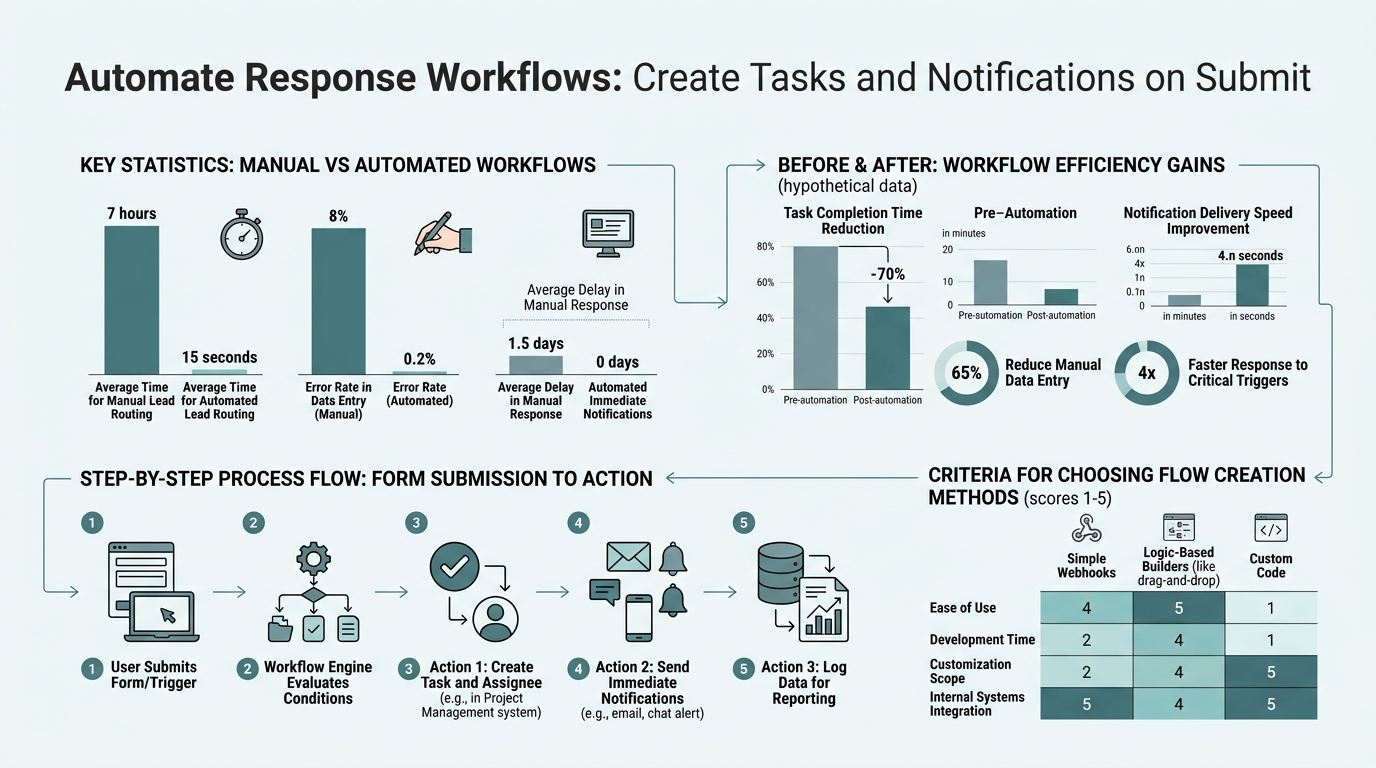
A response workflow is an automated sequence of actions triggered by a form submission. The moment someone fills out and submits a form, the workflow springs into action without human intervention. This could mean sending an immediate confirmation email to the submitter, creating a task in your CRM, notifying a team member via Slack, generating a PDF receipt, or all of the above in a coordinated sequence. The value is immediate and measurable: automated form processing is described as significantly faster than manual processing because software can route and respond to submissions instantly.
"Without response workflows, form submissions sit in an inbox waiting for someone to remember to act. When a form automatically triggers a chain of actions—notification email, task creation, team alert—everything accelerates."
Without response workflows, form submissions sit in an inbox waiting for someone to remember to act. The customer is left wondering if their message was received. The team doesn't know there's a new lead or support request waiting. Delays compound. Leads go cold. Support tickets pile up. But when a form automatically triggers a chain of actions—notification email, task creation, team alert—everything accelerates.
The Business Case for Automation
The ROI is compelling. Organizations implementing workflow automation report a 200% return on investment within the first year, according to recent automation benchmarks. Beyond financial returns, the operational benefits are concrete: fewer dropped follow-ups, faster response times, reduced errors from manual data entry, and freed-up staff who can focus on high-value work rather than task routing and notification chasing. For indie developers and small teams building static sites, this is particularly critical—you likely don't have a dedicated ops person to monitor submissions and manually trigger follow-ups. Automation handles that work for you.
Common Pain Points Without Automation
Teams without automated response workflows often face these bottlenecks:
- Delayed discovery: Form submissions sit unread until someone checks the inbox, hours or days later.
- Manual data entry: Team members re-type submission details into CRMs, task managers, or email systems, introducing errors.
- Inconsistent responses: Some submissions get follow-up emails; others don't. Customers receive different messages or no message at all.
- Lost leads: Sales inquiries without immediate acknowledgment often go unread by competitors who respond faster.
- No task trail: Without automatic task creation, submissions are easily forgotten or handled ad-hoc rather than systematically.
How to Set Up Instant Email Notifications on Form Submit
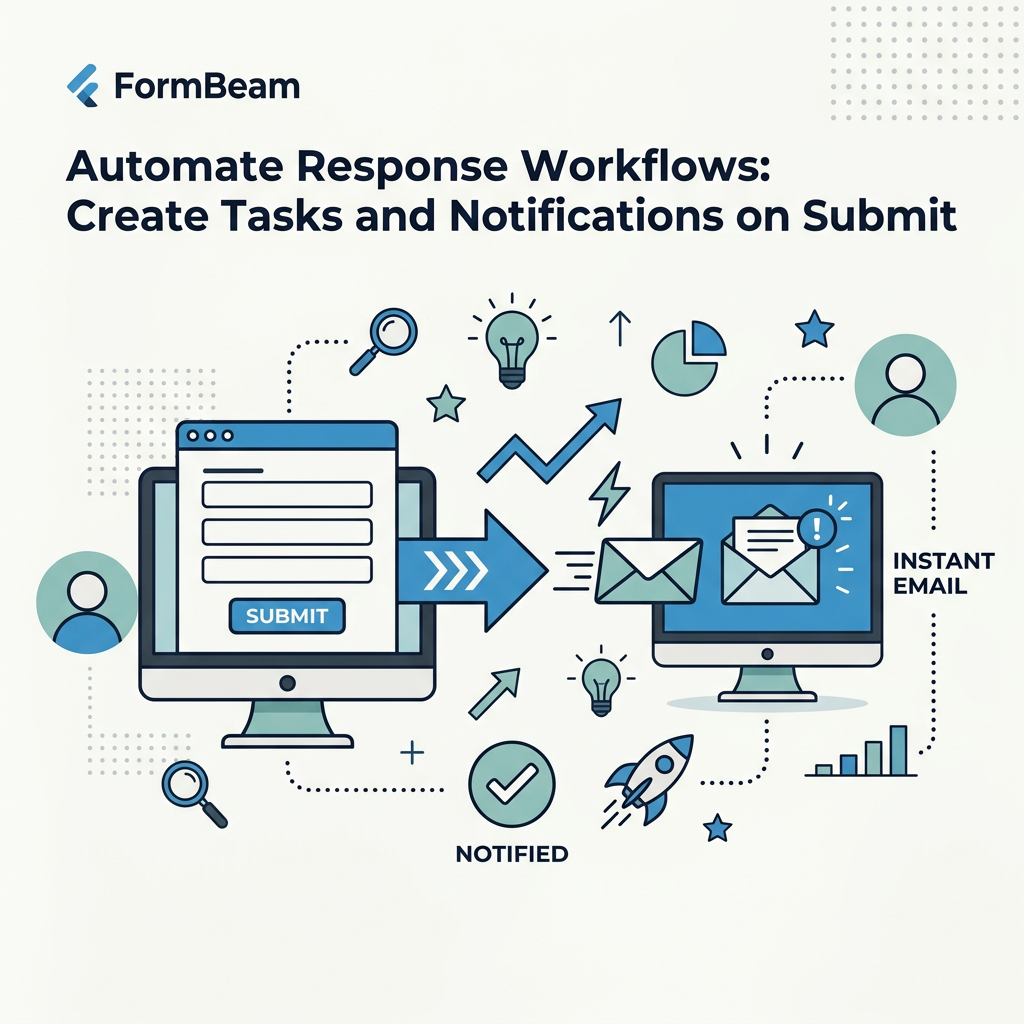
Email notifications are the foundation of any response workflow. When a form is submitted, an automated email should go out immediately to the submitter (acknowledgment/confirmation), and your team should be alerted (team notification email or Slack). Setting this up requires three components: the form itself, a backend service to capture submissions, and a rule that triggers the email sequence when a submission arrives.
"The simplest approach is using a form service that includes notification automation built-in, rather than cobbling together multiple integrations. Most static-site builders and form solutions require manual setup of email triggers via Zapier or custom webhooks."
Choose a Form Backend That Handles Notifications Natively
The simplest approach is using a form service that includes notification automation built-in, rather than cobbling together multiple integrations. Many static-site builders and form solutions require manual setup of email triggers via Zapier or custom webhooks. FormBeam's email configuration handles this automatically—once you've embedded a form, you set notification email addresses in the dashboard, and every submission triggers confirmations and team alerts without extra API work. The benefit for indie teams is speed: you configure email rules in minutes, not hours of webhook setup.
Configure Multiple Email Recipients and Templates
A professional response workflow sends different emails to different recipients. The submitter receives a confirmation saying "Thanks for reaching out—we'll follow up within 24 hours." Your support team receives a detailed alert with the submission data, potentially filtered by submission type. Advanced setups customize the email template based on what was submitted—e.g., if a form field indicates "Priority: High," send it to your urgent queue with a different email subject line. Most modern form backends let you specify multiple recipient addresses and conditional email templates. Start simple: one confirmation to the customer, one team notification to your primary contact. Expand to role-based routing once the workflow is stable.
Automating Task Creation in Your Team's Workflow
Email notifications get the word out, but tasks ensure accountability and tracking. When a high-priority form submission arrives, an automated task should appear in your project management tool immediately. This keeps the submission from slipping through the cracks and provides visibility to your entire team. Automated workflows move tasks forward instantly, cutting delays and improving delivery speed and accountability, according to task automation research. The mechanism typically involves webhooks or native integrations between your form service and your CRM or project tool.
Webhook-Based Task Creation for Custom Workflows
A webhook is a rule that says: "When event X happens, send data to URL Y." When a form is submitted, FormBeam can send the submission data to a webhook endpoint you control. That endpoint could be your CRM API, a Zapier webhook, or a custom serverless function that creates the task. For developers comfortable with API integration, this approach is flexible—you can create tasks with custom fields, assign them to specific team members based on form data, set due dates, and attach the original submission. The trade-off is setup complexity; webhooks require some backend knowledge or a middleware tool like Zapier. For non-technical teams, look for form services with native dashboard task management that doesn't require webhooks.
Conditional Task Assignment
The most powerful automation rules are conditional. Instead of creating one generic task for every submission, your workflow evaluates the submission and routes it intelligently. For example:
- If submission type = "Sales Inquiry," create task in Sales pipeline and assign to sales lead.
- If submission priority = "Urgent," assign task to highest-priority queue with 1-hour SLA.
- If submission includes file attachment, add task to QA queue for security review before processing.
- If submission contains specific keywords (e.g., "refund," "broken," "critical"), escalate to manager for review.
Building these conditions requires either a visual workflow builder (many form platforms now offer these) or custom code. Visual builders let non-technical users drag-and-drop conditions without coding. Custom code offers more control but demands developer time. Start with simple conditions and expand as your process matures.
Real-Time Notifications to Your Team
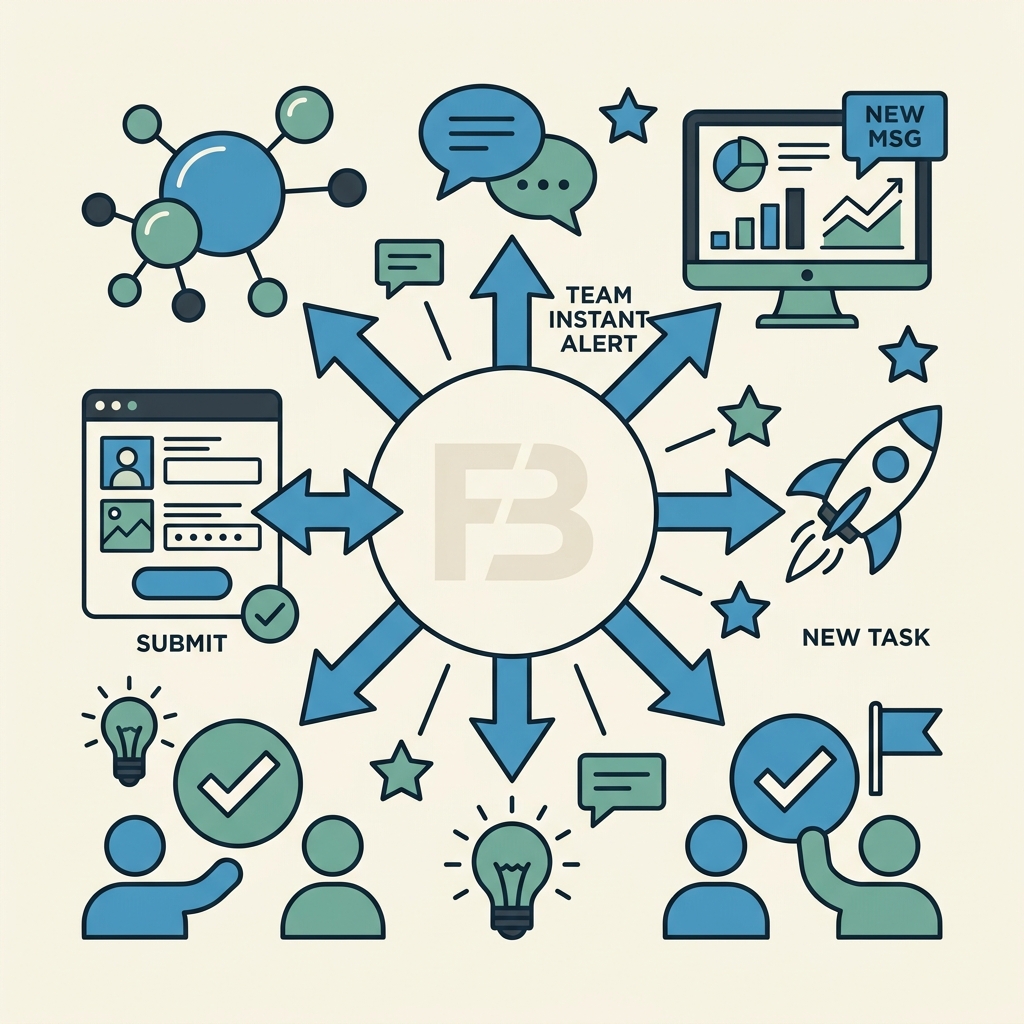
Email is reliable but passive. If a critical form submission lands at 3 AM and your team doesn't check email until morning, the response is delayed. Real-time notifications via Slack, SMS, or in-app alerts push information to your team immediately, even if they're not at their desks. Modern form automation platforms increasingly support these push-based notifications alongside email.
"Real-time notifications via Slack or SMS push information to your team immediately, dramatically increasing the chance of rapid pickup and response compared to email alone."
Slack and Chat Integrations
Most popular form services and workflow automation tools integrate with Slack. When a form is submitted, a message appears in a designated Slack channel with the submission summary and a link to view the full details. This surfaces submissions in the chat stream where your team is already working, increasing the chance of rapid pickup. Advanced integrations let you send different message templates based on submission attributes—critical submissions appear with a @channel mention and red emoji; routine submissions appear as a simple notification. For distributed teams, Slack notifications are often faster than email for drawing attention to time-sensitive submissions.
SMS Alerts for High-Priority Submissions
When a submission truly demands immediate attention (e.g., a support escalation, high-value sales lead, or security alert), SMS notifications bypass email and Slack entirely. An SMS goes directly to a team member's phone with the core details. Most workflow automation platforms support SMS through providers like Twilio. The cost is small (typically cents per message), and the impact is high—a text message gets read within minutes in most cases. Use SMS sparingly for genuinely urgent submissions; overuse creates noise and fatigue.
Building Dynamic Workflows with Conditional Logic
The most sophisticated response workflows don't treat all submissions the same. They use conditional logic to inspect the submission data and trigger different actions based on what the customer submitted. This requires a workflow engine that supports branching rules—if this, then that.
If-Then Rules for Submission Routing
A simple conditional workflow might look like this: "If the form field 'Department' equals 'Support,' route the task to the Support team and send a support-specific confirmation email. If it equals 'Sales,' route to Sales and send a sales-specific email." More complex workflows chain multiple conditions: "If Priority is Urgent AND Department is Support, create a high-priority task, notify the support manager via SMS, AND escalate to senior support if no response within 2 hours." Building these requires either a visual workflow builder or custom scripting. Visual builders are no-code, but their flexibility is limited. Custom code (e.g., JavaScript or Python) offers unlimited logic but demands developer time.
Data Transformation and Enrichment
Before creating a task or sending an email, you might want to enrich the submission data. For example, look up the customer's previous interactions in your CRM, fetch their account status, or check if they're a known spam address. Enriched workflows make follow-up faster and more targeted. A customer who's already in your high-value pipeline gets a task assigned to their existing account manager. A new lead gets routed to the standard sales funnel. A known spam address gets silently archived without notifying the team. Data transformation and enrichment typically require API-level integrations or a middleware platform like Zapier or Integromat.
Measuring and Optimizing Your Response Workflows
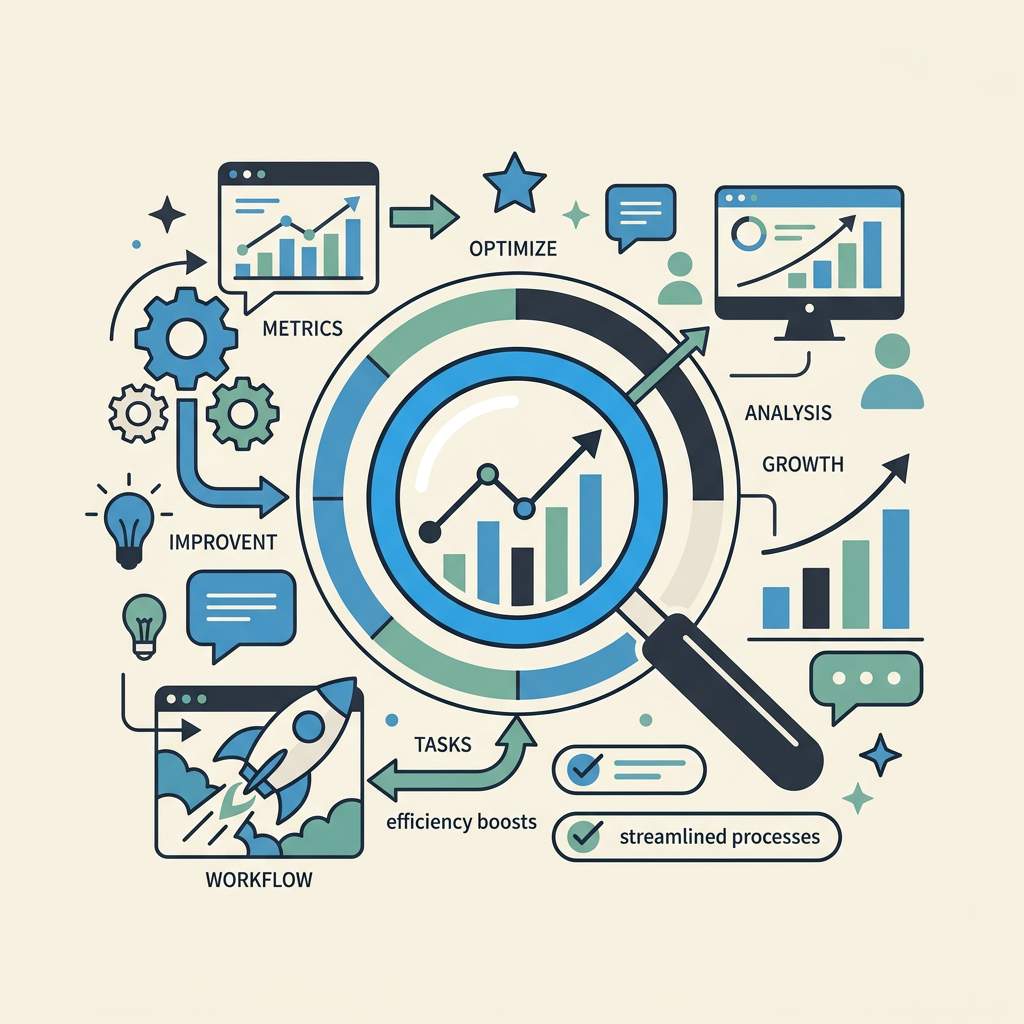
Once your automation is running, measure it to ensure it's delivering the promised benefits. Key metrics include response time (how fast the first task or email is triggered), task completion rate (what percentage of automated tasks get resolved), and customer satisfaction (do customers feel acknowledged and heard?). Email marketing best practices recommend monitoring open rates and click-through rates to detect fatigue; the same principle applies to response workflows—if your team is ignoring notifications, the workflow isn't working.
Key Performance Indicators to Track
Define and monitor these KPIs for your automation:
- Task creation latency: Time from submission to task appearing in your system (target: under 1 minute).
- First response time: Time from submission to first human reply (target: varies by use case; support usually under 4 hours, sales under 1 hour).
- Email open rate: Percentage of notification emails opened by the team (baseline: 30–50% for internal emails).
- Task completion rate: Percentage of automatically created tasks that get resolved (target: 90%+).
- Customer satisfaction: Survey respondents on whether they felt acknowledged after submitting a form.
Iterating Based on Performance Data
Workflow automation isn't set-and-forget. Review performance monthly. If tasks are being created but ignored, investigate—perhaps the notification is too generic, or tasks are being assigned to the wrong person. If response times are slow despite automation, the problem might be downstream (slow human process after the task is created). If customers report not receiving confirmation emails, check your email provider's deliverability and your spam filter settings. Use data to refine your conditions, add new rules, or simplify workflows that are too complex.
Comparison: Automated vs. Manual Response Workflows
To illustrate the difference between automated and manual processes, here's a side-by-side breakdown of what happens when a high-priority support request arrives:
| Activity | Manual Workflow | Automated Workflow |
|---|---|---|
| Form submission received | Sits in inbox waiting to be checked | Instantly captured and logged |
| Customer confirmation | Support agent must manually compose and send email (variable quality, timing) | Automated email sent within seconds (consistent, instant) |
| Team notification | Agent checks inbox periodically; may miss critical submissions | Slack alert + task created instantly; team sees within minutes |
| Task creation | Agent manually creates ticket in CRM (time-consuming, prone to omission) | Task auto-created with submission data pre-filled |
| Task assignment | Agent routes task to colleague manually or leaves it in a shared queue | Rule-based logic assigns to correct person or team automatically |
| Data entry | Agent re-types submission details into task/email (error-prone) | Data flows automatically; no manual re-entry |
| Time to first response | Hours or days (depends on when agent checks inbox) | Minutes (within SLA, reliably tracked) |
Best Practices for Designing Effective Response Workflows
Not every workflow is useful. Many teams build overly complex automation that breaks, sends too many notifications, or creates tasks that never get resolved. Here are principles for building reliable, effective response workflows.
Start Simple and Scale
Don't automate everything on day one. Twilio's automation best practices recommend beginning with 1–2 automations and monitoring results closely before expanding. Start with a basic workflow: form submission triggers a confirmation email to the customer and a team notification. Once that's stable and delivering value, add task creation. Later, add conditional logic. This phased approach prevents overwhelm and makes debugging easier.
Keep Notifications Meaningful
Notification fatigue kills automation projects. If your team receives dozens of automated alerts per day, they'll ignore all of them. Be selective: not every form submission needs a Slack message. Reserve Slack/SMS for truly important submissions. Routine submissions get an email-only notification. Urgent submissions get Slack + SMS. Define thresholds for each notification type and stick to them. Monitor whether the team is actually reading notifications; if engagement drops, you're over-notifying.
Validate Data Before Automating Actions
Garbage in, garbage out. If a form accepts invalid data (e.g., a task is assigned to a person who doesn't exist), downstream automation breaks. Always validate form input before it triggers actions. Check that required fields are filled, that emails are valid, that numbers are within expected ranges. Most form platforms include client-side and server-side validation. Use both to catch errors early and prevent bad data from triggering broken workflows.
Monitor and Log Every Workflow Execution
When automation fails silently, you don't know. A task doesn't get created. An email bounces. A Slack message never arrives. The submission is processed, but the customer never gets a confirmation. To catch these failures, ensure your form service logs every workflow action. Check logs regularly. Set up alerts (email or Slack) when a workflow fails. Most modern form backends provide execution logs and error reporting; use them to keep your automation healthy.
Conclusion
Automating response workflows transforms how your team handles form submissions. Instead of manually routing, notifying, and tracking, every submission triggers an instant chain of actions: confirmation email to the customer, task creation for your team, real-time notification to the right person. The result is measurable: response times shrink from days to minutes, customer satisfaction rises, and your team spends less time on administrative work. For indie developers and small teams building static sites, this isn't a luxury—it's the difference between being responsive and being forgotten.
The most effective approach is to use a form backend service that includes automation natively—no webhooks, no middleware, no complexity. Embed your form, configure notification rules and task mappings in the dashboard, and you're done. That's where FormBeam excels. You get instant email notifications, automatic task creation in your CRM or project tool, real-time Slack alerts, and conditional logic—all from a single platform designed for indie developers who don't have time to build backend infrastructure.
Try FormBeam today and see how fast form response can be.
FAQs
How quickly should form submission notifications be sent?
Notifications should be sent within seconds to minutes of submission. For customer confirmations, research shows that welcome emails and acknowledgments sent within minutes have significantly higher engagement and customer satisfaction than those sent hours later. For team notifications, the goal is even tighter—critical submissions should alert the team within 1-2 minutes. Delays give competitors time to respond and undermine the whole automation advantage. Most modern form platforms and email services can deliver notifications in under 5 seconds when configured properly, so there's no excuse for delays.
Can I create tasks in my CRM automatically when a form is submitted?
Yes, most modern form services support automatic task creation via integrations or webhooks. Many CRM platforms (HubSpot, Salesforce, Pipedrive) offer direct integrations with form services, meaning a form submission can automatically create a contact record and task without manual work. If your CRM doesn't have a direct integration, you can use Zapier or a similar middleware service to connect any form to any CRM via a simple automation rule. The setup takes minutes, and once configured, every new submission generates a task in your CRM with data pre-filled from the form.
What happens to submissions if my workflow automation fails?
Submissions should always be saved to your form service's database regardless of whether downstream actions succeed. This means even if an email fails to send or a webhook fails to trigger, the submission is still captured and visible in your dashboard. However, the customer won't receive a confirmation email, and your team might not be notified. That's why monitoring workflow logs is critical—check your form service's dashboard regularly to catch failed automations and re-trigger them manually if needed. Most professional form platforms alert you to failures automatically so you can fix them before customers are impacted.