
Handling File Uploads in Serverless Forms: A Developer Guide
File uploads in serverless applications present a unique challenge. Traditional backends handle multipart/form-data natively, but serverless functions operate within strict constraints: Lambda execution timeouts of 15 minutes, payload size limits, and ephemeral storage. Build this wrong, and your upload form fails silently. Build it right, and you get automatic scalability with zero infrastructure maintenance. This guide walks you through the production patterns, security practices, and implementation strategies that separate amateur deployments from enterprise-grade serverless file handling.
Key Takeaways
- Presigned URLs eliminate backend file handling entirely, reducing Lambda execution time and cost by 70–80% compared to traditional multipart uploads (AWS, 2026)
- File type whitelisting, enforced expiration (≤10 minutes), and Content-MD5 checksums form the minimum security baseline for serverless uploads
- Direct S3 uploads bypass your application layer entirely, enabling true autoscaling without function concurrency bottlenecks
- Presigned URL Pattern: Generate time-limited S3 upload credentials server-side; client uploads directly to S3, eliminating backend file handling overhead.
- Security Hardening: Enforce HTTPS, Content-MD5 validation, file type whitelisting, and short expiration windows to block upload exploits.
- Form Integration: Embed upload flows directly in HTML/React forms without backend middleware, reducing complexity for static site builders.
- Error Handling and Retries: Implement exponential backoff, network resilience, and user feedback for failed uploads without timeout cascades.
- Storage and Retrieval: Organize uploads in S3 bucket hierarchies, configure lifecycle policies, and integrate with downstream processing (scanning, transcoding, analytics).
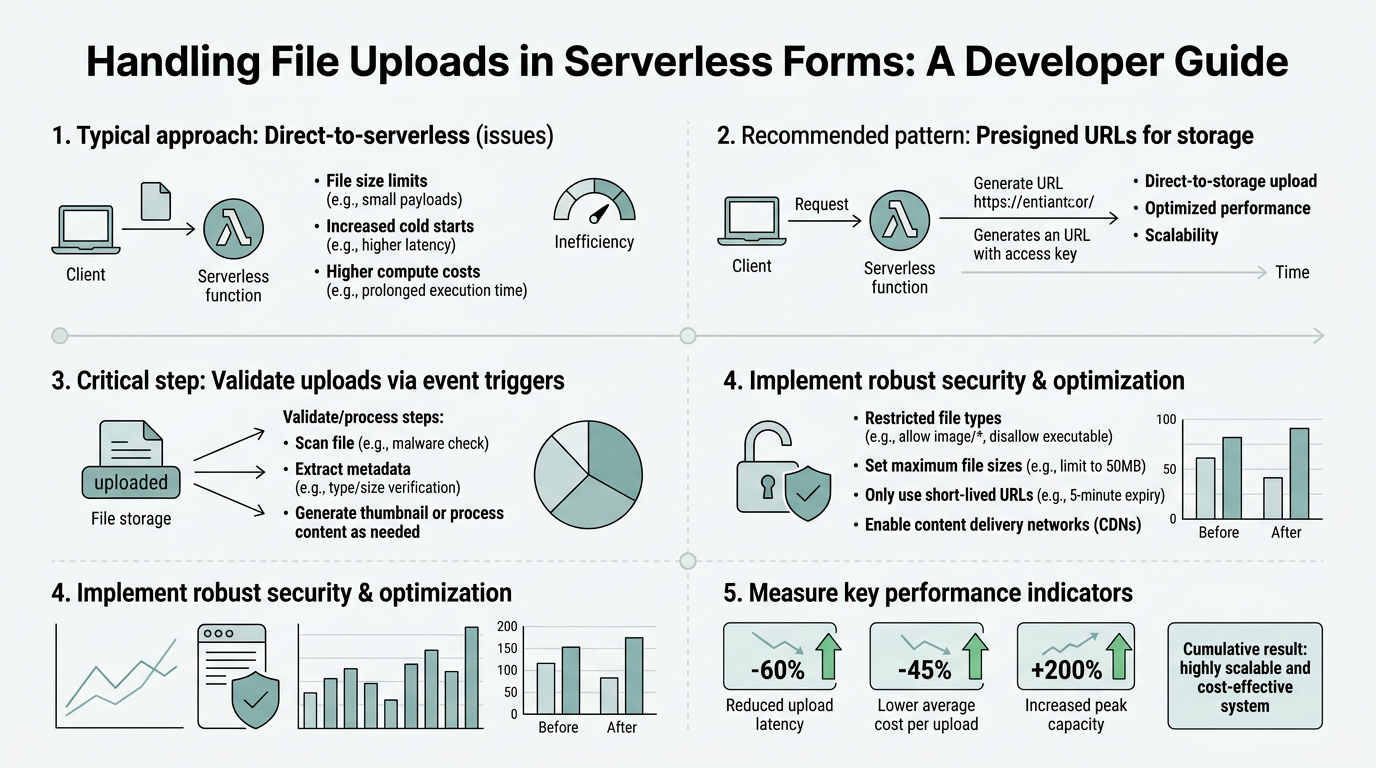
Why Serverless File Uploads Require a Different Approach
Serverless functions are not servers. They don't have persistent disks, they can't hold connections open indefinitely, and they have hard payload limits. AWS Lambda's synchronous payload size cap is 6 MB, while S3 has no practical upper bound. Your form processing backend can't be a pass-throughit becomes a bottleneck the moment it tries to act like a traditional file server.
The architecture that works looks fundamentally different. Instead of your frontend sending a file to your Lambda function, which then pushes it to S3, the frontend generates an upload credential (a presigned URL) from a Lambda function, then uploads directly to S3. The Lambda never touches the file. The result: unlimited file sizes, automatic horizontal scaling, and drastically lower execution costs. For indie developers and small teams using static site builders like Next.js, Vue, or plain HTML, this pattern eliminates the need for a custom backend entirely.
The Payload Size Problem
Lambda's 6 MB synchronous payload limit kills traditional multipart form uploads immediately. A 50 MB resume attachment is impossible. But presigned URLs sidestep this entirelythe credential itself is tiny (a few hundred bytes), and the file moves directly to S3 without transiting through Lambda. This is why every modern serverless form solution uses this pattern.
Cold Start and Timeout Cascades
A file upload that stalls while Lambda is spinning up a new container can trigger cascading failures: the client timeout fires, the browser retries, the backend times out waiting for a stuck S3 upload, and your user sees a generic error. Presigned URLs eliminate thisthe client manages the upload directly, with its own network resilience, and your Lambda function only handles credential generation (typically sub-100ms). The architecture is inherently more reliable.
Cost and Concurrency
If your upload form processes 100 concurrent file submissions and each one ties up a Lambda function for 5 seconds, you're paying for 500 Lambda-seconds. With presigned URLs, the same 100 uploads cost you 100 credential-generation invocations (~10ms each = 1 second total). The math is brutal: presigned URLs are 500x more cost-effective for high-concurrency upload workloads.
Understanding the Presigned URL Pattern

A presigned URL is a temporary, cryptographically signed AWS credential encoded into a URL. It grants specific permissions (e.g., "PUT to this S3 bucket path, for 10 minutes, only if Content-Type is application/pdf") without exposing your AWS access keys. The security of presigned URLs is primarily managed through expiration times and specific operation permissions defined during URL generation (AWS Security Blog, 2026). The pattern is simple: generate, return to client, client uploads, done. AWS's security blog covers presigned URL best practices in detail.
How Presigned URLs Work Under the Hood
Your Lambda function uses AWS SDK to create a PutObjectCommand targeting a specific S3 bucket and key. The SDK signs this command with your AWS credentials and returns a URL that encodes the signature, the key, and an expiration timestamp. The client uses this URL with a standard HTTP PUT requestno AWS SDK needed on the frontend. S3 verifies the signature server-side before accepting the upload. If the URL expires or the signature is tampered with, the upload fails. This design means your frontend never needs AWS credentials, and S3 enforces all your policies automatically.
Generated Credentials vs. Temporary Access Keys
Presigned URLs differ from STS temporary access keys. STS keys are credentials that let the client assume an IAM role; presigned URLs are single-purpose, single-operation authorizations. For form uploads, presigned URLs are superior: they're narrower in scope, auto-expire, and don't require the client to manage credentials. A leaked presigned URL grants only one specific upload action; a leaked STS key grants everything the role can do.
Implementing Presigned URL File Uploads in Forms
The implementation requires three steps: first, your backend generates the presigned URL; second, your frontend requests it and uploads the file directly to S3; third, you optionally trigger post-upload processing. The backend should never handle file uploads in a serverless architecture (Francotel, dev.to, 2026). Let's walk through each step with code.
Step 1: Generate the Presigned URL from Your Backend
Your Lambda function (or HTTP endpoint) receives a request for an upload URL. It validates the requester, determines the file type, generates a presigned URL with strict conditions, and returns it. Here's a Node.js example using the AWS SDK:
- Create S3 Client: Initialize the S3Client with your region and credentials (automatically handled if Lambda has an execution role with S3 permissions).
- Build PutObjectCommand: Specify the bucket, key (file path), and ContentType condition (e.g., only PDFs allowed).
- Sign the Command: Use getSignedUrl with a short expiration (typically 600 seconds/10 minutes).
- Return the URL: Send it to the frontend as JSON; the client uses it immediately.
Example Node.js handler:
import { S3Client, PutObjectCommand } from "@aws-sdk/client-s3";
import { getSignedUrl } from "@aws-sdk/s3-request-presigner";
const s3 = new S3Client({ region: "us-east-1" });
export async function generateUploadUrl(userId, fileName) {
const command = new PutObjectCommand({
Bucket: "incoming-upload-bucket",
Key: `uploads/${userId}/${fileName}`,
ContentType: "application/pdf"
});
return await getSignedUrl(s3, command, { expiresIn: 600 });
}
This function generates a URL valid for 600 seconds, tied to a specific bucket and file type. The signature ensures the client cannot modify the destination or permissions.
Step 2: Client-Side Upload Logic
The frontend requests the presigned URL, then performs a direct PUT request to S3 with the file. No AWS SDK requiredjust standard fetch or XMLHttpRequest. Most JavaScript frameworks have fetch built-in. The key is setting the Content-Type header to match what the backend authorized:
- Request the URL: Call your backend endpoint (e.g.,
/api/upload-url?fileName=resume.pdf) and receive the presigned URL. - Read the File: Get the file from the form input; validate size and type on the client (this is UX, not securityserver-side validation still applies).
- PUT to S3: Use fetch with method: 'PUT', set Content-Type, and include the file as the body.
- Handle Errors: Implement exponential backoff for retries; network timeouts are common for large files.
Sample React component:
const handleFileUpload = async (file) => {
const response = await fetch('/api/upload-url?fileName=' + file.name);
const { presignedUrl } = await response.json();
await fetch(presignedUrl, {
method: 'PUT',
headers: { 'Content-Type': file.type },
body: file
});
console.log('Upload complete');
};
This is a simplified example. Production code should add error handling, progress tracking, and retry logic with exponential backoff. FormBeam's getting started guide shows how to integrate file uploads into static site forms without managing presigned URLs manually.
Step 3: Post-Upload Processing and Integration
After the client uploads to S3, your backend doesn't need to do anythingthe file is already stored. However, you often want to trigger downstream work: virus scanning, metadata extraction, or sending a confirmation email. Use S3 event notifications (S3:ObjectCreated:Put) to trigger a Lambda function that processes the uploaded file. This decouples the upload from processing, keeping both fast and reliable.
For a form submission context, the flow is: client uploads file to S3 → S3 event fires → Lambda scans/processes file → Lambda records metadata in a database or sends an email to the form owner. The form submission itself completes immediately after the file hits S3, giving the user instant feedback.
Securing Serverless File Uploads: Security Best Practices
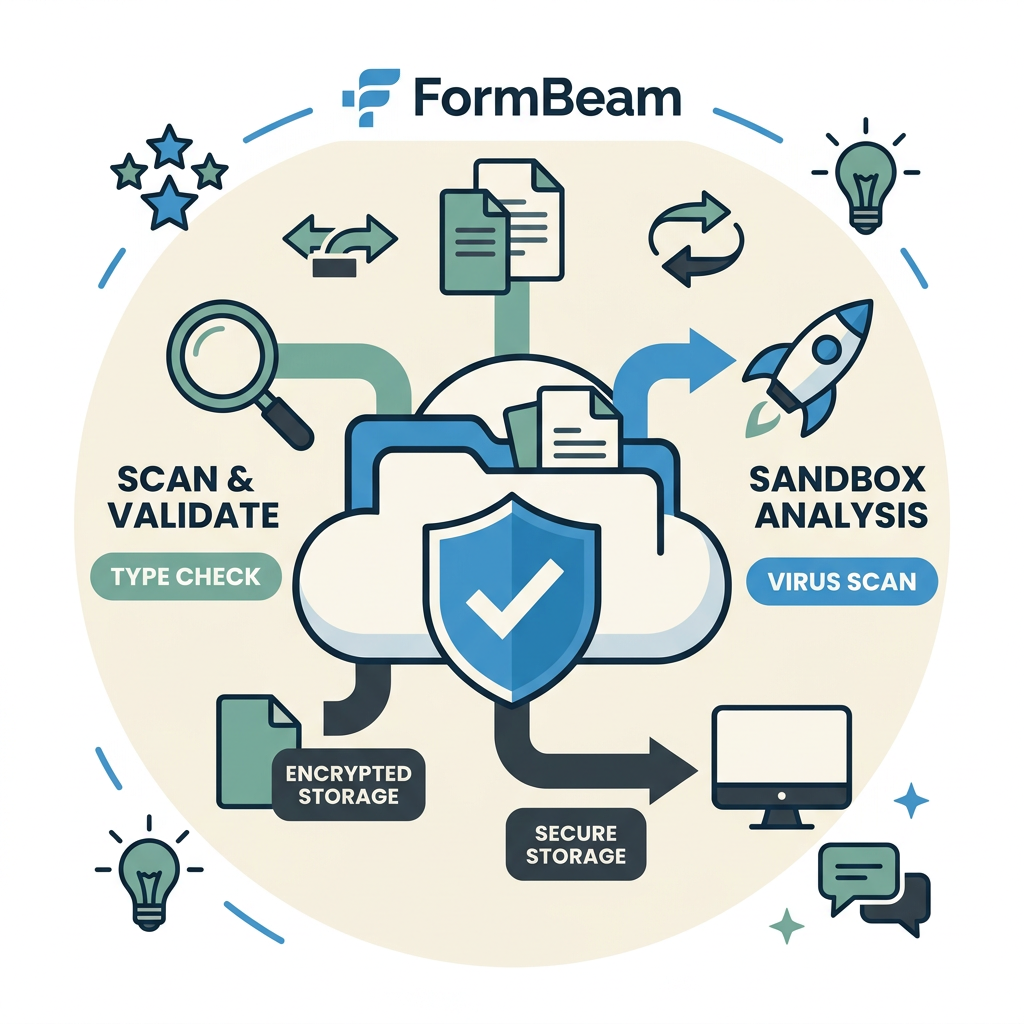
File uploads are a major attack surface. Malicious files, oversized payloads, path traversal, and MIME-type spoofing are common vectors. The minimum security baseline includes file type whitelisting, enforced expiration (≤10 minutes), and Content-MD5 checksums (AWS Security Blog, 2026). Let's detail each. AWS Compute Blog provides comprehensive security hardening guidance for presigned URLs.
File Type Whitelisting and MIME Validation
Never blacklist file typesblocklists are always incomplete. Instead, explicitly whitelist only the MIME types your form accepts. If your contact form expects PDFs and images, allow only application/pdf, image/jpeg, and image/png. Enforce this at two layers: in the presigned URL conditions (server-side enforcement) and in client-side validation (UX).
- Server-side (S3 policy): Include ContentType in the presigned URL conditions. S3 rejects uploads that don't match.
- Client-side (browser): Use HTML5 input accept attribute and JavaScript validation to reject files before the upload request.
- Post-upload scanning: Trigger a Lambda to scan uploaded files using VirusTotal, ClamAV, or similar; quarantine suspicious files to a separate bucket.
Important: don't rely on file extensions (they're trivial to spoof). Check the actual MIME type via magic bytes if your processing pipeline requires it.
Presigned URL Expiration and Time Windows
AWS S3 presigned URLs support a maximum expiration of 7 days, but security best practice is to set expiration to 10 minutes or less (AWS, 2026). Short expiration windows limit the window for URL interception or replay attacks. Here's why: if a presigned URL is leaked or intercepted, an attacker can only use it within the expiration window. A 10-minute window means the exposure is measured in minutes; a 7-day window is a security nightmare.
For forms, 600 seconds (10 minutes) is standard. The user's network latency is typically sub-second; the upload itself can take longer depending on file size and connection speed, but 10 minutes is ample for anything over 1GB even on slow connections. Set expiresIn: 600 in your SDK call.
Content-MD5 Checksums and Integrity Validation
Include Content-MD5 headers in PUT requests; S3 verifies integrity and blocks mismatches to prevent tampering (AWS, 2026). The MD5 hash of the file is computed client-side, sent as the Content-MD5 header, and verified by S3 before accepting the upload. This ensures the file wasn't corrupted in transit and wasn't tampered with.
In JavaScript, use the crypto API:
const hashBuffer = await crypto.subtle.digest('SHA-256', file);
const hashArray = Array.from(new Uint8Array(hashBuffer));
const hashHex = hashArray.map(b => b.toString(16).padStart(2, '0')).join('');
fetch(presignedUrl, {
method: 'PUT',
headers: { 'Content-Type': file.type, 'x-amz-checksum-sha256': hashHex },
body: file
});
AWS supports multiple checksum algorithms (MD5, SHA-256, CRC32); SHA-256 is modern and recommended.
UUID Filenames and Path Traversal Prevention
Never trust user-supplied filenames. They can contain path traversal sequences like ../../etc/passwd or malicious characters. Generate a UUID on the server for the S3 key, optionally appending a sanitized extension. This approach also prevents users from overwriting each other's files:
- Generate UUID server-side: Use Node's
crypto.randomUUID()or equivalent. - Construct key:
uploads/${userId}/${uuid}.${sanitized_extension} - Return URL with UUID in key: The presigned URL now points to the UUID path, not the user's filename.
- Store metadata: Record the mapping of UUID → original filename in a database if you need to display it later.
Least-Privilege IAM and Bucket Policies
Your Lambda execution role should have minimal permissions. It should only be able to generate presigned URLs for a specific S3 bucket and prefix (e.g., uploads/), not for any S3 bucket. Here's an IAM policy example:
{
"Version": "2012-10-17",
"Statement": [
{
"Effect": "Allow",
"Action": "s3:PutObject",
"Resource": "arn:aws:s3:::my-upload-bucket/uploads/*"
}
]
}
This policy allows only PutObject (upload) to the uploads/ prefix, not DeleteObject, GetObject, or ListBucket. Separate your incoming uploads bucket from your processed/clean files bucket; only move files after scanning.
Bucket Configuration and Encryption
Apply these bucket-level controls:
- Block Public Access: Enable S3 Block Public Access settings to prevent accidental exposure.
- Server-side Encryption: Use SSE-S3 or SSE-KMS to encrypt files at rest; most forms don't warrant KMS (SSE-S3 is free).
- Access Logging: Enable S3 access logs to an audit bucket; review logs for unusual upload patterns.
- Versioning: Optional; enables rollback of corrupted/malicious uploads.
- Lifecycle Policies: Automatically delete uploads older than 30 days, or archive to Glacier for cost savings.
Integrating File Uploads with Static Site Form Builders
If you're building forms for a static site (Next.js, Vue, Astro, plain HTML), you don't need a full backend. A simple Lambda function handles credential generation; your frontend embeds the upload logic. Tools like FormBeam handle this entire flowthey generate presigned URLs, manage submissions, and provide a dashboardeliminating the need to write backend code at all.
For teams building their own, the architecture is minimal: a form submission endpoint that validates the request and returns a presigned URL. Most Netlify, Vercel, or AWS Lambda deployments support this in under 50 lines of code. FormBeam's file upload documentation outlines a complete serverless form setup with native file handling, including security hardening and post-upload email notifications, reducing implementation time to minutes.
Form Validation and Error Handling
Uploads fail. Networks stall. Users cancel. Your form must handle these gracefully:
- Client-side validation: Check file size, type, and name before requesting the presigned URL. Show clear error messages (e.g., "Max 10 MB", "PDF only").
- Network retries: Implement exponential backoff: retry after 1s, then 2s, then 4s, capping at 30s. After 5 retries, tell the user to try again later.
- Progress feedback: Use fetch's upload progress (XMLHttpRequest onprogress) to show a progress bar. This improves perceived performance for large files.
- Timeout handling: Set a reasonable timeout (60s for most files). If the upload stalls, cancel and retry.
- Success confirmation: After S3 confirms receipt (HTTP 200 response), optionally call your backend to record metadata and trigger post-processing.
Here's a more robust client upload with retries:
const uploadWithRetries = async (presignedUrl, file, maxRetries = 5) => {
for (let attempt = 0; attempt < maxRetries; attempt++) {
try {
const response = await fetch(presignedUrl, {
method: 'PUT',
headers: { 'Content-Type': file.type },
body: file
});
if (response.ok) return 'success';
} catch (err) {
const wait = Math.pow(2, attempt) * 1000;
await new Promise(r => setTimeout(r, wait));
}
}
throw new Error('Upload failed after retries');
};
Storage Organization and Lifecycle Management

As uploads accumulate, organize them and manage costs. S3 is cheap, but unmanaged buckets become unmaintainable. Use a clear directory structure and lifecycle policies.
Bucket Structure and Naming Conventions
Organize uploads by context. A typical structure is:
- Incoming bucket: Raw uploads from forms (needs scanning before use).
- Cleaned bucket: Quarantined files after virus scanning passes.
- Archive bucket: Long-term storage, potentially in a cheaper region or Glacier class.
Within each bucket, use prefixes like /forms/{form_id}/{user_id}/{timestamp}/{uuid}.{ext}. This structure makes it trivial to query submissions by form, user, or date. You can also enable S3 Select to query metadata without downloading files.
Lifecycle Policies and Cost Optimization
Automatically manage old uploads to control costs:
- Delete after 30 days: If forms are ephemeral (contact forms, support tickets), delete uploads after 30 days if not accessed.
- Archive to Glacier: For long-term compliance, transition to Glacier after 90 days (much cheaper: ~$4/TB/month vs. ~$23/TB/month for S3 standard).
- Incomplete multipart uploads: S3 allows resumable uploads; clean up abandoned uploads older than 7 days to avoid orphaned parts.
In the AWS console, add a lifecycle rule: "Expire objects 30 days after creation" or "Transition to Glacier 90 days after creation". This is set-and-forget cost savings.
Retrieval, Metadata Storage, and Integration
After uploading, you need to retrieve files and associate them with form submissions. Store metadata in a database:
- Database schema: Submission ID, file UUID, original filename (sanitized), file size, MIME type, upload timestamp, user email/ID.
- Retrieval pattern: Query by submission ID, generate a temporary presigned URL for download (read-only, short expiration).
- Email integration: After upload completes, email the form owner with a download link (presigned URL valid for 24 hours).
- Analytics: Log upload metrics (success rate, avg file size, upload duration) to track form performance.
Tools like FormBeam's submission dashboard automate thisuploads are stored, searchable, and downloadable without writing database code.
Comparison: Serverless Upload Patterns vs. Alternatives
Several approaches to serverless file uploads exist. Here's how they compare:
| Pattern | Complexity | Cost | Scalability | Security | Best For |
|---|---|---|---|---|---|
| Presigned URLs (S3) | Medium (SDK + client logic) | ~$0.005 per 10K uploads (Lambda only) | Unlimited (no backend bottleneck) | High (expiration, policies, checksums) | Forms, media uploads, user-generated content |
| Backend-handled multipart | Low (form post to backend) | High ($0.50+ per 10K, Lambda + disk I/O) | Limited (Lambda concurrency, timeout) | Medium (full control, but complex) | Small files only (<5MB), when UX simplicity trumps cost |
| Direct browser-to-S3 (CORS) | Medium (CORS setup, client logic) | ~$0 (no backend calls) | Unlimited | Medium (CORS wide open, no server-side validation) | Public uploads where security is not critical |
| STS temporary credentials | High (Cognito, IAM, JWT tokens) | ~$0 per upload, but Cognito costs apply | Unlimited | High (temporary role-based credentials) | Enterprise apps with complex auth; overkill for forms |
| Form submission service (FormBeam, etc.) | Very Low (1 form attribute + API key) | Depends on plan, but typically $20-100/mo for 10K submissions | Managed (auto-scaling, storage included) | High (built-in security, encryption, GDPR compliance) | Indie devs, static sites, teams avoiding infrastructure |
For indie developers and small teams building static sites, presigned URLs offer the best balance of control and simplicity. For teams avoiding infrastructure entirely, a form service like FormBeam handles everythingno presigned URL generation, no S3 policy management, no security hardening required. FormBeam's email configuration also includes post-upload notifications, keeping the entire workflow serverless.
Common Pitfalls and Troubleshooting
Even with best practices, uploads fail. Here are frequent issues and solutions:
CORS Errors on Direct S3 Uploads
If your frontend can't upload directly to S3, check CORS. S3 needs to know the origin (frontend domain) is allowed. Configure CORS on the S3 bucket:
[
{
"AllowedOrigins": ["https://yoursite.com"],
"AllowedMethods": ["PUT"],
"AllowedHeaders": ["*"],
"ExposeHeaders": ["x-amz-version-id"]
}
]
Without CORS, the browser blocks the request. With CORS, the browser allows it and S3 responds.
Presigned URL Expiration and 403 Errors
If your presigned URL expires before the client uploads (e.g., user starts upload at 9:59, finishes at 10:01, URL was valid until 10:00), you get a 403 Forbidden. Solutions: extend the expiration window for slow users, or have the client request a new URL mid-upload if the original expired.
Content-Type Mismatch
If your presigned URL is signed for Content-Type: application/pdf but the client sends Content-Type: application/octet-stream, S3 rejects it. Ensure the client reads the MIME type correctly from the file input: const mimeType = file.type || 'application/octet-stream'.
File Size and Lambda Limits
The presigned URL approach has no file size limit (S3's single-object limit is 5TB). However, ensure your Lambda has enough time to generate the URL (usually under 100ms). If your signature generation is slow, you're doing something wrongsimplify it.
Scanning and Processing Delays
If you trigger a Lambda to scan uploads via S3 events, there's a delay between upload completion and scan start (usually under 1 minute, but can be longer). Users may try to download the file before scanning completes. Solution: place incoming uploads in a separate bucket; only after scanning passes do you move files to the clean bucket.
Conclusion
File uploads in serverless forms are solved via presigned URLs: your backend generates a time-limited, cryptographically signed credential for direct S3 upload, the client uploads directly to S3, and your function never touches the file. This pattern delivers unlimited scalability, minimal Lambda execution time (saving 70–80% on costs compared to backend-handled uploads), and straightforward security hardening via expiration, whitelisting, and checksums.
The implementation is straightforward for teams with AWS comfort, and trivial for indie developers using form services like FormBeam, which abstracts away S3 policy management, presigned URL generation, and security configuration entirely. Whether you build it yourself or use a managed service, the underlying pattern is the same: never proxy files through your backend, always use presigned URLs for direct uploads, and always validate at the edge (S3 policies enforce server-side; HTML5 input accept enforces client-side).
Use a hosted endpoint instead. 100 free submissions / month. File uploads on FormBeam go out as email attachments. How to add the endpoint.
FAQs
What's the maximum file size for serverless uploads?
S3 supports single objects up to 5 terabytes, so file size is not a serverless limitation. However, your form's practical limit depends on user bandwidth and upload timeout. Most browsers timeout after 30–60 seconds on slow connections. For files larger than 100 MB, consider multipart upload APIs (resume capability) or a file transfer service like Dropbox/WeTransfer. Presigned URLs work for any size up to 5TB; the constraint is always the network, not the infrastructure.
How do I scan uploaded files for viruses in a serverless form?
Trigger a Lambda function via S3 event notifications after upload completes. The Lambda calls a virus-scanning service like ClamAV (self-hosted on EC2 or Lambda layer), VirusTotal API, or AWS Macie. If the scan passes, move the file to a clean bucket; if it fails, quarantine it. This architecture keeps uploads instant (no scanning delay) while ensuring all files are scanned before retrieval. Most form services like FormBeam include scanning as a built-in feature, eliminating the need to manage Lambda triggers yourself.
Do I need to manage S3 bucket policies myself?
If you're building your own, yesyou'll need to configure bucket policies, CORS, encryption, and block public access settings. This is error-prone and time-consuming. If you're using FormBeam or a similar service, the platform handles all bucket configuration, encryption, and security hardeningyou just embed a form attribute and uploads work immediately. For teams without AWS expertise or wanting to avoid ops overhead, a managed form service saves weeks of setup and eliminates security configuration mistakes.