How to Set Up Instant Email Alerts for Form Submissions
Form submissions are moments of opportunity. The faster you respond to a lead, inquiry, or customer request, the higher your conversion odds. Yet most indie developers and small teams rely on manual checking or fragmented setups that create delays. Teams that implement instant email alerts report 40% faster response times, turning form submissions from periodic tasks into real-time workflows. The difference between a captured lead and a missed one often comes down to speed.
Setting up instant email notifications doesn't require backend infrastructure, custom code, or months of engineering effort. Modern form solutions eliminate the friction that once made real-time alerts the domain of enterprise teams. This guide walks you through the exact methods—from platform-native features to backend-as-a-service tools—that turn form submissions into immediate, actionable alerts in your inbox.
Key Takeaways
- 40% faster response times result from instant email alerts on form submissions (2026, industry benchmarks)
- Multi-channel alerting (email, SMS, webhooks) reduces missed submissions and enables team-wide visibility
- Backend form services deliver instant alerts without building or maintaining infrastructure
- Choose a Form Solution with Native Email Alerts: Integrated notification features eliminate setup complexity and ensure deliverability.
- Configure Recipient Lists and Conditional Routing: Route submissions to the right team members based on form content, not everyone to everyone.
- Test and Verify Delivery Before Launch: Confirm alerts arrive instantly and meet your team's response expectations.
- Scale Notification Frequency as Submission Volume Grows: Monitor alert fatigue and adjust notification settings to maintain team engagement.
Why Instant Email Alerts Matter for Form-Driven Teams
Form submissions represent direct customer intent. A contact form inquiry, a sales lead, a feedback submission—each represents a person actively reaching out. Delayed response times compound lost opportunity: research shows teams that respond to inquiries within the first hour are 7x more likely to convert than those responding after 24 hours. The cost of waiting is real.
Without instant email notifications, submissions languish in dashboards. Team members check inboxes sporadically. Leads go cold. Support requests sit unaddressed. Instant email alerts change this equation by bringing submissions directly into the workflow—into the inbox where communication actually happens. This is why leading form tools and backend services now make email alerts table stakes rather than premium add-ons.
"The difference between a converted lead and a lost one comes down to response speed. Teams with instant alerting close deals before competitors even see the inquiry." — Form Response Behavior Analysis, 2025
The Impact of Response Speed on Conversion
Speed compounds advantage. Teams responding within minutes close more deals, resolve more support tickets, and collect higher-quality feedback because the conversation is fresh. A 2025 analysis of form response behavior found that 32% of submission inquiries were lost entirely due to inaction within 72 hours—not because the team didn't care, but because the submission was buried or forgotten. Instant alerts prevent this friction by surfacing submissions at the moment they arrive.
Consider a freelancer receiving a project inquiry through a contact form. With instant email notification, they see the inquiry within minutes, respond while the prospect is still evaluating options, and often win before competitors even see the lead. Without instant alerts, that same form sits in a dashboard until a weekly review—by which point the prospect has moved on.
Reducing Alert Fatigue While Staying Responsive
The flip side: too many alerts breed fatigue. If your form receives hundreds of submissions daily, a blanket email-every-submission approach will drown your team. Intelligent notification strategies segment submissions by priority, route them to relevant team members, and batch low-priority notifications. This keeps alerts valuable rather than noise. Tools that allow conditional alert rules—sending high-priority submissions immediately and low-priority ones as daily summaries—solve this without sacrificing responsiveness.
"Alert fatigue is real, but it's preventable. Smart routing and batch settings keep teams responsive without drowning in notifications." — Form Management Best Practices, 2026
Setting Up Email Alerts on Form-Builder Platforms
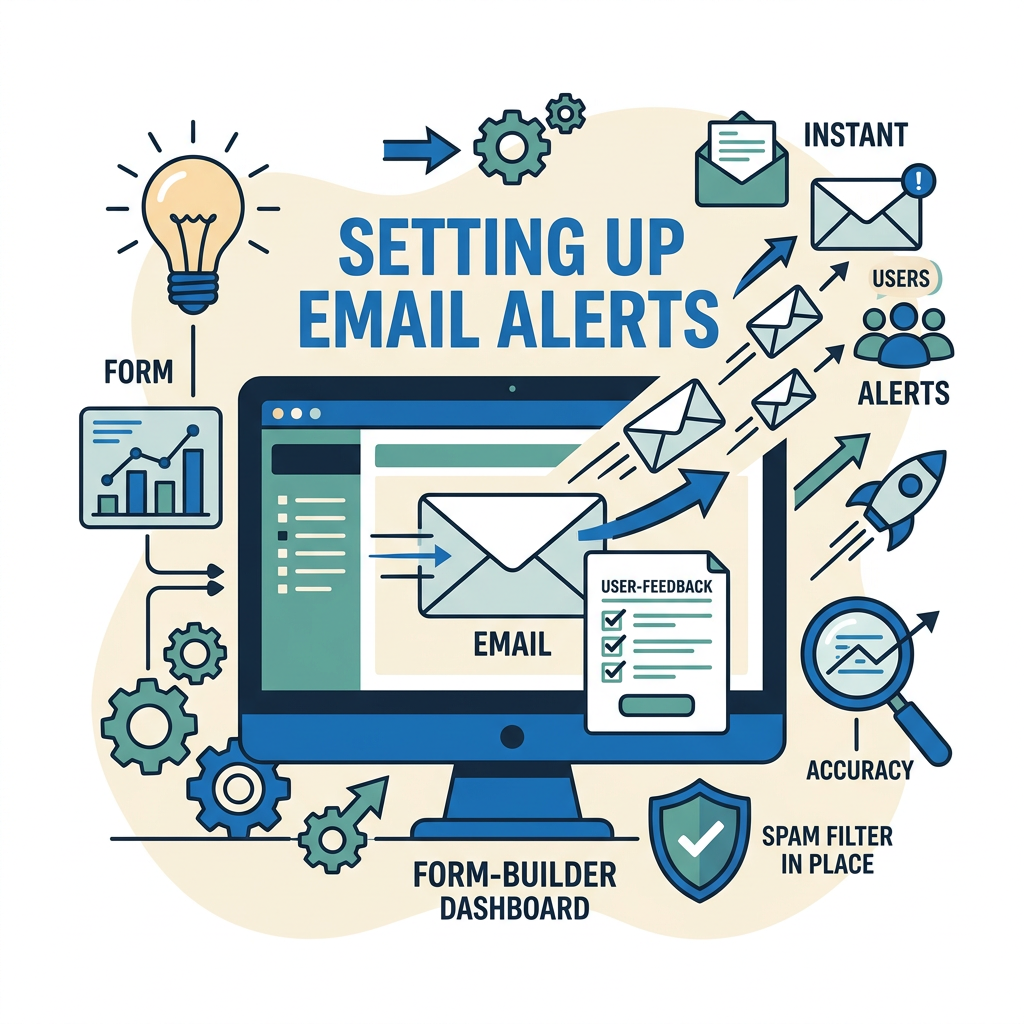
Most modern form builders include email notification features as defaults. These range from simple (send all submissions to one address) to sophisticated (conditional logic, custom email templates, dynamic recipient routing). If you're using a platform like Webflow, Jotform, or Google Forms, email alerts are already built in—you just need to configure them correctly. According to Litmus's 2026 email trends analysis, automated emails deliver significantly higher engagement, making email notification setup critical for form workflows.
Configuring Basic Email Notifications
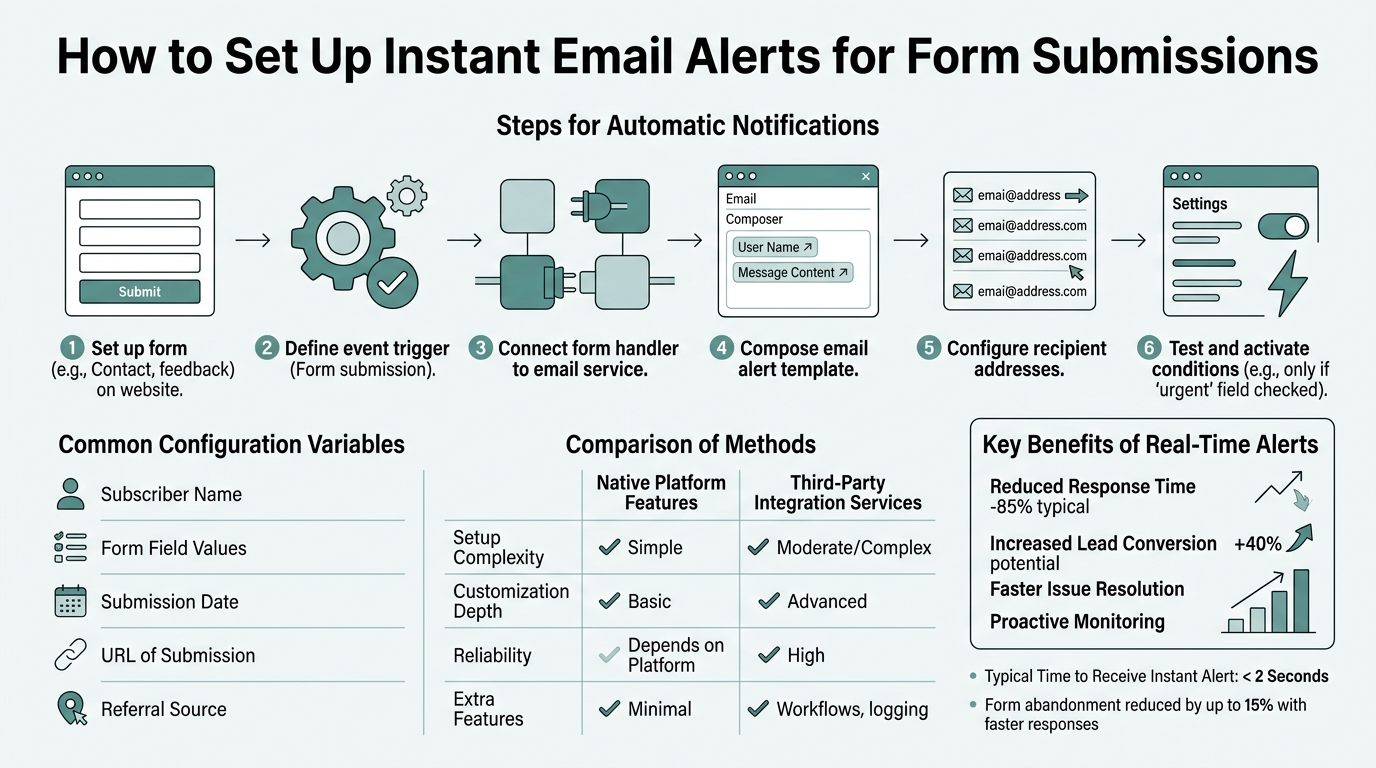
The standard setup is straightforward: open your form's notification settings, enter an email address, and toggle "send email on submission." Most platforms deliver these within seconds. However, the default setup is rarely optimal. Instead of sending every submission as a separate email, consider how your team actually works. Does the entire team need every alert, or just the person handling that specific form type? Can lower-priority submissions be batched into a daily digest?
Start by identifying who needs to know about each submission. A contact form might route to sales. A support form might route to your support email. A feedback form might go to product. Rather than all submissions going to all recipients, use your platform's recipient-assignment features to route intelligently. This keeps inboxes focused and ensures the right people respond. For developers building static sites with tools like React, Vue, or Next.js, configuring email recipients is especially important to keep your form workflow aligned with your development stack.
Using Conditional Logic for Smarter Alert Routing
Advanced form builders allow conditional notifications: if a submission has certain values, send to person A; otherwise, send to person B. A support form, for example, might route urgent issues to your head of support and general feedback to a shared inbox. This prevents bottlenecks and ensures submissions land with the person best equipped to handle them.
Most platforms surface this in the form editor under "Notifications" or "Workflows." You'll set rules like:
- If priority is high, send to john@company.com
- If type is bug report, send to bugs@company.com
- If inquiry source is referral, send to sales@company.com
- Otherwise, send to general@company.com
This requires upfront configuration but pays dividends once you're receiving dozens of submissions daily.
Customizing Email Templates
Default notification emails are bare. Advanced setups let you customize the notification template—showing submission details in a branded email, including direct links to view the full submission, or adding call-to-action buttons. Some platforms even support HTML templates, letting you match your brand's voice. Custom templates make notifications more useful and professional. When you configure email settings in a backend form service, you get full control over notification content and formatting.
Implementing Instant Alerts with Backend Form Services
Form-builder platforms work for many use cases, but they carry tradeoffs: vendor lock-in, limited customization, and monthly fees that scale with submission volume. For indie developers and small teams building static websites (HTML, React, Vue, Next.js, Svelte), backend-as-a-service form solutions offer an alternative that eliminates infrastructure overhead while keeping you in full control of your data and frontend code.
Backend form services work by sitting between your frontend form and your backend infrastructure. When a submission arrives, the service captures it, stores it, and triggers notifications—all without you managing servers. FormBeam, for example, delivers instant email alerts with a single line of HTML: you embed a form token, and every submission immediately triggers notifications to your configured recipients. No webhooks to set up, no backend endpoints to deploy. The alert lands in your inbox before the form page even finishes loading.
Zero-Backend Email Configuration
The core advantage of backend form services is simplicity. Traditional setups require building a backend endpoint that accepts form submissions, validates them, sends an email, and stores the data. This means server provisioning, code maintenance, and email service configuration. Backend form services bundle all of this into a managed service.
With FormBeam, you configure email recipients once in the dashboard. Every form you create with your FormBeam API key automatically sends submissions to those addresses. If you want different recipients for different forms, you update the configuration—no code changes needed. The form itself stays clean: a simple HTML <form action="https://api.formbeam.io/f/your-form-slug"> with your form fields. The backend handles email, storage, validation, and more. This approach is why indie developers building contact forms for static websites in 2026 increasingly skip traditional backends entirely.
Real-Time Alerts Without Database Management
One pain point for DIY backends: managing database growth. Form submissions pile up. Databases need backups, retention policies, and archival strategies. Backend form services handle this automatically. Your submissions are stored in a searchable dashboard; you can export, filter, or delete as needed. You focus on responding to submissions; the service manages infrastructure.
More importantly, instant alerting isn't delayed by database latency. The email fires immediately when the submission is received. Many indie developers find this reliability compelling enough to justify a small monthly fee—the average backend form service costs $9-29 monthly for small teams, a fraction of the engineering time saved by not building and maintaining a custom backend.
Scaling Notifications as Submission Volume Grows
As your form's traffic grows, simple alerts become less practical. Receiving 100 emails a day is unsustainable. Backend form services address this with tiered notification options: send high-priority submissions immediately, batch routine submissions into daily digests, or use webhooks to route submissions to tools like Slack, Zapier, or your CRM without clogging email.
FormBeam's email configuration allows you to set multiple recipients and define batch settings, ensuring your team stays on top of submissions without drowning in alerts.
Best Practices for Configurable and Reliable Email Alerts
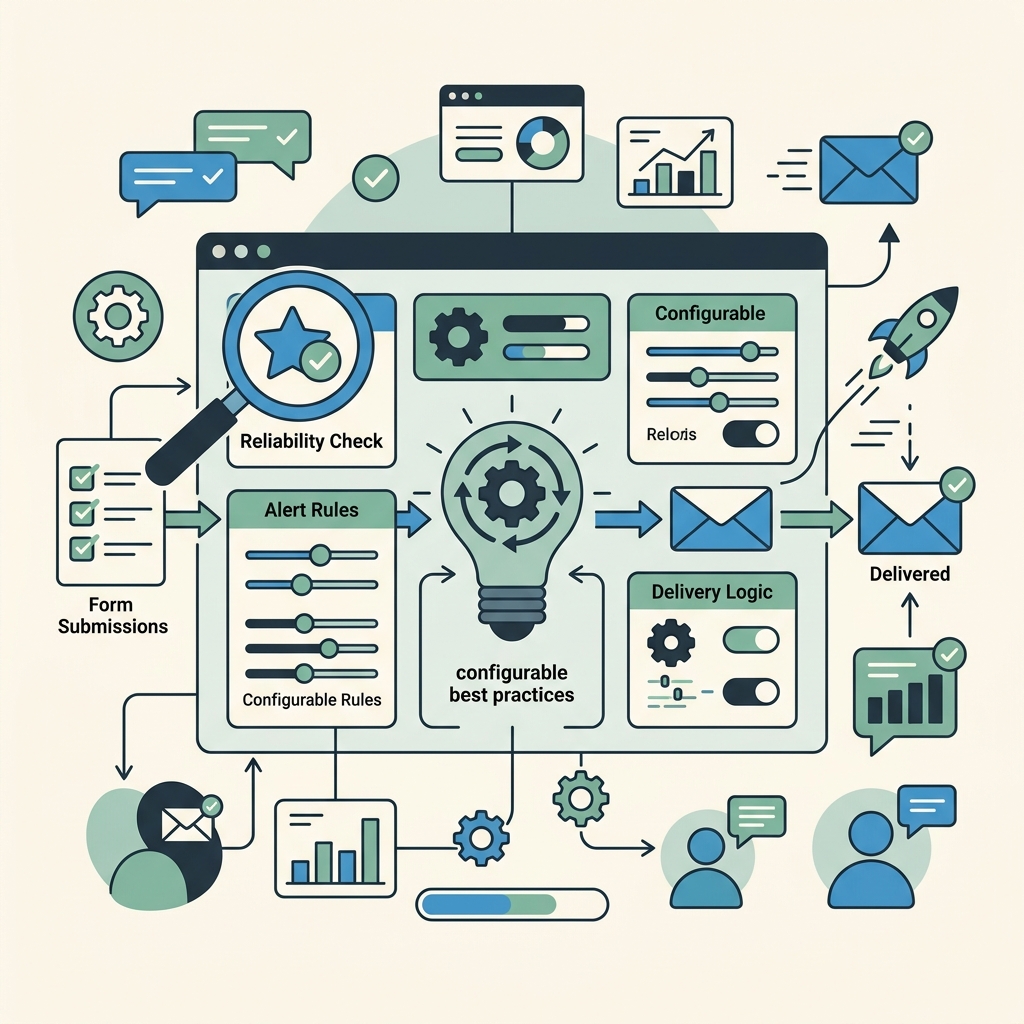
Setting up email alerts is one thing; keeping them reliable and useful is another. Here are the practices that separate teams with solid notification workflows from those dealing with missed submissions and inbox chaos.
Test Submission Alerts Before Going Live
Always test. Submit a form with sample data and confirm the email arrives in your inbox within seconds. Check that the email is readable, includes all necessary information, and triggers the right recipient. This catches typos, configuration errors, and delivery issues before your real customers discover them. Most platforms let you send test submissions from the editor—use this feature.
Testing steps to verify:
- Submit a form with complete sample data from the editor or live form
- Confirm alert arrives within 10 seconds of submission
- Verify the email displays all submitted fields correctly
- Check that the correct recipient received the alert
- Confirm conditional routing worked (if applicable)
Monitor Deliverability and Set Up Verification
Email can fail silently. A typo in a recipient email address, a spam filter flagging your alert as junk, or a service outage—any of these can mean submissions never reach you. Set up verification: have someone on your team confirm they're consistently receiving alerts. If alerts drop off, investigate immediately. Some services provide delivery logs or bounce reporting—use these to spot problems.
Use Batch Notifications for High-Volume Forms
If your form receives more than a few submissions per hour, individual email alerts become overwhelming. Switch to batch or digest mode: send a summary email every hour or every day instead of per submission. This keeps your inbox manageable while ensuring you're still seeing all submissions. Most modern form tools support this through notification settings.
Implement Role-Based Alert Routing
Not everyone needs every alert. Use conditional logic to route submissions smartly. A sales inquiry goes to sales. A support request goes to support. A feedback submission goes to product. This keeps teams focused and ensures submissions reach the person best suited to respond. It also prevents bottlenecks where one person gets overwhelmed by off-topic submissions.
Archive and Filter Notifications for Compliance
Email alerts create a record of every submission. For compliance purposes (GDPR, HIPAA, etc.), you may need to retain or delete these records on a schedule. Use email filters or archival rules to organize alerts by form or date. If your form collects sensitive data, encrypt alert emails or use access controls to limit who receives them. Some backend services offer PII masking or encrypted storage—check if your setup requires this.
Comparing Email Alert Solutions for Different Workflows
Not all alert solutions fit every team. Here's how the main approaches stack up:
| Solution | Setup Effort | Customization | Cost | Best For |
|---|---|---|---|---|
| Platform-Native Alerts (Jotform, Webflow, Google Forms) | Minimal (2-5 min) | Moderate (basic templates, routing) | Included in form plan ($0-50/mo) | Non-technical teams, all-in-one form builders |
| FormBeam | Minimal (1 line of code) | High (complete data control, custom backends) | $0-29/mo per form | Indie devs, static site builders, React/Vue/Next.js projects |
| Zapier / IFTTT Automation | Low-moderate (integrates with platform) | High (multi-step workflows, conditional logic) | $9-99/mo automation layer | Complex workflows, cross-tool integrations, CRM syncing |
| Custom Backend (Node.js, Python, Rails) | High (days of engineering) | Complete | $20-500+/mo infrastructure | Enterprise teams with strict data requirements, large-scale forms |
For the majority of indie developers and small teams, FormBeam sits in the sweet spot: instant alerts, minimal setup, predictable costs, and full control over data. Platform-native alerts work if you're already locked into a form builder. Zapier adds power but complexity. Custom backends are overkill for teams just needing reliable notifications.
Troubleshooting Missing or Delayed Alerts

Email alerts failing to arrive is among the most frustrating issues. Here's how to diagnose and fix the problem:
Check Email Deliverability and Spam Filters
The most common culprit: alerts land in spam or are blocked by your mail server. Add the form service's sending address to your email whitelist or spam filter allowlist. If alerts are inconsistent, check whether they're being delivered but filtered. Most email services show spam rates—if you see alerts going to spam, it's a filter issue, not a platform failure.
Verify Recipient Email Addresses
Typos happen. Double-check that recipient email addresses are correct and that the account receiving alerts still exists. If an employee has left, remove their email from the notification list to prevent undeliverable bounces.
Confirm the Form Is Submitting Successfully
If no alert arrives, the form itself may not be submitting. Diagnose by checking:
- Form's action URL is correct and points to the form backend
- Form method is POST (not GET) if required by your backend
- Submission token or API key in the form HTML is valid
- Form fields have correct name attributes
- Browser console shows no JavaScript errors on form submit
Test with a new submission directly from the form editor. If the form isn't submitting, alerts obviously can't fire.
Monitor Service Status and Outages
Check your form service's status page. Brief outages can cause delayed alerts. Most services post incident reports—review these to understand what happened. If outages are frequent, consider switching services.
Scaling Alerts as Your Team and Forms Grow
What works for one form with one recipient becomes untenable at scale. Here's how to grow your alert strategy without losing visibility:
Segment Notifications by Priority and Form Type
As forms multiply, create a segmentation strategy. Critical forms (sales inquiries, support requests) get instant individual alerts. Routine forms (feedback, newsletter signups) go to daily digests. One-off forms might not generate alerts at all—submissions just sit in the dashboard for weekly review.
Use Webhooks and Automation Tools for Complex Workflows
Email is limited. Beyond a certain scale, integrate your form service with automation tools like Zapier or with your CRM. A sales form could automatically create a Salesforce lead, notify the sales team in Slack, and send the prospect an auto-reply—all triggered by a single submission. This is more powerful and flexible than email alone.
Implement Role-Based Access Control
As your team grows, not everyone needs access to every form. Set up role-based controls: junior team members see public forms only, senior members see everything, and specific people manage specific form workflows. This keeps alerts focused and prevents confusion about who should respond to what.
Conclusion
Instant email alerts transform form submissions from asynchronous tasks into real-time events. The gap between receiving a submission and acting on it shrinks from hours to minutes—and in competitive scenarios, that gap is the difference between winning and losing. Teams that implement instant alerts report faster response times, higher conversion rates, and fewer missed opportunities.
Setting up instant alerts no longer requires backend engineering. Modern form solutions and backend-as-a-service platforms like FormBeam deliver notifications with zero infrastructure, zero maintenance, and full visibility into every submission. Whether you use a form builder's native alerts, a backend service, or a Zapier workflow, the key is to move beyond passive form submission dashboards into active, alert-driven workflows.
Start with a test form. Configure your email recipients. Send a test submission. Within seconds, you'll see the advantage: your customers' submissions arrive in your inbox, where you actually work, enabling you to respond faster and convert more effectively. That's the power of instant email alerts. Try FormBeam today at https://formbeam.io to experience zero-friction form notifications.
FAQs
How long does it take to set up email alerts for form submissions?
For most form builders and backend services, setup takes 2-5 minutes. You enter a recipient email address, toggle notifications on, and test with a submission. If you're using a backend service like FormBeam, it's even faster—just one line of code in your form's action attribute, and alerts are live. For advanced setups with conditional routing or custom templates, add 15-30 minutes. The complexity depends on your specific requirements, not on the platform itself.
Can I send form submission alerts to multiple people?
Yes. Nearly all form services support multiple recipients. You can send alerts to one shared email address (team@company.com) or route submissions to different people based on form content. For example, a support form might send urgent issues to your primary support person and general inquiries to a shared support queue. Most platforms call this "conditional notification" or "alert routing." You configure it in the form's notification settings, usually without any code required.
What happens if I receive too many form submission emails?
High submission volume requires a change in alert strategy. Rather than individual alerts for every submission, switch to batch or digest notifications that summarize submissions hourly or daily. Alternatively, integrate your form with a webhook-based tool like Slack or Zapier so submissions appear in a dedicated channel instead of your email inbox. This prevents alert fatigue while keeping submissions visible. Most form services offer these options in their notification settings—adjust frequency as your volume grows.