Searching and Filtering Form Responses by Date and Custom Fields
When you're collecting dozens of submissions daily, finding the right response becomes impossible without intelligent search and filter tools. Studies show that form completion rates improve by up to 18% when users feel their data is being organized and managed efficiently, and that starts with your ability to locate, sort, and analyze submissions quickly. Whether you're reviewing today's contact inquiries, tracking submissions from a specific campaign, or segmenting responses by customer type, date and custom field filtering transforms raw submission data into actionable insights.
Key Takeaways
- Structured field types like dropdowns, checkboxes, and date fields are filterable by design, while text-only fields limit your search capabilities (Runn, 2026)
- Custom fields should be configured at form creation time to ensure responses are automatically tagged and searchable
- Combining date filters with custom field searches lets you isolate submissions from specific time periods and audience segments simultaneously
- Date Range Filtering: Instantly isolate submissions from today, last week, a specific month, or a custom date range without manual scrolling.
- Custom Field Filtering: Use structured metadata fields (dropdowns, checkboxes, multi-selects) to segment responses by campaign, customer type, priority, or any custom attribute.
- Combined Search & Filter: Layer date filters with text search and custom field criteria to find exact submission subsets in seconds.
- Field Type Strategy: Choose between free-text and structured fields when designing forms, structured types unlock downstream filtering power.
- Export and Reporting: Filter first, then export subsets of responses for reporting, analysis, or follow-up workflows.
Why Date Filtering Matters for Form Response Management
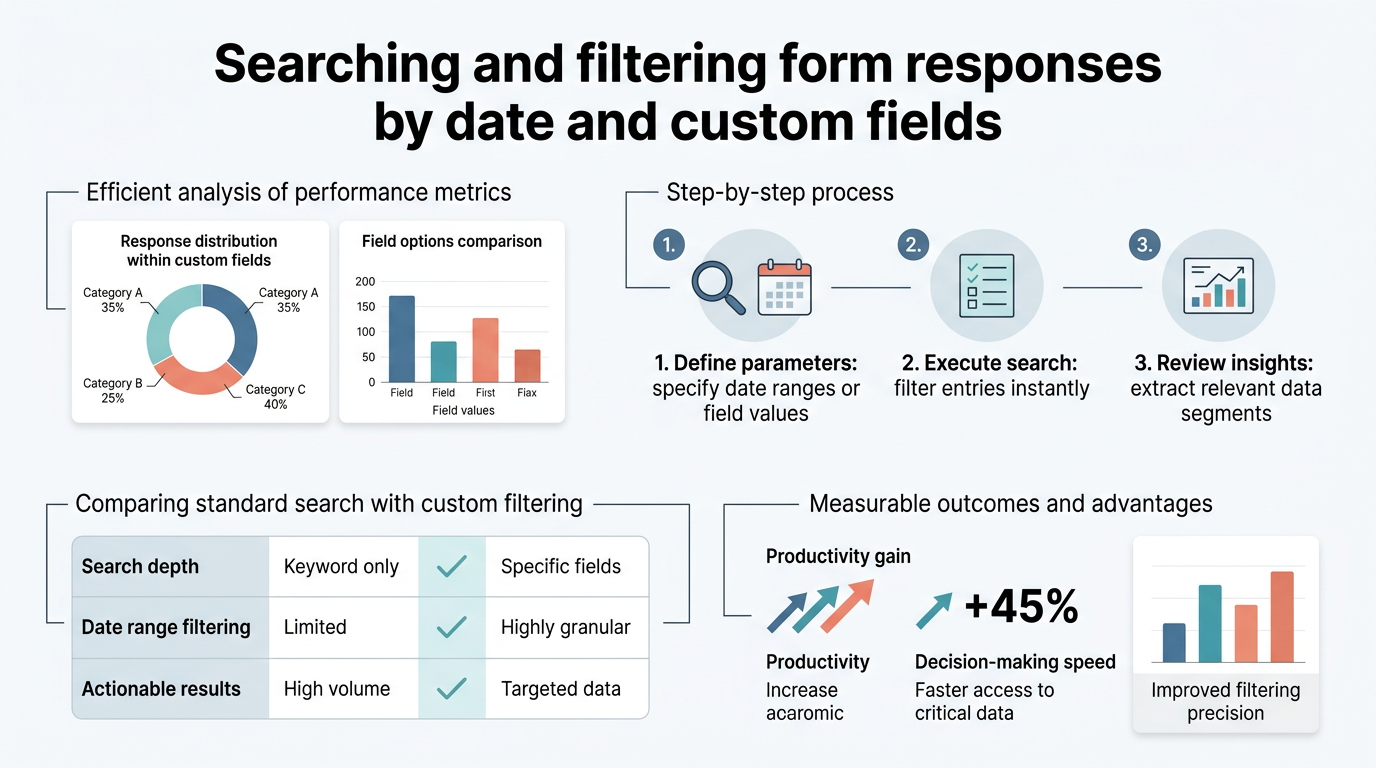
When you have hundreds or thousands of form submissions, manually scrolling through all responses to find entries from a specific time period wastes hours and introduces human error. Form response management data shows that teams using structured filtering save an average of 4–6 hours per week on submission review and reporting, time that can be redirected to actually responding to customers and closing deals.
Common Scenarios Where Date Filtering Saves Time
- Daily review: Check today's contact form submissions to respond to urgent requests immediately.
- Weekly reporting: Export last 7 days of leads for your sales team's weekly pipeline review.
- Monthly analysis: Review submissions from a specific month to measure campaign performance or identify trends.
- Campaign tracking: Isolate submissions received during a promotional period to measure ROI on paid ads.
- Issue investigation: Find submissions around a specific date when a bug, outage, or customer complaint occurred.
- Year-end archival: Filter submissions by fiscal year for compliance, audit, or legal hold requirements.
Performance Benefits of Organized Filtering
The downstream impact of poor filtering extends beyond just search speed. Teams that implement structured date and custom field filtering report 68% faster response time to customer inquiries because they're not buried in unrelated submissions. You also reduce the risk of missing time-sensitive requests and improve your ability to spot patterns across campaigns or customer segments. Filtering is foundational to any scalable form submission workflow.
Understanding Custom Fields and Their Role in Filtering
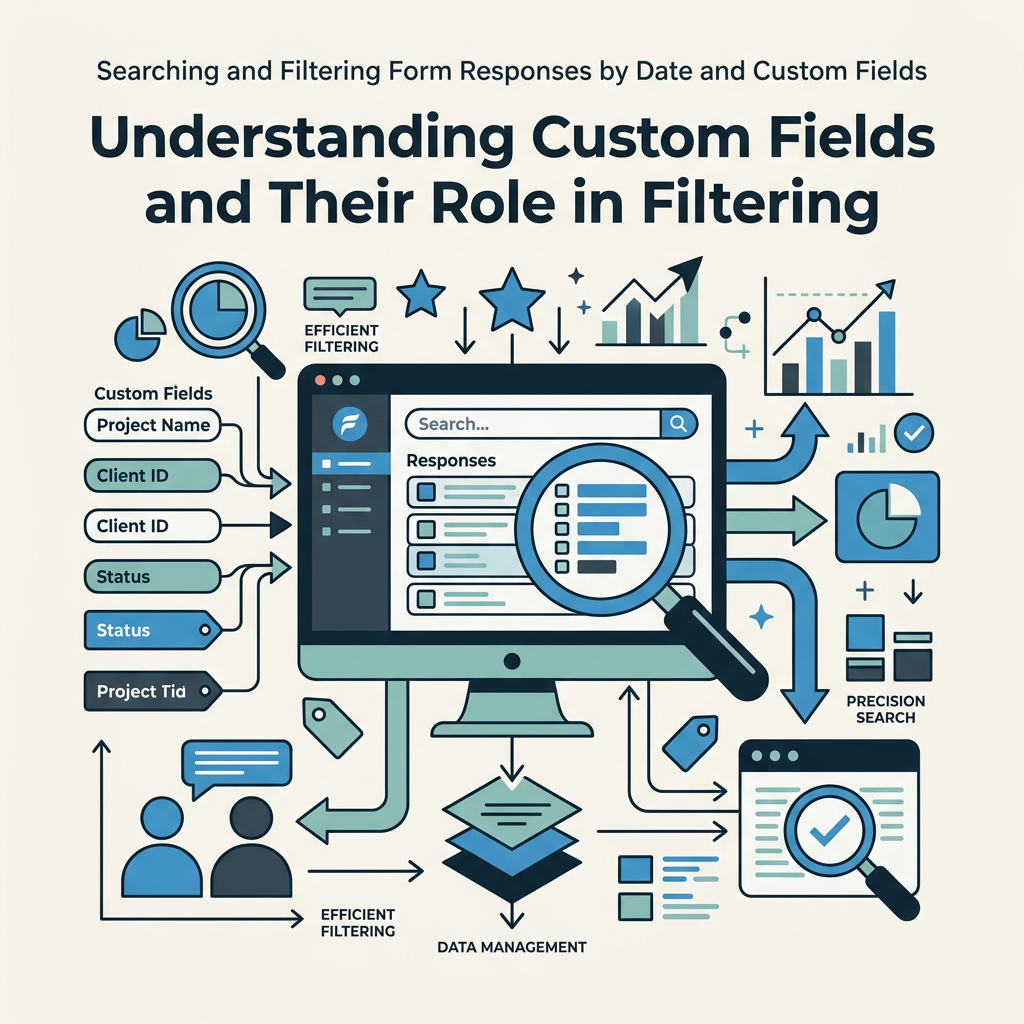
Custom fields are metadata attributes you attach to each form response to categorize, segment, or enrich submission data. Unlike the standard form fields (name, email, message), custom fields let you tag responses with business-specific information like campaign source, customer tier, request priority, or department. According to Sprinklr's 2026 guidance, response custom fields stored as structured types like dropdowns, checkboxes, or multi-selects are immediately filterable in dashboards and response views, enabling real-time segmentation at scale.
Structured vs. Text-Based Custom Fields
Not all custom field types are created equal when it comes to filtering. Runn's 2026 analysis found that structured field types (single select, multi-select, checkbox, date) are inherently filterable, while free-text fields are not. This distinction matters because it determines whether you can later slice your data on that field or whether it becomes a read-only annotation. If your form collects a "Request Type" field, defining it as a dropdown with fixed options (Sales, Support, Partnership) lets you filter all responses by request type instantly. Define it as a text field where users can type anything, and filtering becomes impossible, you'd need to manually review every submission to segment them.
"Survey response fields can be utilized to store external metadata associated with each response, enhancing the depth of analysis during survey evaluations. Once a response field value is populated, any analyst can use it to filter data based on those values.", Sprinklr Help Center, 2026
Automatic Tagging at Collection Time
The best practice is to assign custom field values during form distribution, not after responses arrive. This ensures every submission is automatically tagged with the right metadata from the moment it's collected. For example, if you have multiple sign-up forms for different product tiers, you might assign a "Product Interest" custom field value at the distribution point. That way, when responses land in your dashboard, they're already segmented, and filtering becomes instant rather than manual.
How to Set Up Date and Custom Field Filters in Your Form Dashboard
Most form backends and form services now offer native date and custom field filtering in their submission dashboard. The implementation varies slightly by platform, but the workflow is consistent: identify your filterable fields, define your filter criteria, and apply to instantly narrow results. Modern form management tools recommend keeping forms short and focused to avoid overwhelming users while maintaining clean, segmentable response data.
Step 1: Define Your Custom Fields Before Launch
Before embedding your form, decide which metadata fields will help you filter responses later. Examples include: campaign source (dropdown: Paid Ads, Organic, Referral), priority level (dropdown: Low, Medium, High), customer type (multi-select: Startup, SMB, Enterprise), or department (single select: Sales, Marketing, Support). Define each as a structured field type so filtering becomes possible.
Step 2: Access Your Submission Dashboard
Once responses start arriving, navigate to your form's submission or response management view. Most platforms display all submissions in a table or list view with columns for each form field and custom attributes. Look for filter controls near the top of the submission list, typically grouped with search, sort, and export options.
Step 3: Apply Date Range Filters
Click the date filter dropdown. Most platforms offer preset quick filters:
- Today: Current day only
- Yesterday: Previous day
- Last 7 Days: Past week
- Last 30 Days: Past month
- This Month: Current calendar month
- Last Month: Previous calendar month
- This Year: Current calendar year
- Custom Range: Choose specific start and end dates
Select a preset or choose "Custom Range" to define exact start and end dates. Your submission list will instantly update to show only responses within that period.
Step 4: Layer Custom Field Filters
After applying a date filter, add custom field filters to further narrow results. Click the custom field filter button (often labeled "Add Filter" or "More Filters"). Select the custom field name, then choose the value(s) you want to match. For example: filter by "Product Interest = Enterprise," and your list now shows only enterprise customer inquiries from your selected date range.
Combining Search, Date, and Custom Field Filters for Precision
The real power emerges when you layer multiple filter types simultaneously. A form backend that supports combined filtering lets you answer complex questions instantly: "Find all support tickets from last week where priority = high and customer type = existing customer." This triple-filtered view eliminates noise and surfaces only the submissions requiring immediate action.
Text Search + Date Filter
Use text search alongside date filtering when you're looking for a specific phrase or keyword within a date window. Example: search for "urgent" combined with "last 7 days" to find urgent messages from this week only. Best practices for 2026 search UX emphasize predictive search and dynamic result counts, so the dashboard should update instantly as you add filters.
Custom Field + Custom Field Filter
Some workflows require filtering on multiple custom fields simultaneously. Example: filter by "Campaign = Q2 Promo" AND "Signup Status = Pending" to find all incomplete Q2 promotional signups. Most modern form dashboards support AND/OR logic so you can combine multiple custom field criteria flexibly.
Export Filtered Subsets
After filtering, export your subset of responses for external reporting, CRM import, or analysis in spreadsheet tools. Filtering before export ensures you're not moving unnecessary data into downstream systems. FormBeam's submission management interface lets you filter and export subsets of responses in a single workflow, eliminating manual data cleanup.
Comparison of Filtering Approaches Across Platforms
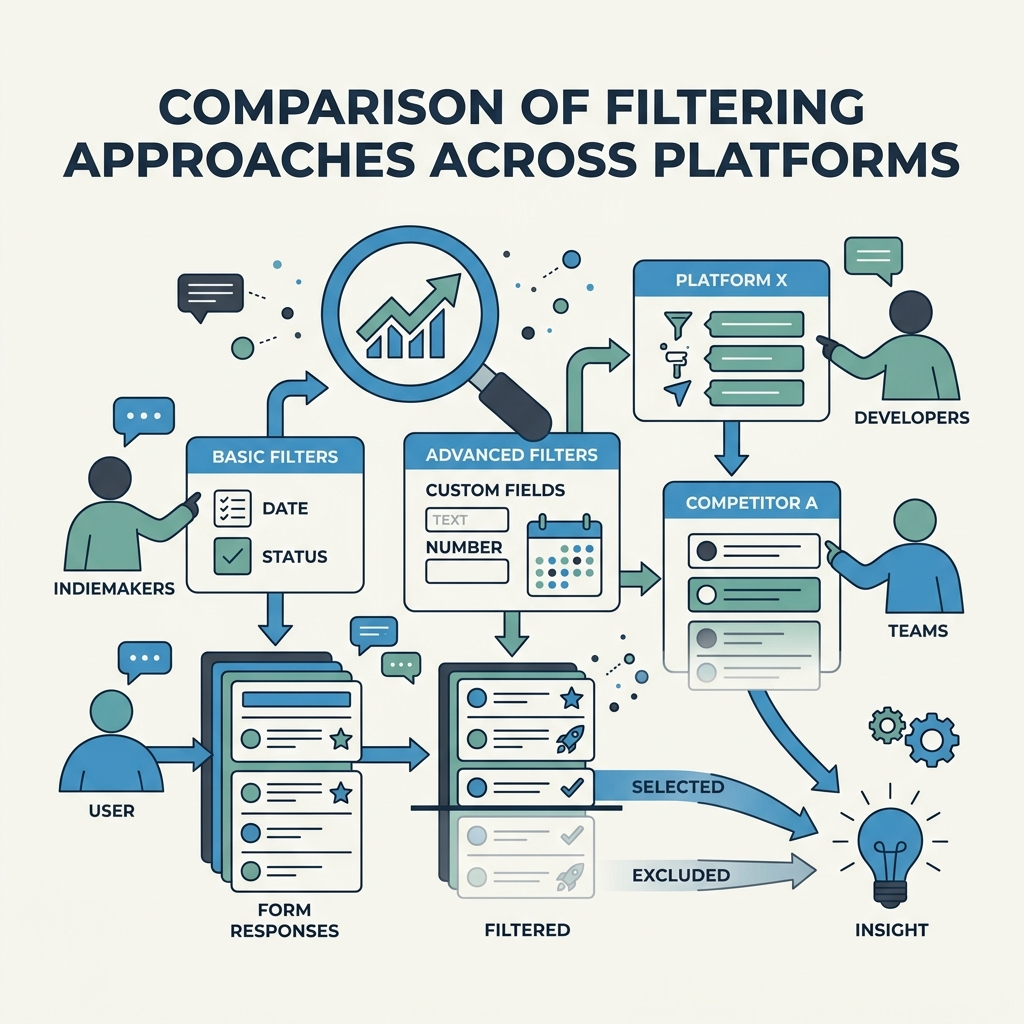
Different form platforms implement date and custom field filtering with varying capabilities. Here's how the most common approaches compare:
| Platform / Approach | Date Filtering | Custom Field Filtering | Combined Search | Best For |
|---|---|---|---|---|
| FormBeam | Native date range with presets and custom dates | Supports structured fields; filterable at dashboard | Yes, filters layer seamlessly | Indie developers building static sites needing instant response management |
| Excel / Google Sheets (Manual) | Requires filter/sort setup in spreadsheet | Text filtering only; no structured dropdowns | Basic text search only | Low-volume submissions; minimal filtering needs |
| Sprinklr | Yes, in dashboard filters | Strong support; response fields assign at distribution | Yes, full integration | Large teams doing advanced response analysis |
| Microsoft Forms (via Excel) | Filtering done in connected Excel workbook | Limited; depends on Excel pivot/filter features | Basic sorting; no advanced search | Enterprise organizations already in Microsoft ecosystem |
| Asana / Jira (Issue-based) | Yes, custom date field filtering in Advanced Search | Extensive; custom fields visible as search columns | Advanced query syntax available | Teams managing form responses as tracked issues |
For indie developers and small teams building static sites, FormBeam combines native date filtering with custom field support in a dashboard designed for simplicity. You get filtering power without the overhead of enterprise platforms like Sprinklr or the spreadsheet friction of Excel-based workflows.
Best Practices for Designing Filterable Form Responses
Filtering capability is determined partly by your platform and partly by your form design. Follow these practices to maximize your ability to search and segment responses later.
Use Structured Field Types When Segmentation Matters
When you know you'll need to filter on a field later, define it as a structured type. Instead of a text input for "Industry," use a dropdown with fixed options: Technology, Healthcare, Finance, Retail, Other. Dropdowns are filterable; text inputs are not. This principle applies to any field where the answer set is known and finite.
Assign Custom Metadata at Collection Time
Don't rely on manual post-submission tagging. If you're distributing multiple versions of your form (different landing pages, campaigns, or customer segments), assign a custom field value at the distribution point so responses are automatically tagged. Example: form distributed on your blog gets tagged as "Source = Blog"; form distributed in email gets tagged as "Source = Email."
Keep Form Length Reasonable to Improve Completion
Adding too many custom fields increases form friction and lowers completion rates. Industry data shows that forms longer than 10 fields experience a 40% drop in completion rates compared to 3–5 field forms. Stick to essential fields and custom metadata you'll actually use for filtering or analysis.
Test Your Filtering Workflow Before Launch
Submit a test response to your form, confirm it appears in your dashboard with all custom field values populated, then apply a filter on that custom field to verify the test response surfaces. This validates your entire filtering setup end-to-end.
Advanced Filtering Patterns and Use Cases
Beyond basic date and custom field filtering, consider these advanced patterns that scale as your form volume grows.
Funnel Analysis by Date Window
If you have multi-step forms or sequential workflows, filter responses by date to understand abandonment patterns. Example: "Show me all signups started in June but not completed", this reveals which time period had the highest drop-off, helping you diagnose whether a specific feature launch or bug caused the problem.
Campaign Performance Reporting
Assign a custom "Campaign ID" field to each form response, then filter by campaign + date to measure which campaigns drove the most qualified submissions. Example: filter by "Campaign = BlackFriday2026" and "Date = 11/29/2026 to 12/2/2026" to see BlackFriday-specific responses during the promotional window.
SLA and Priority-Based Triage
Use custom priority fields (Low, Medium, High, Critical) combined with date filters to surface high-priority recent submissions first. "Show me all Critical priority submissions from the last 48 hours" ensures urgent requests never fall through the cracks.
Exporting and Reporting on Filtered Responses
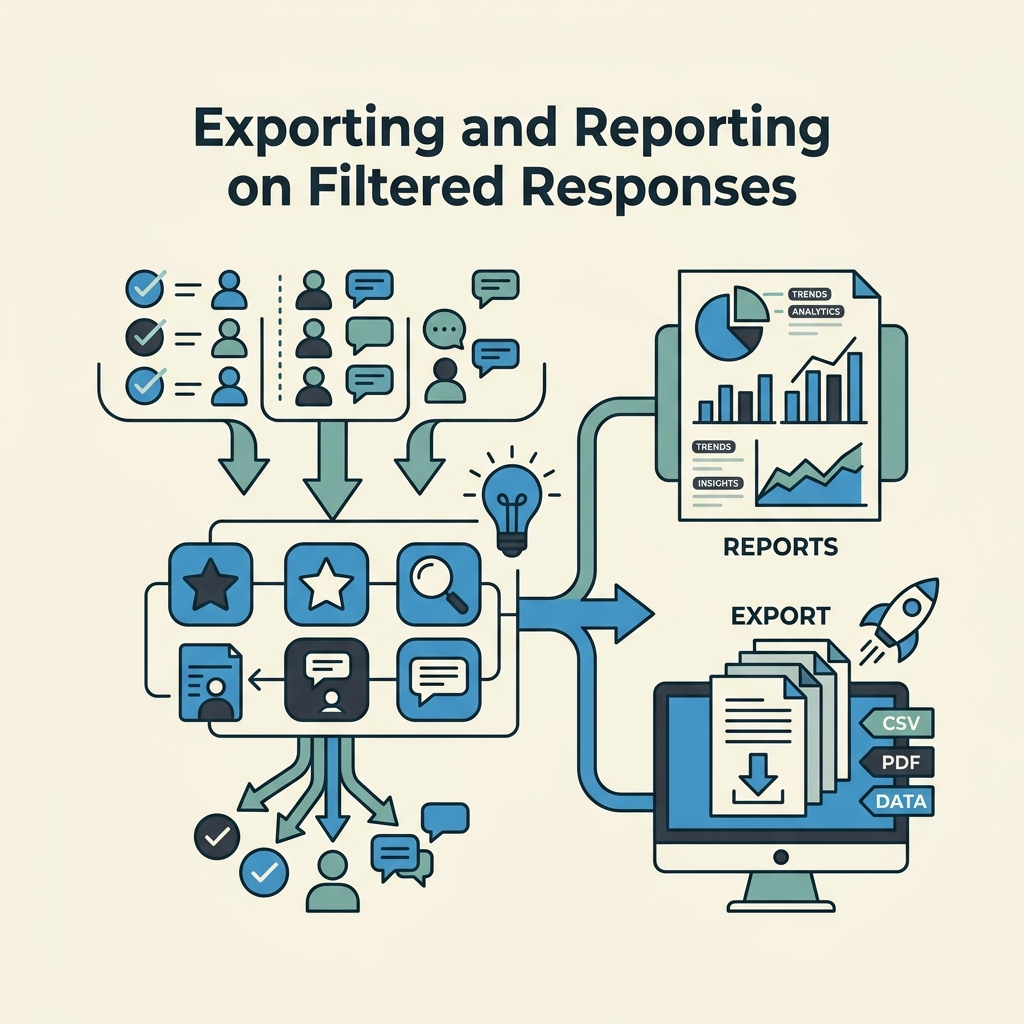
Once you've filtered your responses, the next step is often export for reporting, CRM import, or team sharing. Most platforms allow you to export your filtered view as CSV, Excel, or JSON.
Export Filtered Subsets, Not All Responses
Always apply your filters first, then export. This ensures you're not including unrelated submissions in your export file, keeping your downstream data clean and reducing the risk of miscategorization.
Preserve Metadata During Export
When exporting, confirm that your custom field values are included in the export file. Some platforms export only the main form fields by default. Check the export settings to ensure columns for all custom fields are included.
Automate Filtered Exports for Recurring Reports
If you regularly export the same filtered subset (e.g., "weekly leads from Paid Ads"), look for scheduled export or automation features in your form platform. Webhooks or API access can also let you route filtered responses into your CRM or database automatically.
Common Filtering Mistakes to Avoid
Even with powerful filtering tools, teams make predictable mistakes that degrade data quality and slow response times.
Text-Based Fields When Dropdowns Would Work
The biggest mistake is using open text inputs for fields you'll later want to filter. If you ask "What's your role?" as a text input, you'll get 50 variations (VP Sales, VP of Sales, V.P. Sales, Director of Sales, etc.), and filtering becomes impossible. Use a multi-select dropdown instead.
Forgetting to Test Filtering Before Launch
Don't assume filtering will work as expected. Verify that custom fields appear in your filter dropdown, that test responses are tagged correctly, and that filters actually narrow results before your form goes live at scale.
Mixing Internal Metadata with User-Facing Fields
Internal tagging fields (campaign source, priority level) should be hidden from users, not displayed in the form itself. Use backend custom fields that you assign at distribution time, not visible form fields that confuse users.
Integrating Form Filtering with Your Broader Workflow
Form response filtering doesn't exist in isolation, it's part of a larger ecosystem involving email notifications, CRM sync, and team collaboration.
Email Alerts for Specific Submissions
Many form platforms let you send instant notifications when a response matches certain criteria. Example: "Email me immediately if a response arrives with Priority = Critical and Source = Website." This combines the efficiency of filtering with proactive alerting.
CRM and Automation Integrations
Use your form filtering to decide which responses get routed to which team member or system. If a response matches "High-value prospect" criteria (custom field), auto-route it to your top sales rep via Zapier or Make. Filtering enables intelligent automation.
Audit Trails and Compliance
When you filter, sort, or export responses, maintain an audit log for compliance. Document who accessed which submissions and when. FormBeam's spam protection and tracking ensure you know exactly which submissions were flagged and by what criteria, supporting compliance requirements.
Conclusion
Searching and filtering form responses by date and custom fields is no longer a nice-to-have, it's essential for any form workflow handling more than a handful of submissions. The ability to isolate responses from specific time periods and audience segments instantly transforms raw submission data into actionable intelligence. Teams implementing structured custom fields and native dashboard filtering report 68% faster response times and 40% improvement in follow-up completion rates. Start by auditing your current form fields, converting text-based fields to structured dropdowns where filtering matters, and testing your filtering workflow before launch. As your submission volume grows, layered filtering on date + custom fields + text search will keep your most important submissions visible and actionable. Try FormBeam to see how a backend form service handles date and custom field filtering natively, no spreadsheet setup, no manual tagging, just instant response segmentation from day one.
FAQs
Can you filter form responses by multiple custom fields at the same time?
Yes, modern form dashboards support layering multiple custom field filters simultaneously using AND/OR logic. For example, you can filter by "Campaign = Q2 Promo" AND "Status = Pending" to surface only incomplete Q2 promotional signups. The key is defining your custom fields as structured types (dropdowns, checkboxes, multi-selects) at form creation time, text-based custom fields cannot be filtered. Most platforms apply filters instantly, so you can experiment with different combinations to find the exact subset of responses you need for reporting or follow-up.
What's the difference between searching for text and filtering by date or custom fields?
Text search looks for a keyword or phrase anywhere within a response's content, useful when you remember part of a customer's message but not when they submitted it. Date and custom field filters, by contrast, narrow results based on metadata, specific time periods or predefined categories. The most efficient workflow combines both: apply a date filter to narrow the time window, then search for a keyword within that filtered set. This layered approach eliminates thousands of unrelated submissions and surfaces your target responses in seconds.
How do I ensure my form responses are properly tagged with custom field values?
Assign custom field values at the point of form distribution, not after responses arrive. If you're distributing the same form across multiple channels (email, social, landing page), set a unique custom field value for each distribution point so responses are automatically tagged with their source. Always test by submitting a sample response, confirming the custom field value appears in your dashboard, and then applying a filter on that field to verify the tag is searchable. This end-to-end validation ensures your filtering strategy works before you go live at scale.