Track Form Abandonment Rates and Identify Drop-off Points
Forms are your lifeline to customer data, yet 70.22% of users abandon them before submitting. That's not a minor leak—it's a revenue crisis. For indie developers and small teams managing static sites and SaaS platforms, every lost submission represents a customer, a lead, or a sale that slipped away. The worst part? Most teams have no visibility into where abandonment happens or why. Without tracking form completion rates and field-level drop-offs, you're flying blind. Here's how to measure abandonment comprehensively and identify the exact friction points destroying your conversion funnel.
Key Takeaways
- 70.22% average form abandonment rate across tracked forms, with mobile forms hitting 80%+ abandonment (Baymard, 2026).
- Field-level tracking reveals specific drop-off triggers—phone fields cause 40% abandonment, privacy-sensitive questions drop submissions in under 5 seconds.
- GA4 segments and Google Tag Manager field events enable 15-25% conversion uplifts when paired with structured form submission handling.
- Understanding Form Abandonment Metrics: Calculate abandonment rate by dividing incomplete submissions by total form initiations, then measure field-level drop-off to pinpoint friction.
- Setting Up GA4 Event Tracking: Native GA4 captures form_start and form_submit events, but GTM field-level listeners unlock 85%+ visibility into abandonment patterns.
- Identifying High-Risk Fields: Phone, payment, and multi-step form transitions consistently show highest drop-off rates; test single-page layouts for 20-30% abandonment reduction.
- Building a Tracking Implementation: Use GA4 Advanced Segments, GTM breadcrumb events, or third-party form analytics for tiered accuracy ranging from 40% to 98% of abandons captured.
- Recovering Lost Submissions: Abandoned cart emails achieve 50.5% open rates; phone follow-up converts 70-85% of partial entries back into completed submissions.
What Is Form Abandonment and Why It Matters
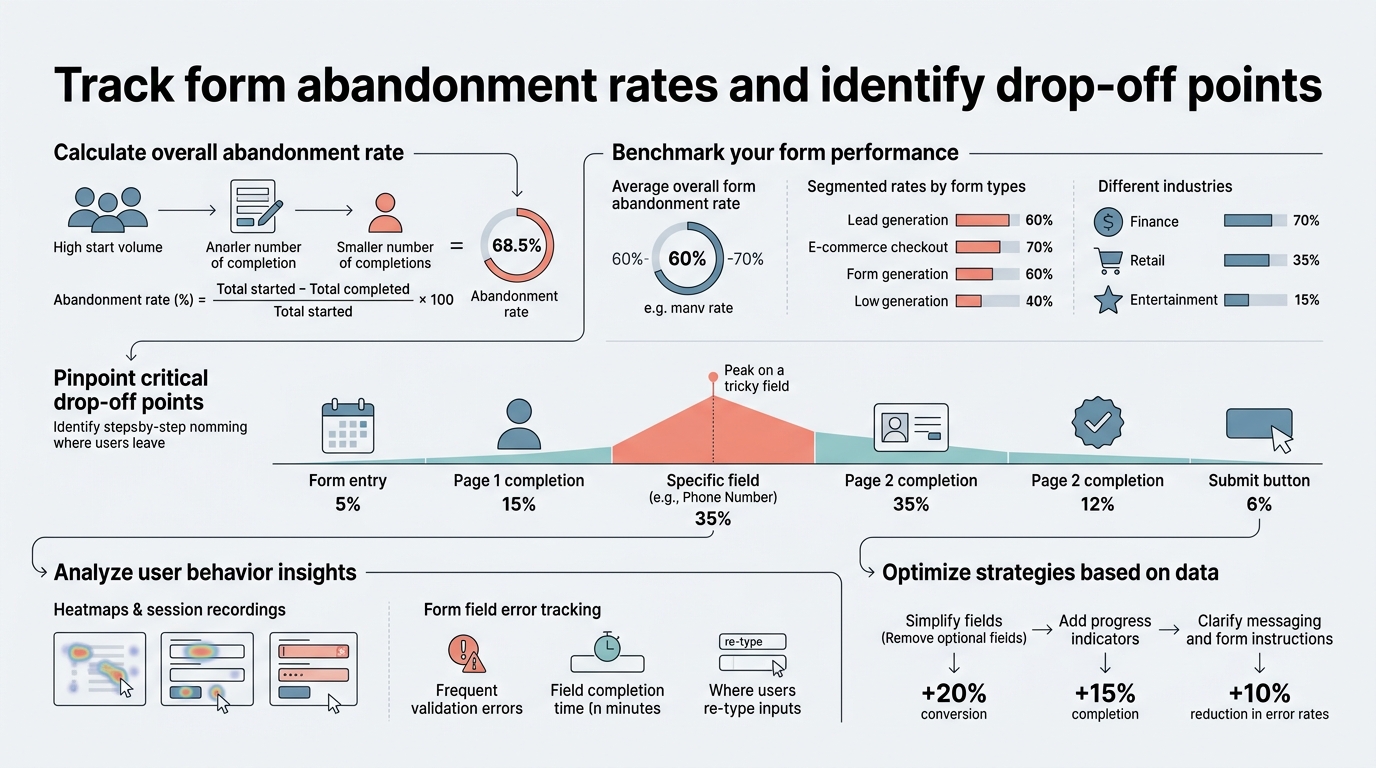
Form abandonment occurs when a visitor initiates a form—enters a field, clicks a button, or loads the form page—but exits before submission. The metric is simple: divide incomplete submissions by total form starts, then multiply by 100 to get your abandonment percentage. Industry benchmarks sit around 70-81% for lead forms and 70.22% overall for checkout forms according to Baymard, though this varies widely by industry and device type.
"The stakes are enormous. A $260B recoverable revenue pool exists in the US and EU alone from form-related abandons in e-commerce checkouts."
For indie developers building static sites, SaaS sign-up pages, or contact forms, every percentage-point improvement in completion rate directly multiplies your conversions. A 5% reduction in abandonment on a 1,000-submission-per-month form delivers 50 additional submissions instantly—no traffic increase required.
Mobile forms amplify the problem. Mobile abandonment sits at 80.02% versus 66.41% on desktop, driven by keyboard interruptions, auto-fill failures, and the friction of tiny touchscreens. If your audience skews mobile—and most do—you're losing four out of five potential conversions before you even see the data.
How to Calculate Your Form Abandonment Rate
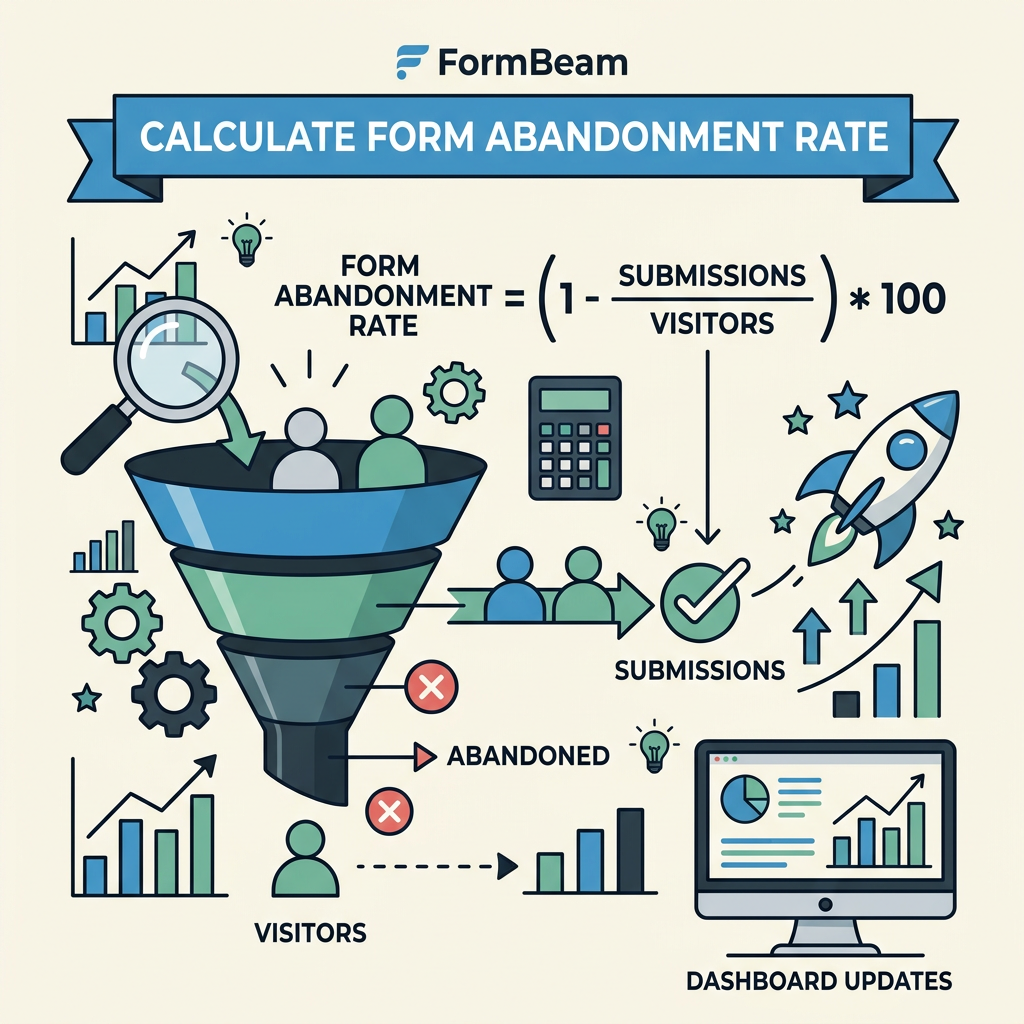
The math is straightforward, but implementation separates casual tracking from actionable insight. Your abandonment rate formula is:
Abandonment Rate = (Form Starts – Form Submissions) / Form Starts × 100
The challenge lies in capturing both endpoints accurately. Let's break down how to measure this across different setups.
Tracking Form Starts and Submissions
A form "start" registers when a user first interacts with your form—clicking an input field, loading the form page, or focusing on the first field. A "submission" is only counted when the form passes validation and sends data to your backend or form service. Anything between is abandonment.
For static sites using form submission management, each submission is logged automatically. Your form start count comes from analytics: page views on the form page, or custom events fired when the form container becomes visible. The gap between starts and submissions is pure abandonment.
If you're using Google Analytics 4 (GA4), set up two events:
- form_start: Fires when the form container enters the viewport or when the first field receives focus.
- form_submit: Fires after validation passes and the form sends data to your backend.
Many teams conflate "form page views" with "form starts," which inflates abandonment rates and creates noise. A user might land on a page containing a form but never scroll down to it. Granular event tracking solves this by firing start events only when the form is actually visible.
Measuring Field-Level Drop-off Points
"Phone number fields cause 40% abandonment, while revenue or payment fields drive 18% drop-offs on their own. Shipping address entry in checkout abandons 22% of submissions."
Overall abandonment rate is a starting point, not a diagnosis. The real leverage comes from identifying which specific fields or transitions trigger abandonment. To measure field-level drop-off, track focus and blur events for each field individually. When a user moves from field A to field B, that's a completion. When they load field A, focus on it, then leave the page without blurring to the next field—that's abandonment of that specific field. Advanced implementations track time spent per field: if users linger more than 60 seconds on a single field, it signals confusion; if they abandon in under 5 seconds, it suggests the field itself is off-putting (like a phone request from an international user).
Using Google Tag Manager (GTM), you can set up listeners for each field's focus, change, and blur events. Each event captures the field name, timestamp, and whether the field was completed or skipped. This generates a "breadcrumb trail" showing the exact path users take through your form before abandoning.
Setting Up Analytics to Track Abandonment
Three approaches exist, ranging from simple to comprehensive. Pick based on your technical comfort and accuracy needs. According to Orbit AI's 2026 research, 72% of GA4 users implement basic form tracking, but only 28% achieve true field-level granularity without third-party tools.
GA4 Native Events (Easiest, 40% Visibility)
Google Analytics 4 natively supports form_start and form_submit events if you configure them in your data stream. This requires minimal setup: ensure your form sends these events when users interact with it.
Once events are flowing, create a conversion goal for form_submit in GA4. Then, build a segment: "Sessions where form page was visited AND form_submit goal = 0." This segment captures abandoners. Your abandonment rate is the percentage of form page visitors in this segment.
The limitation: GA4 sees only the page-level picture. It doesn't tell you that users always abandon at the "phone" field or that multi-step forms lose 35% of traffic between step 1 and step 2. For basic understanding of your abandonment baseline, native GA4 is enough.
Google Tag Manager Field-Level Events (65% Visibility, GTM-Powered)
This is the sweet spot for indie developers and small teams. Google Tag Manager (GTM) lets you listen to every form field's focus, change, and blur events, then fire custom events to GA4 with field-level context.
Here's the setup: In GTM, create a trigger that fires on "focusin" events (a field gains focus). Then create a custom event tag that sends event_category="form_field" and event_label="[field_name]" to GA4. Repeat for blur events. Now, your GA4 data includes which specific fields users interact with and in what order.
From GA4, run an Exploration report filtering for form field focus events, then segment by field_label. Sort by count descending. The fields at the bottom—the ones with fewest focus events relative to form starts—are your abandonment magnets. GTM field tracking outperforms native GA4 by 2x in identifying friction points and typically captures 85% of abandonment events with proper configuration.
This approach requires 30-60 minutes of GTM setup. If you're already running GTM on your site, the incremental lift is large.
Third-Party Form Analytics (98% Accuracy, Visual Heatmaps)
"Tools like Zuko, Hotjar, and ClickTale add visual heatmap layers on top of event tracking, showing where users rage-click, how long they hover on confusing labels, and exactly when they exit the page."
These tools make time-on-field data automatic and tag abandonment reasons algorithmically: "privacy concern" if a user abandons phone fields under 5 seconds; "validation confusion" if they trigger 3+ error messages. 35% of teams pair GA4 with Hotjar/ClickTale for heatmaps, since GA4 lacks native visual feedback. The trade-off is cost (typically $50-500/month) and data privacy (form data flows through a third-party service). For static site builders handling sensitive data, this trade-off may not be worth it unless volume justifies the spend.
Identifying Common Drop-off Triggers
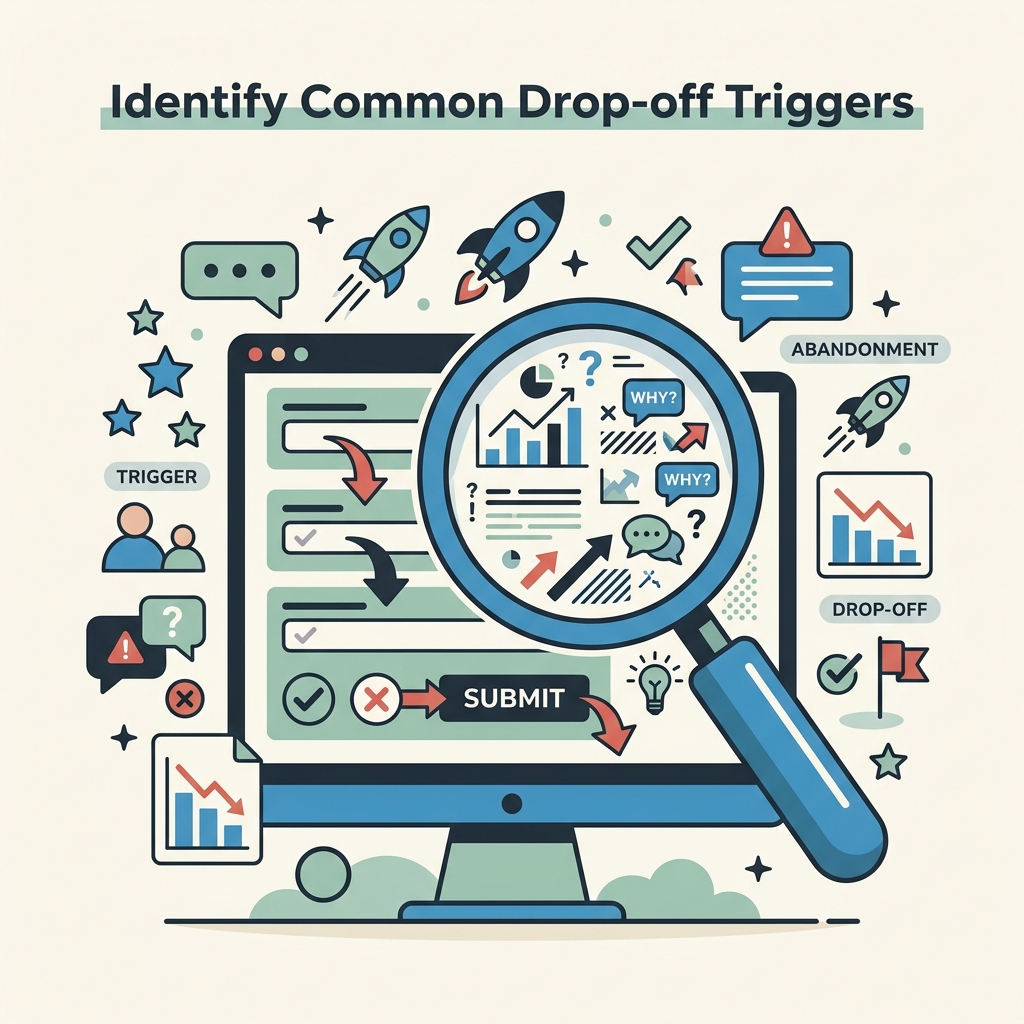
Once you have tracking enabled, you'll notice patterns. These are the most consistent abandonment culprits across industries.
Multi-Step Forms and Step Transitions
Forms with more than 5-6 steps see compounding abandonment at each transition. Users perceive a long form as a time commitment and bail before beginning. The fix? Reduce to single-page forms where possible, or use multi-step form layouts with conditional logic that hide irrelevant fields until the user answers a triggering question.
Single-page forms reduce abandonment by 20-30% versus traditional multi-step designs. If you're currently running a 3-step checkout or sign-up form, consolidating to one page—even if it looks longer—can unlock significant conversion gains because users see the finish line upfront.
Unnecessary or Privacy-Sensitive Fields
Phone number fields consistently trigger abandonment, especially for contact forms or SaaS sign-ups where the user's phone feels like oversharing. Removing a required phone field reduces abandonment by approximately 15% if it's not critical to your business flow. Similarly, revenue fields, employee count fields, and any field perceived as surveillance cause 25% drops in under 5 seconds from first-time visitors.
Audit your form: every required field should earn its place. If you'd accept a sign-up without someone's phone number, don't ask for it. Offer it as optional or gate it behind a "Learn More" call after conversion. This is especially important for indie teams competing with free-tier SaaS platforms that minimize friction.
Mobile Experience Friction
The 80.02% mobile abandonment rate isn't arbitrary. Auto-fill failures, keyboard pop-ups covering input fields, and slow form renders on 3G connections all contribute. Test your form on a real phone. If you have to zoom to read labels or if the submit button is below the fold, you're losing mobile users.
Use progressive disclosure: show only the current field and hide future ones until the user completes earlier steps. This reduces vertical scrolling and keeps the keyboard from overwhelming the viewport. Progressive disclosure forms see 15-20% higher mobile completion rates than static layouts.
Validation Errors and Unclear Requirements
When users enter data that fails validation—a malformed email, a phone number with wrong digits, a missing required field—your form rejects the submission. If the error message is cryptic or the fix is unclear, they abandon. Implement inline validation that triggers as the user types, not just on submit. Show field-specific guidance: "Email format: user@domain.com" is clearer than "Invalid email."
Track validation errors in GTM by creating an event whenever a validation failure occurs, tagged with the field name. If the same field generates 3+ validation errors from the same session, flag it for UX review.
Building Your Abandonment Tracking Implementation
Here's a step-by-step approach to instrument your forms for reliable abandonment tracking, whether you're using a backend form service or rolling your own.
Step 1: Choose Your Tracking Stack
Decide upfront whether you'll use GA4 alone, GA4 + GTM, or a third-party form analytics tool. For indie developers on static sites, GA4 + GTM is the most cost-effective and gives you 85% accuracy without monthly SaaS costs.
Set up a test form or use your highest-traffic form. Implement tracking for one week, then review data to ensure events are firing correctly. Common issues: form_start events don't fire because the form is never scrolled into view; form_submit events fire even on client-side validation failures; field names in GTM are misspelled or missing.
Step 2: Define Form Submission Success
What counts as a successful submission in your business context? If you're using form submission services like FormBeam, successful means the backend received the payload and confirmed storage. If you're building a custom solution, successful means validation passed, the data was stored, and (optionally) a confirmation email was sent.
Fire your form_submit event only after this success state is confirmed. If you fire it on client-side form submission, you'll count validation failures as submissions and overstate completion rates.
Step 3: Instrument Field-Level Events in GTM
In GTM, create these triggers:
- Trigger 1 - Focus Event: Trigger Type = "Custom Event", Event Name = "focusin". This fires every time a field gains focus.
- Trigger 2 - Blur Event: Trigger Type = "Custom Event", Event Name = "blur". This fires when a field loses focus.
- Trigger 3 - Change Event: Trigger Type = "Custom Event", Event Name = "change". This fires when a field value changes.
For each trigger, create a custom GA4 event tag that sends: event_category="form_field", event_label="[field_name]" (captured from the DOM), and event_value="1". Use GTM's built-in variable lookup to extract the field name from the HTML data-field-name attribute or the field's ID.
Deploy to your staging environment, test with a browser debugger, then push to production. Watch your GA4 real-time dashboard for incoming events.
Step 4: Create GA4 Segments for Abandonment Analysis
In GA4, navigate to Admin > Segments and create a new segment called "Form Abandoners". Define it as:
- Sessions where: Page Path contains "[your form page URL]"
- AND: Event "form_submit" (your success event) count = 0
- AND: Event "form_start" count > 0
This segment isolates users who loaded your form but never submitted. You can now run funnels, cohort analyses, and other reports filtered to this segment only. Common insights: abandoners have a higher bounce rate from the form page (they visit once and leave); abandoners spend <2 minutes on the form page (not enough time to think through complex fields); abandoners come from certain traffic sources (e.g., cold email drives higher abandonment than organic search).
Step 5: Analyze Drop-off Sequences
In GA4, go to Exploration and create a "Funnel Exploration" report. Add these steps: form_start > form_field_[email_field] > form_field_[phone_field] > form_field_[message_field] > form_submit. This visualizes where users drop out. If 60% of users clear the email field but only 30% reach the phone field, your phone field is the problem.
Alternatively, filter your form_field events by sessions that did NOT submit. Which fields appear most frequently in those sessions? The answer is your highest-abandon field.
Common Drop-off Points by Industry and Type
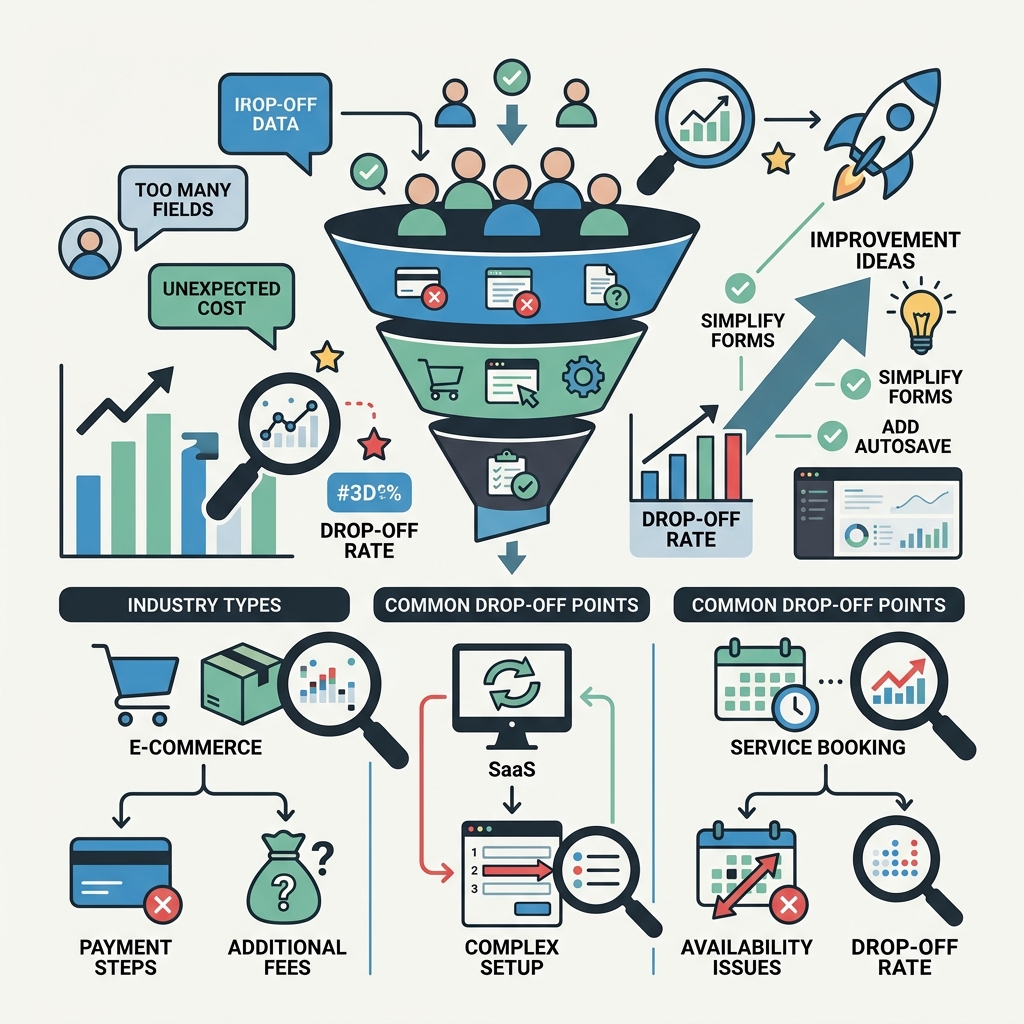
Abandonment patterns vary by use case. Here's what to expect and how to interpret it:
| Form Type | Typical Abandon Rate | Highest-Risk Field | Recovery Tactic |
|---|---|---|---|
| Checkout (E-commerce) | 70-79% | Shipping Address or Payment | Show costs upfront, enable guest checkout, auto-fill address |
| Lead Form (B2B SaaS) | 67-75% | Phone or Company Size | Make phone optional, reduce to 3 fields, use conditional logic |
| Contact Form (Website) | 60-70% | Message Body or File Upload | Auto-resize textarea, show file size limits, confirm before upload |
| Sign-up (Free Trial) | 65-73% | Password or Terms Acceptance | Generate password, explain terms in plain language, add trust badges |
If your form abandonment falls significantly higher than these benchmarks, focus on the identified high-risk field first. A single-field fix often yields outsized returns.
Recovery Strategies for Abandoned Forms
Tracking abandonment is only half the battle. You also want to recover partial submissions and convert abandoners into eventual customers.
Abandoned Form Email Sequences
Abandoned form emails achieve 50.5% open rates—5x higher than standard promotional emails. The reason: you're reaching someone who was already interested enough to begin your form.
Implement a trigger in your form service or backend: if a user visits your form page but doesn't submit within 24 hours, send them a recovery email. The email should:
- Reference the form they started (builds familiarity).
- Offer an alternative path (phone call, shorter form, video call).
- Reduce friction (link back to the form with fields pre-populated if possible).
- Include a direct contact option (phone, chat, email).
Test timing: some teams find that same-day recovery (within 4 hours) outperforms 24-hour delays, especially for checkout forms where intent is freshest.
Phone Outreach for High-Value Leads
For B2B forms where a single lead is worth significant revenue, direct phone follow-up converts 70-85% of partial entries back into completed submissions. If your database tracks partial submissions (users who filled in email and company name but abandoned before reaching the phone field), your sales team can call them directly.
Example script: "Hi, I see you started our sign-up form yesterday. Do you have 30 seconds? The form was only 2 more fields—I can walk you through it now if you want." This human touch often overcomes the psychological friction that caused the original abandonment.
Simplifying Forms Based on Segment Learnings
Once you've identified that the phone field abandons 40% of users, your next A/B test is obvious: run a variant without the phone field. Direct signups to a confirmation email that asks for the phone number post-conversion. This can reduce abandonment by 15-25% depending on your audience.
Similarly, if your data shows that users abandon between step 1 and step 2 of a multi-step form, consolidate to a single-page design and test. Single-page forms reduce abandonment by 20-30% on average.
For indie developers managing static sites, tools like FormBeam handle form submissions without requiring backend complexity. With minimal setup, you get reliable submission capture and the ability to iterate on form design without coding a new backend each time you want to test a field removal.
Avoiding Tracking Pitfalls
Common mistakes can make your abandonment data unreliable:
Conflating Form Page Views with Form Starts
If you count every visitor to a page containing a form as a form start, you inflate your denominator and deflate your abandonment rate artificially. A user might land on your site, see the form, and never scroll down to it. That's a page view, not a form interaction. Always trigger form_start only when the form container is visible or when the first field receives focus.
Counting Client-Side Validation Failures as Submissions
If your form_submit event fires before validation passes, you count failed submissions as successes. Rearrange your event logic: fire form_submit only after the backend confirms successful storage. If you can't reach your backend from the browser, use a server-side event that fires after the form data is processed.
Missing Field Names in Events
If your GTM field events don't include field-specific context (like the field name or ID), you can't identify which fields cause abandonment. Always tag events with granular metadata. If a field name is missing or truncated in GTM, your GA4 report will show a gap in your abandonment sequence.
Ignoring Mobile-Specific Data
If you lump mobile and desktop together, you miss critical patterns. Mobile abandonment is typically 10-15 percentage points higher than desktop. If your overall rate is 72% but mobile is 85% and desktop is 60%, the mobile experience is your bottleneck. Segment your GA4 reports by device category to uncover this.
Benchmarking Your Results
Once you have three weeks of clean abandonment data, compare it against industry benchmarks:
- E-commerce checkout: 70-79% is normal. Below 70% is excellent. Above 80% signals serious UX issues.
- B2B lead forms: 67-75% is typical. Rates above 75% suggest either aggressive field requirements or high traffic from cold/unqualified sources.
- Website contact forms: 60-70% is standard. Below 60% indicates a streamlined, frictionless design.
- Sign-up forms: 65-73% is common. Free-tier sign-ups skew lower (50-65%) because users expect minimal friction; enterprise trial forms skew higher (75-85%) because they collect more data upfront.
If you're 10+ percentage points above your industry average, your form needs optimization. Start with the highest-abandon field and iterate from there.
Conclusion
Form abandonment tracking transforms a vague problem ("people aren't finishing our forms") into a precise, actionable roadmap ("users abandon at the phone field, specifically when they see it's required"). By implementing GA4 events, GTM field-level tracking, and smart segmentation, you gain visibility into exactly where friction occurs.
The payoff is substantial. Teams that reduce abandonment by even 5% see 15-25% conversion rate improvements without acquiring a single additional visitor. For indie developers and small teams operating on lean customer acquisition budgets, this is often your highest-ROI optimization opportunity.
Start with native GA4 tracking if you're new to this. Graduate to GTM field events once you've mastered segments. And if your form volume justifies the cost, layer in specialized form analytics for heatmaps and time-on-field data. The key is to measure first, then iterate based on data, not guesses.
Try FormBeam to start capturing every form submission without backend complexity, giving you a reliable baseline for abandonment analysis.
FAQs
What is a good form completion rate?
A good form completion rate is the inverse of abandonment. If your abandonment rate is 70%, your completion rate is 30%. For most industries, a 25-35% completion rate (65-75% abandonment) is typical. E-commerce checkouts average 25-30% completion; contact forms average 30-40%. Completion rates below 25% signal either poor form design or misaligned audience expectations. If your rate is above 40%, you're in the top 10% and should document what you're doing right.
How do you identify which field causes the most abandonment?
Use GTM field-level event tracking or GA4 segments to see which fields users interact with least before abandoning. In GA4, run an Exploration report filtering for sessions that did NOT submit, then look at "Top Events" by field name. The fields appearing lowest in the list—fields that appear in fewer abandoning sessions—are the ones users are skipping or avoid completely. Phone and revenue fields consistently show the most avoidance. Test removing the highest-abandon field and measure the lift in completion rate.
Should I use a third-party form analytics tool or just GA4?
GA4 + Google Tag Manager provides 85% visibility into abandonment at zero cost beyond your existing analytics setup. Third-party tools like Zuko add visual heatmaps and time-on-field automation, capturing 95%+ of abandonment reasons. The trade-off is cost ($50-500/month) and data privacy. For indie developers, GA4 + GTM is sufficient if you're willing to spend 30-60 minutes on setup. Use third-party tools if you have high form volume, complex multi-step flows, or privacy-sensitive data requiring an enterprise solution.